
Known Participant
February 16, 2025
Question

Looking for a photoshop brush

  • February 16, 2025
  • 5 replies
  • 3039 views

Hi,

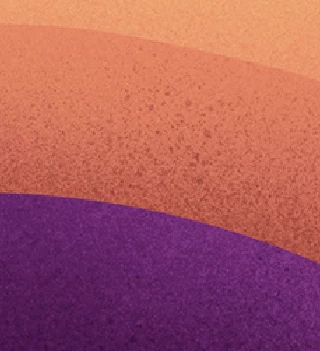
Can anyone help me with a brush for photoshop that is similar to this style, made in procrete? (I dont know the name of the brush it in procreate) I have looked all around internet, just to find brushed that are more static stippled. The brush will be used on shadows and highlights like in the reference.

Any ideas?
5 replies

c.pfaffenbichler
Community Expert
Community Expert
February 24, 2025

Participating Frequently
February 24, 2025

BAM!!!! I had to try a few times but VOILA!  My computer was being glitchy.  

You people are so amazing and PATIENT!!!  Thank you!!! Thank you!!!!

I'm warning you all now, I will be back for more instruction!  Thank you again. I know where my go to's are!!

Nancy OShea
Community Expert
Community Expert
February 20, 2025

Have you tried Kyle's Spatter brushes in the Special Effects Brushes folder?


Nancy O'Shea— Product User & Community Expert
Participating Frequently
February 21, 2025

I have downloaded some of his brushes.  I'll see what I can do. Thank you!

Participating Frequently
February 20, 2025

I am looking for a brush as well, maybe its not a brush but made with filters etc.  This is what it looks like.  Can someone help me create this, please??  I have searched for grunge brushes, sponge brushes, and splatter and ink brushes but have not found anything close.  I am in desperate need of creating this.


Trevor.Dennis
Community Expert
Community Expert
February 21, 2025

@Mona3319 do you realise that you could easily make a brush preset from your graphic?

You need to invert it and paint over the logo with black, and then use Edit > Define brush preset.

It's only 500 odd pixels, so probably not big enough, but you could upscale and sharpen it. 

Something else you could do is give the brush 100% Angle jitter in Brush Settings, which will rotate the brush every time it is stamped down

Participating Frequently
February 22, 2025

You are going to create a brand new brush preset which you'll make from your t-shirt graphic.

When you use Edit > Define Brush Preset anything that is black will be included, and everything that is white will remain transparent. So:


Crop down to just the graphic, and invert it (Ctrl i)

Draw a loose selection around the text and logo with the Lasso tool, and fill with black (Alt Backspace)

It needs to be a decent size, so use Image size (Ctrl Alt i).  Lets make it 2000 pixels.

It's going to be a bit muddy after the resize, so sharpen it to firm up its outline (Use Unsharp Mask to avoid fringing).

Then go Edit > Define Brush Preset give it a name and you are done.

You can stamp that directly to your project, or you can add some settings.

In Brush Settings >> Shape Dynamics give 100% Angle Jitter

Now the brush will be rotated between every stamp down, but because you'll have probably made the brush smaller, its outline will be less jagged.

You can use Scattering > Scatter Jitter to make the brush move randomly between each stamp, but don't go too high or you'll separate each stamp down.  Use the preview window at the bottom opf the panel as a guide.


The Photoshop Brush Engine can be a lot of fun.  You can't break anything by experimenting, and it is an incredibly useful tool to have in your Photoshop box of tricks.


If you want to keep any Brush Settings you apply, you need to save the preset again via the Brush Settings pop-out menu (three bars top right corner).  That will keep it safe untill you ether delete it, or do a major Photoshop update.  Tou keep it forever you need to export it ether as a single preset, but usually as a group.


In the Brushes panel, select your new brush presets, and group them.  Give the group a name.

Select your new group in the Brushes panel, and in its pop-out menu choose Export Selected Brushes

This will save them to a .abr file that you can keep forever, or share with friends, or sell on Brusheezy etc.


This is so awesome!  Thank you for this!

One more question.  Once i have this splatter the way I want, I want to subtract my logo from it.  Can you please give me step by step on how to do this as well?  I think I am using the wrong terminology when searching in google.  I'm not sure if I have to convert my paint splatter to a shape first before my logo can subtract from it. So sorry, you must think "Oh boy, these newbies"..lol

c.pfaffenbichler
Community Expert
Community Expert
February 17, 2025

The splatter appears to lay atop sharply separated areas, so I am not completely sure what you want to achieve. 

Could you post another example. 

davescm
Community Expert
Community Expert
February 16, 2025

In the brushes panel type Spatter into the search box. If that doesn't give you what you need from the brushes on your system, click at the top right of the brushes panel and select 'get more brushes'. That should take you to the Kyle brush collections, which include spatter brushes.


Dave