Participating Frequently
November 2, 2018
Answered

losing my brushes

  • November 2, 2018
  • 2 replies
  • 8653 views

hello,

i have arranged my brushes and loaded additional brushes. now after today's start of photoshop all these brushes are gone.

where can i find my brushes?

thanks

This topic has been closed for replies.
Correct answer Trevor.Dennis

This might be like one of those situations where you are invited to 'Save' something, but forget to take  note of where it being saved to, so you can never find it again.
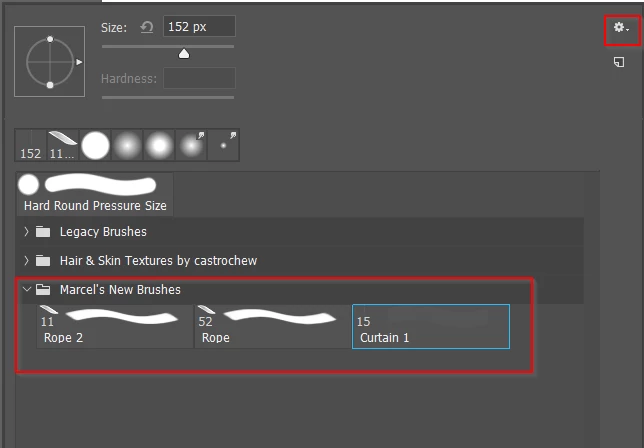
  • If you create new presets then they will be placed in a folder if you have one selected.  Or, if you don't have a folder selected, they will placed at the bottom of the right click menu. 
  • If you close and reopen Photoshop, they will still be there.  
  • If you delete any  or all of those presets, they are gone forever.
  • So it is a good idea to make a new folder, and drag your new presets into that folder.  You can then delete that folder, but still open it again by clicking on the little Cog icon.

I was not sure about the next bit, so I have just tested it.
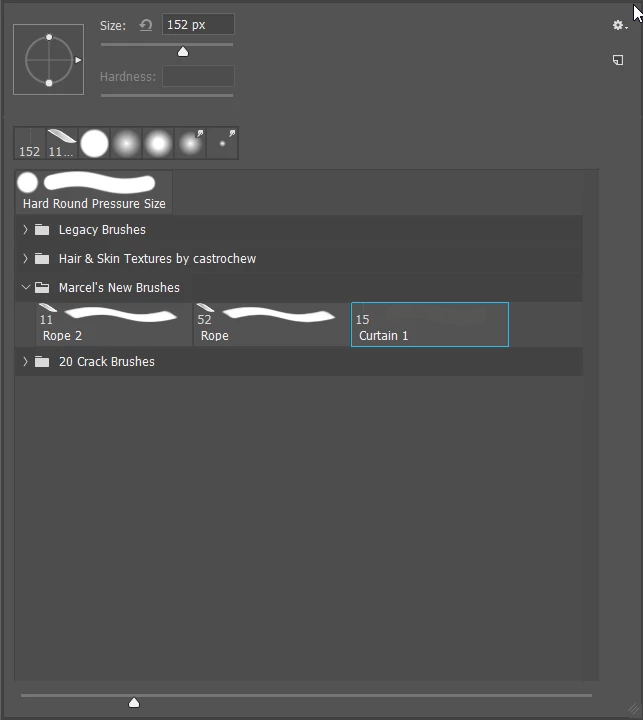
  • If you  download a brush set (.abr file)  from the internet and double click it, it will appear at the bottom of the right click menu.  (in my case '20 Crack Brushes).
  • If you right click and delete the new brush set, it is gone for ever. It is _not_ there in the little Cog list.

If, on the other hand, instead of double clicking the .abr file, you copy or move it to the relevant folder below, you  can then delete it from the right click menu, and reload it from the little cog list

Windows

C:\Users\[user name]\AppData\Roaming\Adobe\Adobe Photoshop CC 2019\Presets\Brushes\

Mac

Users/[user name]/Library/Preferences/Adobe Photoshop CC 2019 Settings/Brushes/

Note:  If you are a Windows user you will need to make Hidden files and folders viewable to access the App Data folder hierarchy.  I don't know if there is a similar restriction for OSX.

You've helped me clarify this for myself, so thanks for that.  

2 replies

Trevor.Dennis
Community Expert
Trevor.DennisCommunity ExpertCorrect answer
Community Expert
November 2, 2018

This might be like one of those situations where you are invited to 'Save' something, but forget to take  note of where it being saved to, so you can never find it again.

  • If you create new presets then they will be placed in a folder if you have one selected.  Or, if you don't have a folder selected, they will placed at the bottom of the right click menu. 
  • If you close and reopen Photoshop, they will still be there.  
  • If you delete any  or all of those presets, they are gone forever.
  • So it is a good idea to make a new folder, and drag your new presets into that folder.  You can then delete that folder, but still open it again by clicking on the little Cog icon.

I was not sure about the next bit, so I have just tested it.

  • If you  download a brush set (.abr file)  from the internet and double click it, it will appear at the bottom of the right click menu.  (in my case '20 Crack Brushes).
  • If you right click and delete the new brush set, it is gone for ever. It is _not_ there in the little Cog list.

If, on the other hand, instead of double clicking the .abr file, you copy or move it to the relevant folder below, you  can then delete it from the right click menu, and reload it from the little cog list

Windows

C:\Users\[user name]\AppData\Roaming\Adobe\Adobe Photoshop CC 2019\Presets\Brushes\

Mac

Users/[user name]/Library/Preferences/Adobe Photoshop CC 2019 Settings/Brushes/

Note:  If you are a Windows user you will need to make Hidden files and folders viewable to access the App Data folder hierarchy.  I don't know if there is a similar restriction for OSX.

You've helped me clarify this for myself, so thanks for that.  

jane-e
Community Expert
Community Expert
November 2, 2018

Trevor.Dennis  wrote

Mac

Users/[user name]/Library/Preferences/Adobe Photoshop CC 2019 Settings/Brushes/

On a Mac, it is:

User Name > Library > Application Support > Adobe > Adobe PS CC 2019 > Presets > Brushes

cinziamarotta
Participating Frequently
November 2, 2018

Hi,

Do you mean gone from the Brushes panel, or gone from your Presets folder as well?

Maybe you accidentally replaced your brushes instead of appending, or your preferences were reset.

When you install brushes, make sure they were into the Photoshop Brushes preset folder: Photoshop application folder > Presets > Brushes