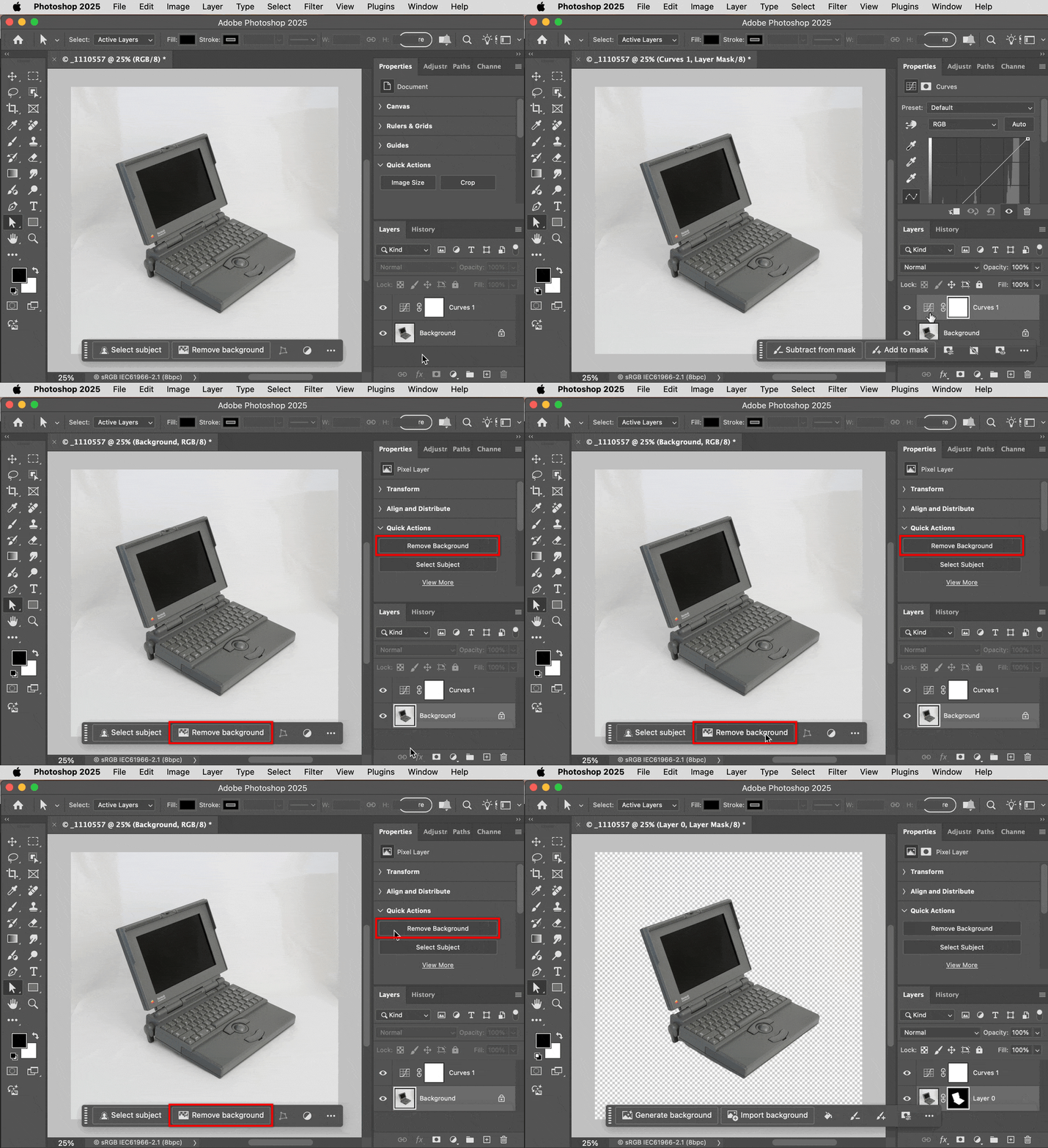
Like many features in many apps, Remove Background is available when the document is in a state where it makes sense for it to appear. When it should appear, you will see Remove Background in not just one place in Photoshop, but three, as shown in the demo below.
If you don’t see Remove Background, check what’s selected and what panels are displayed. In the demo below, it starts with nothing selected, so there is no Contextual Task Bar and no options that require a selection. When I select a Curves layer, the Contextual Task Bar appears and the Properties panel fills with Curves properties, but there is no Remove Background. Why? Because a fill layer type (such as Curves) has no background to remove.
Next I select the image layer. This type of layer can have background content, so now you see Remove Background appear, both in the Contextual Task Bar and in the Quick Actions group at the bottom of the Properties panel. Click whichever one you want.
You also see from this that even if someone hid the Contextual Task Bar, if the layer is selected the Remove Background button should still be available in the Properties panel, although you might have to scroll the Properties panel all the way down to see it.
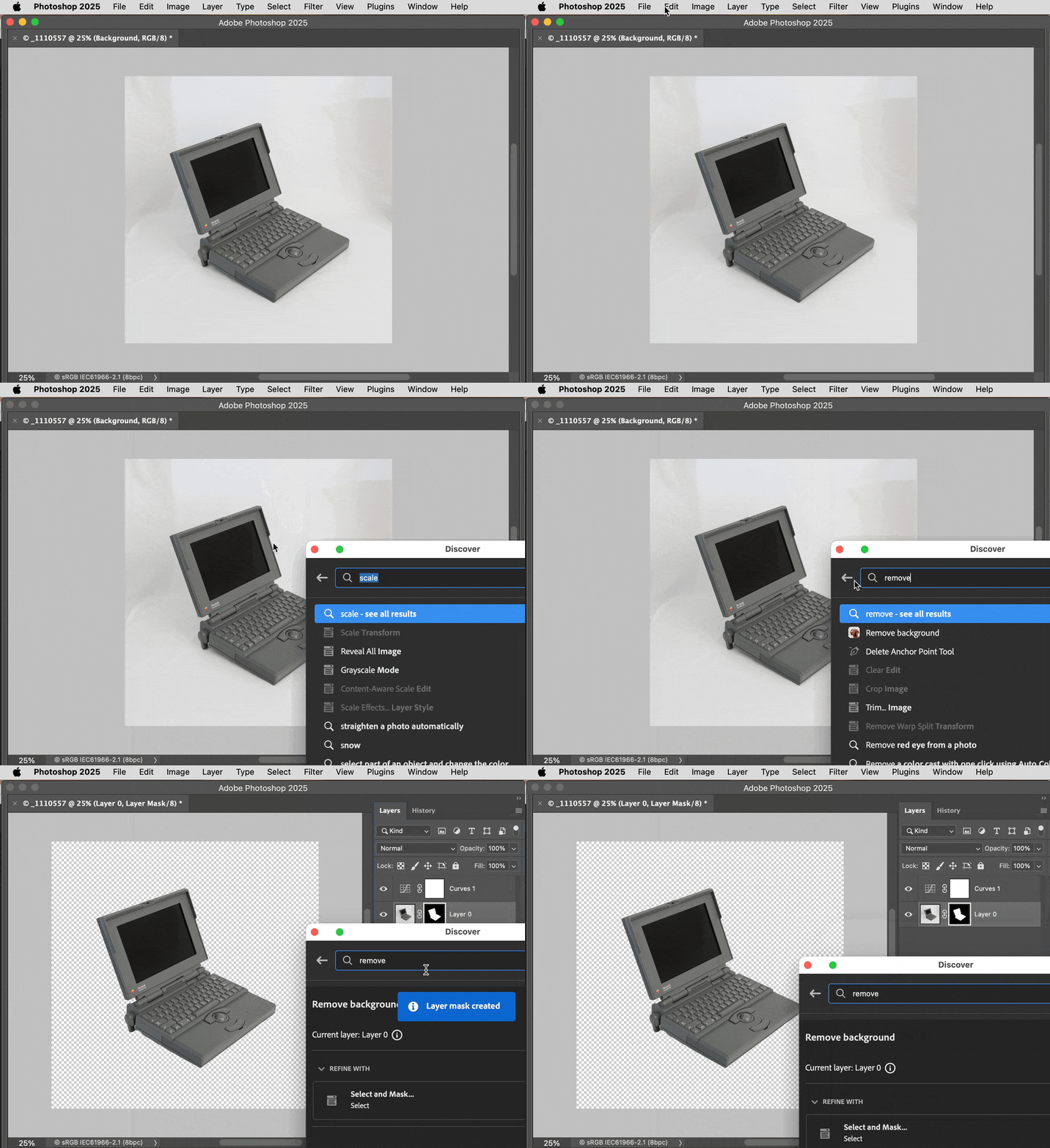
OK, what if everything is hidden? In the demo below, you cannot see any Remove Background buttons because all panels were hidden by pressing the Tab key. Here, you can take advantage of the Edit > Search/Discover feature or its keyboard shortcut, because not only can you look up a feature, you can also apply it from there even without using any panels or menu commands.
So there you have it, three different ways to apply Remove Background, one of which you can do even if no panels are visible.
(Although I do think it would be nice if Remove Background was available as a menu command, as other AI features are.)



 AdChoices