Participant
March 11, 2021
Question

Make point with pen tool

  • March 11, 2021
  • 1 reply
  • 407 views

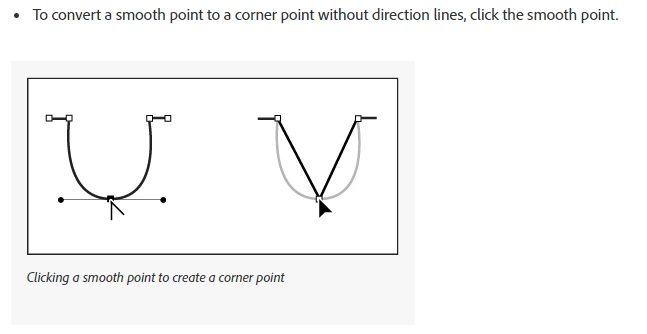
I found this image in an Adobe Edit Paths article, but I can't figure out how to make the smooth curve into a sharp point with straight lines. What am I doing wrong? Thanks!



This topic has been closed for replies.

1 reply

Myra Ferguson
Community Expert
Community Expert
March 11, 2021

If you have the Pen Tool selected, hold Alt (PC) or Option (macOS) to temporarily invoke the Convert Point Tool (or switch completely to the Convert Point Tool which is nested with the Pen Tool in the Toolbar). Then click on the point at the bottom of the curve to make it a sharp point.

annie_tyeAuthor
Participant
March 11, 2021

Thanks for the quick response! I'm still having trouble. Here's what I'm doing:


Make two points into corner points by holding Alt.

Make a third point in between those points. Then...

    If I make the third point a corner point before dragging, I get the shape on the left and the point seems to disappear.

    If I hold alt while I make the point and drag, I get the middle shape. 

    If I add another point at the bottom of the curve, I get the shape on the right.


Myra Ferguson
Community Expert
Community Expert
March 11, 2021

The handles appearing at the corners are what create a Bezier curve. If you want a V-shape, you'll need to convert all 3 points (the corners and the bottom) to anchor points. So to make a V in each of the examples:

  1. Use the Pen Tool to add a point a the bottom of the curve, and use the Convert Point Tool on the corners and bottom.
  2. Use the Convert Point Tool on all 3 points, and use the Direct Selection Tool to move the center point to the bottom.
  3. Use the Convert Point Tool on the corner points.


Here's more information on paths and Bezier curves in Photoshop:

https://helpx.adobe.com/photoshop/using/editing-paths.html