

Stephen Marsh
Community Expert
Community Expert
June 9, 2021
Answered

Making ScriptUI Buttons Do Something

  • June 9, 2021
  • 3 replies
  • 5665 views

The scriptUI builder from Joonas has reduced the amount of time that it takes to create a GUI, which is fantastic.


Presuming that I have my code already working without a GUI, I am really struggling to work out how to test and link up a function or other "result" to the GUI elements in the window.


Take for example this code, it is a simple test, it only has two radio buttons and an OK and Cancel button.
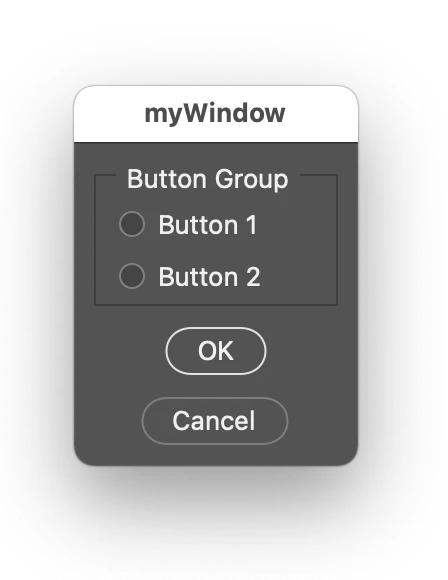


I have worked out how to test and return that it is "true" if a radio button is selected. This also works the same for checkboxes. All good so far.


However, I don't know what to do with the OK and cancel buttons. If I select a radio button and cancel, the function called by the button is executed. Obviously the expectation is that if cancel is pressed, then nothing happens.


Do I need to do anything for the OK button?


I am finding it hard looking at existing code and have not had much success with othe resources such as forum searches.


There must be a resource that simply explains this stuff with working examples? It is taking hours of research for me to get a UI element to do something correctly, so am I missing a basic resource?


This is of course just the start of my questions, there are many different UI controls (dropdowns, fields etc)... Which I'll get to.

This topic has been closed for replies.
Correct answer Kukurykus

I hate to admit defeat, however, I just cant work out how to access the array index, or another method.


This snippet works to run a function based on the selected dropdown array item:


    if (dropdownMenu.selection.text === "Item 1") {
        // CALL THE FUNCTION
        dropdownItem1result();
    }


These variations don't work:


(dropdownMenu.selection.text[0])
(dropdownMenu.selection[0])
(dropdownMenu[0])
(dropdownMenu_array.selection.text[0])


I'm sure that the answer is obvious to those in the know, but very frustrating for me. It took me hours to figure out how to do this the first time, I'm just looking to learn other ways, by index or any other workable method so that I can explore the pros/cons.


dropdownMenu.selection.index

3 replies

Stephen Marsh
Community Expert
Community Expert
June 9, 2021

In the previous case, I already knew how to test the radio button (or checkbox) state in order to call a function to "do something".


The next area where I am working things out blindly is testing for a dropdown array... I settled on comparing that the content of the dropdown was equal to itself. The following code seems to work as expected:


// DIALOG
var dialog = new Window("dialog");
dialog.text = "Dialog";
dialog.orientation = "row";
dialog.alignChildren = ["center", "top"];
dialog.spacing = 10;
dialog.margins = 16;

// DROPDOWNPANEL
var dropdownPanel = dialog.add("panel", undefined, undefined, {
    name: "dropdownPanel"
});
dropdownPanel.text = "Dropdown Label";
dropdownPanel.orientation = "column";
dropdownPanel.alignChildren = ["left", "top"];
dropdownPanel.spacing = 10;
dropdownPanel.margins = 10;

var dropdownMenu_array = ["Item 1", "Item 2"];
var dropdownMenu = dropdownPanel.add("dropdownlist", undefined, undefined, {
    name: "dropdownMenu",
    items: dropdownMenu_array
});
dropdownMenu.selection = 0;

// OK & CANCEL BUTTONS
var okButton = dialog.add("button", undefined, undefined, {
    name: "okButton"
});
okButton.text = "OK";
okButton.alignment = ["center", "center"];

var cancelButton = dialog.add("button", undefined, undefined, {
    name: "cancelButton"
});
cancelButton.text = "Cancel";
cancelButton.alignment = ["center", "center"];

// WRAP THE UI ELEMENTS INTO A FUNCTION
function buttonActions() {

    // DROPDOWN SELECTION TESTS
    if (dropdownMenu.selection.text === "Item 1") {
        // CALL THE FUNCTION
        dropdownItem1result();
    }

    if (dropdownMenu.selection.text === "Item 2") {
        // CALL THE FUNCTION
        dropdownItem2result();
    }

    // DROPDOWN FUNCTIONS

    function dropdownItem1result() {
        alert("You selected Item 1");
    }

    function dropdownItem2result() {
        alert("You selected Item 2");
    }

}

// SHOW THE WINDOW & CALL THE DROPDOWN FUNCTION ON OK, OR CANCEL THE SCRIPT
// dialog.show() - 2 ? buttonActions() : alert("Script cancelled!");
dialog.show() - 2 ? buttonActions() : undefined;


I presume that an alternative method to determine which dropdown menu item was selected would be to use a test for the array item index number? If so, I can't figure that alternative method out though.


And I'm guessing that testing other GUI elements will present their own challenges. What does editText use? What about sliders? This is why I'm struggling to find documentation and easy to understand samples. Building the scriptUI is simple as the tool from Joonas does all the hard work, but getting the interface elements to "do something" is now my challenge.


Kukurykus
Legend
June 9, 2021
Stephen Marsh
Community Expert
Community Expert
June 9, 2021

Thanks again, I'll look into the linked thread...

Kukurykus
Legend
June 9, 2021


win = new Window('dialog')
win.add('button', undefined, 'OK')
win.add('button', undefined, 'Cancel')
alert(win.show() - 2 ? 'Start' : 'Leave')


Stephen Marsh
Community Expert
Community Expert
June 9, 2021

@Kukurykus 


Thank you, in it's simplicity, your code is too complex! :]


I cant work out how to adapt this to the script code previously posted. This is why I posted the code, I need to see how everthing links up in order to understand what is going on.


Remember, I only know enough to be dangerous and what I know is on a needs as basis.


I believe that I need to do something here:


// TEST OK BUTTON
// >> CODE HERE <<

// TEST CANCEL BUTTON
// >> CODE HERE <<
Kukurykus
Legend
June 9, 2021

I was writing the answer before you posted the code:


// SHOW THE WINDOW

function yourCode() {
	function button1result() {
			alert("You selected Button 1");
	}

	function button2result() {
			alert("You selected Button 2");
	}

	if (radioButton1.value === true) {
			button1result();
	}

	if (radioButton2.value === true) {
			button2result();
	}
}

myDialogWindow.show() - 2 ? yourCode() : alert('Exit!')


Stephen Marsh
Community Expert
Community Expert
June 9, 2021

Here is the code:


#target photoshop

// GUI - START

// MYDIALOGWINDOW
var myDialogWindow = new Window("dialog"); 
    myDialogWindow.text = "myWindow"; 
    myDialogWindow.orientation = "column"; 
    myDialogWindow.alignChildren = ["center","top"]; 
    myDialogWindow.spacing = 10; 
    myDialogWindow.margins = 10; 

// BUTTONGROUP
var buttonGroup = myDialogWindow.add("panel", undefined, undefined, {name: "buttonGroup"}); 
    buttonGroup.text = "Button Group"; 
    buttonGroup.orientation = "column"; 
    buttonGroup.alignChildren = ["left","top"]; 
    buttonGroup.spacing = 10; 
    buttonGroup.margins = 10; 

var radioButton1 = buttonGroup.add("radiobutton", undefined, undefined, {name: "radioButton1"}); 
    radioButton1.text = "Button 1"; 

var radioButton2 = buttonGroup.add("radiobutton", undefined, undefined, {name: "radioButton2"}); 
    radioButton2.text = "Button 2"; 

// MYDIALOGWINDOW
var okButton = myDialogWindow.add("button", undefined, undefined, {name: "okButton"}); 
    okButton.text = "OK"; 

var cancelButton = myDialogWindow.add("button", undefined, undefined, {name: "cancelButton"}); 
    cancelButton.text = "Cancel"; 

// SHOW THE WINDOW
myDialogWindow.show();

// GUI - FINISH

// TEST BUTTON 1
if (radioButton1.value === true) {
    button1result();
}

// TEST BUTTON 2
if (radioButton2.value === true) {
    button2result();
}

// TEST OK BUTTON
// >> CODE HERE <<

// TEST CANCEL BUTTON
// >> CODE HERE <<


// BUTTON FUNCTIONS

function button1result() {
    alert("You selected Button 1");
}

function button2result() {
    alert("You selected Button 2");
}