Known Participant
October 10, 2021
Question

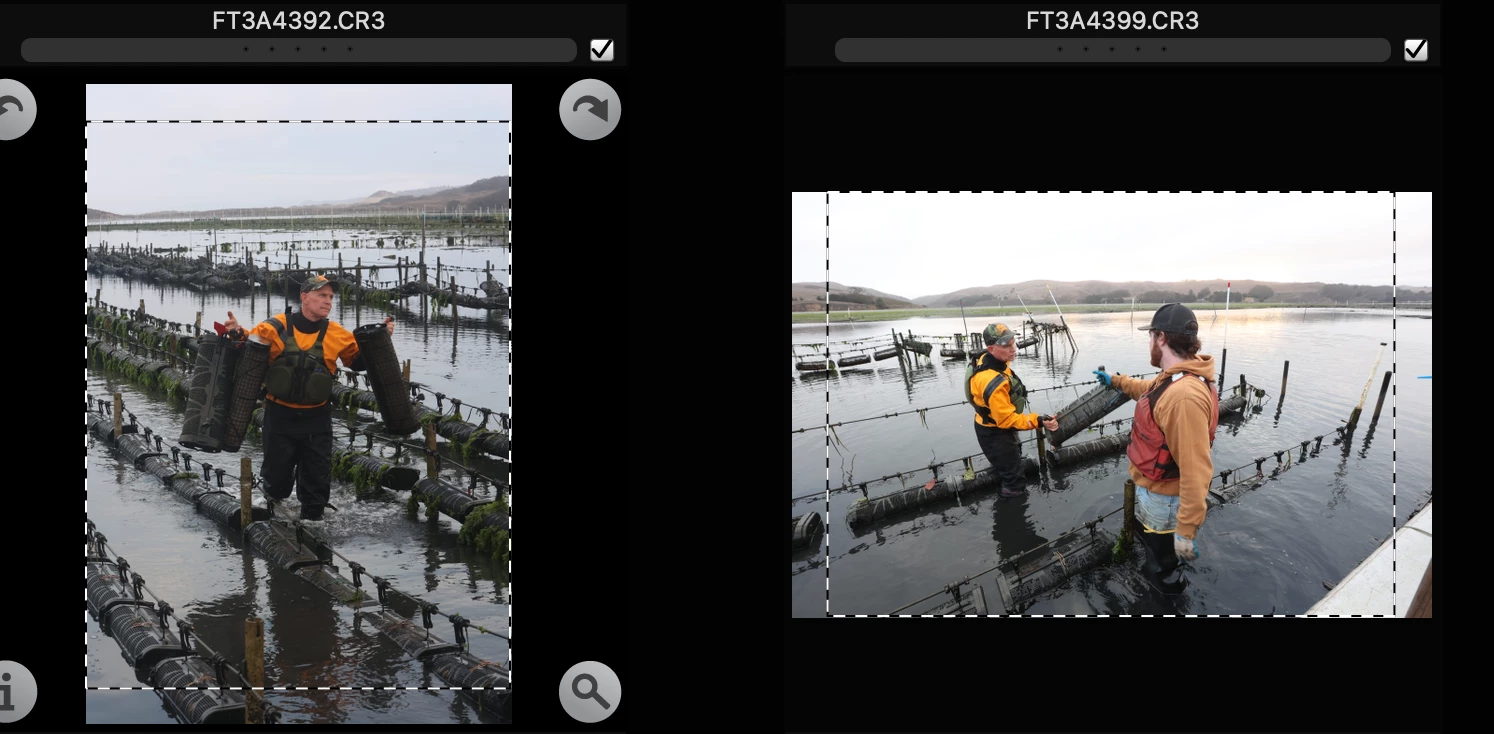
Marching ants, crop marks on pix
  • October 10, 2021
  • 4 replies
  • 465 views

 I put these photos in PS, cropped them and now in Photomechanic they have these marks. How do I get rid of them please?

This topic has been closed for replies.

4 replies

jane-e
Community Expert
Community Expert
October 11, 2021

When you cropped, did you have "Delete Pixels" on or off in the options bar? Is the part outside the dotted lines the part your cropped off? If so, go back and crop again with Delete Pixels.


If that's not it, please ask at the Photo Mechanic Support page:

https://home.camerabits.com/contact/


~ Jane


KR Seals
Community Expert
Community Expert
October 10, 2021

These look like the 2x3 aspect ratio from the camera has been cropped to 4x5/8x10. I think this information is available to Photo Mechanic in a .xmp sidecar file and PM is displaying it. If you are looking at the original raw file in Photo Mechanic, it will always show the full image. Take a look at the new file in Photo Mechanic you created in PS, a .jpg, .psd. tiff and compare to the original raw. 


Edit: I just gave this a try with an image that I cropped heavily yesterday in Lightroom Classic. I just did a save in LrC (Ctl+S) which creates an .xmp sidecar file next to the original raw. When I opened that image in PM, it was clearly showing the crop that I did in LrC.


Knowing this, you can delete all the sidecar (.xmp) files for the images where they are troubling you. However, you should be aware if there is any other reason the the sidecar files are important to your workflow.

PS - I looked through the PM preferences and could not find a way keep PM from displaying the image change information from the sidecar file. PM displays all of the xmp information about changes to the file, not only crop marks. I suggest you check with Camera Bits, the publisher of PM, to see if there is a way other than deleting the side cars to avoid showing the crop indication.

Ken Seals - Nikon Z 9, Z 8, 14mm-800mm. Computer Win 11 Pro, I7-14700K, 64GB, RTX3070TI. Travel machine: 2021 MacBook Pro M1 MAX 64GB. All Adobe apps.
Conrad_C
Community Expert
Community Expert
October 10, 2021

Some questions that can help narrow this down:


The filenames indicate that they are raw files (CR3). Photoshop cannot save edits made to .CR3 files; but Adobe Camera Raw can, by indicating the edits in an .XMP sidecar file that other raw-capable applications can read. If they are Canon raw files, then did you actually edit them using Adobe Camera Raw which comes with Photoshop? If so, Photo Mechanic may simply be indicating the crop areas you made, vs the original area. I am not sure about that because I’m not familiar with Photo Mechanic.


As a check, if you view the same images in completely different software (Apple Preview, macOS Finder QuickLook, Adobe Bridge, Affinity Photo…), do you see the dashed lines when viewing the images at full size? If you do, then they somehow got into the images and that is something to figure out. If you don’t see the dashed lines in any other software, then you are only seeing a crop area that Photo Mechanic indicates in its thumbnail previews but is not a visible part of the actual image.


Do the dashed rectangles in the Photo Mechanic thumbnail previews match the crop area you applied? Do they match what you see if you open the images in the Crop tool built into Photo Mechanic itself?

Nancy OShea
Community Expert
Community Expert
October 10, 2021

Which operating system?

Which ver of Photoshop?

Please take us through the exact steps you used. 

This does not look like a crop.  Rather it looks like a rectangle shape with zero fill and dashed stroke lines around it.


Nancy O'Shea— Product User & Community Expert