Chabot Creative
Participating Frequently
January 15, 2024
Question

Masking and Brush tool Greying the image

  • January 15, 2024
  • 2 replies
  • 706 views

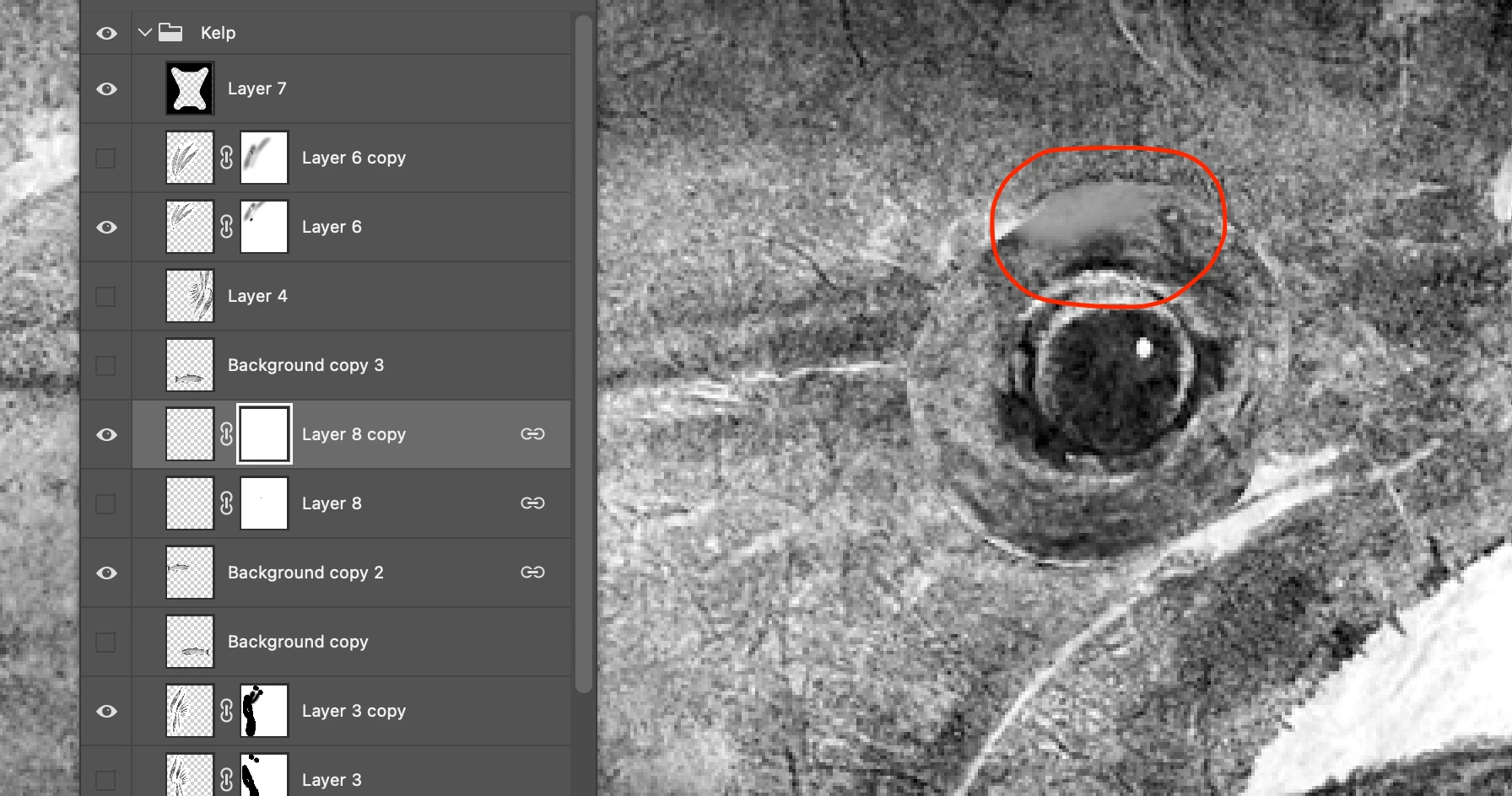
Recently updated my Photoshop to 25.3.1… Previously when I had a mask applied to a layer and I used my brush tool at say 50% with a hardness of say 10-30% to brush away parts of an image to blend with the image underneath it would do it clear - now it seems to be smudging the image to levels of grey versus doing it as a nice clear fade if that makes sense. With this image I've tried RGB and Greyscale mode and get the same effect… What changed? Have reset brushes and preferences to default and same effct.Any ideas how to fix?


Image here you can see I'm trying to brush away this eye is on a seperate layer to blend in with the image underneath but it seems to turning it grey and smudgey looking… frustrating.


Thanks / Jamie
 

This topic has been closed for replies.

2 replies

Mike_Gondek10189183
Community Expert
Community Expert
January 16, 2024

Hard to say. Your screenshot would be more helpful if were fewer layers and we could see larger thumbnail sizewhat is in contents of the layers. Not seeing your brush settings also. 


I would suggest that your brush is not in normal mode, as that can accidentally be changed with a keyboard command. Check all these settings to match what I show.


If you export ca copy of the file to a flattened format, and the issue does not show, might be a graphics card issue or need to turn off graphics processor.


Trevor.Dennis
Community Expert
Community Expert
January 16, 2024

Yes, we can't see wood for trees, as they say.


@Chabot Creative  Let's try and tie it down to either the brush or the mask.

Delete the layer mask.

Cmd click the fish eye to load as a selection.

Reduce the selection size by something like 5 pixels (I can't see your image size so I am guessing)

Add a layer mask, and feather the mask in Mask Properties.


Does this do what you'd expect, or do you still have the artefact?


Have you tried a different document?

Have you tried using that brush preset in a different document against a white background?

Have you tried filling the mask with black, and they adjusting its density?


Trevor.Dennis
Community Expert
Community Expert
January 15, 2024

Right off the bat, I am looking at the shape of the cursor, which makes me suspect that the preset you are using is not the plain vanilla round preset, so check that for a start.  If the issue persists after resetting the preset:


What do you see if you turn that layer off?

What do you see if you disable the mask (Shift click)?


If it were not for your screen shot showing that the mask is selected, I'd suspect that you were brushing directly on the image.

Layer 8 copy appears to be empty judging by its thumbnail.

Chabot Creative
Participating Frequently
January 15, 2024

All presets were reset and preferences reset as I mentioned. NOT brushing directly on the image…

It's super frustrating why I use to be able to add a mask and use a low opacity with a brush and lightly brush away and area to show through to the background and now it's making it look grey and feathered… BS

Chabot Creative
Participating Frequently
January 15, 2024

O and you can't see the cursor in the original image - that read oval is me circling the area FYI