luciah43782914
Participant
July 10, 2019
Answered

Masking tool not working

  • July 10, 2019
  • 6 replies
  • 1654 views

I seem to be having endless issues with the masking tool. Tonight I'm trying to select a subject so that I can change the background and I'm getting this strange ghost effect in my mask.  I used the refine edge tool for the hair.  Maybe somebody out there has experienced this and knows how to resolve it please? Thanks in advance.
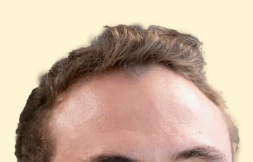
This topic has been closed for replies.
Correct answer luciah43782914

Greetings All

I eventually spent two hours online with Adobe - we uninstalled and reinstalled and voila - problem solved!

6 replies

Participant
October 29, 2021

Love the new masking tool but have run into a problem. Is it just me? Having masked the sky, duplicated and inverted it all was fine. I have two masks which include the whole photo. Great. Then i noticed the sky had incuded something I didn't want. So delete the inverted mask, use the subtract and add options to edit the sky mask, then go back and copy and invert. Only problem, is that the invert option was missing for the edited sky mask after editing it! Is it just me?

Participating Frequently
July 15, 2019

Cool. So the process was fine and it was a program error. Got it.

macpawel
Participating Frequently
July 10, 2019

Hello Luciah,

I'm not sure but it's typical for this tool.

Try to use Shift Edge slider and turn it right

Try tu use smaller size of Refine Edge Tool

Try to downscale your image - sometimes out computer hasnot enought memory to work with hair correctly

or

try to use Detect Edges option and only Radius slider?

jane-e
Community Expert
Community Expert
July 10, 2019

luciah43782914  wrote

I used the refine edge tool for the hair.

Hi Lucia,

What version of Photoshop and do you mean the Refine Edge Brush Tool within Select and Mask? If so, make sure it is a small brush.

Jane

Mike_Gondek10189183
Community Expert
Community Expert
July 10, 2019

Sorry nto seeing a ghost effect, which I am looking for a white halo, unbless by ghost you mean a copy of the image at lower opacity.

Select & Mask is one of my areas of expertise, but your post wont get good responses  until we can understand EXACTLY what you need. Bigger screenshots and  markup can help as done in the professional world.

Sahil.Chawla
Adobe Employee
Adobe Employee
July 10, 2019

Hi Lucia,

That shouldn't be happening, let's make it right.

As you're seeing ghosting effect when using masking, could you please let us know the version of Photoshop you're using? You can verify the version by going to Help > System Info

Also, what operating system are you working with?

Does it happen with every image?

Could you please try deselecting "Use Graphics Processor" located in Photoshop's Preferences > Performance, then relaunch Photoshop and let us know if it helps?

Regards,
Sahil

luciah43782914
Participant
July 11, 2019

Hi Sahil

Thank you for your response.  I'm using PS CC 2019 Version 20.0.4 20190227 on Windows 10 64-bit version 10.01134.753

Yes, it's happening with every image I have tried. I deselected "use graphics processor" and relaunched PS. I used a small brush (refine edge brush tool) after I selected and masked my subject, with hardness set to 100%, Spacing on 0 and Size "off". I set the shift edge slider to +24%. @macpawel  It's made a slight difference but still not satisfactory in comparison to how I've seen the tool used elsewhere with 100% better results than I'm getting. It leaves what I can only describe as "white residue around the hairline.  @mikegondek

Participating Frequently
July 11, 2019