Aaronuws
Participant
February 20, 2026
Answered

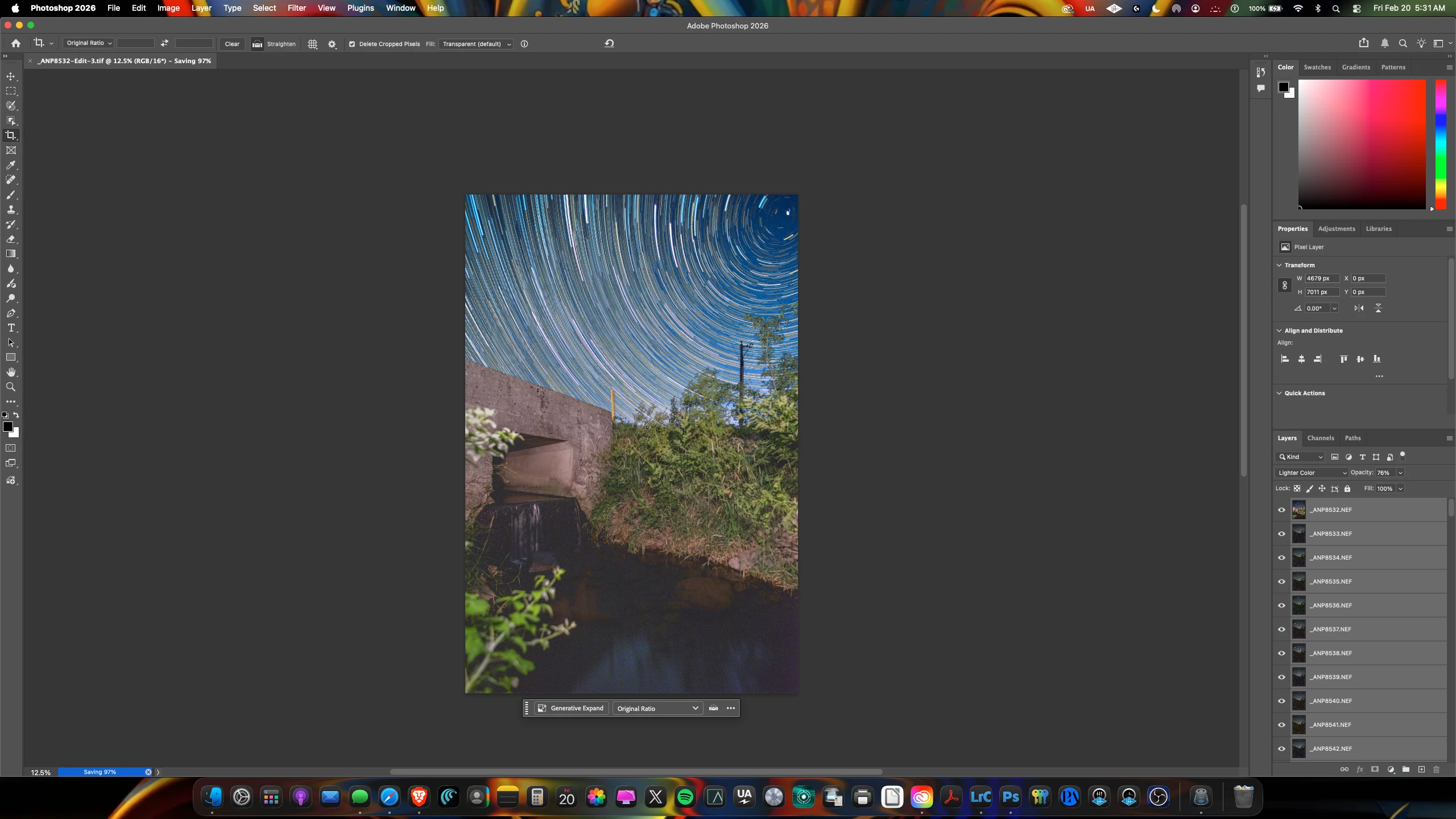
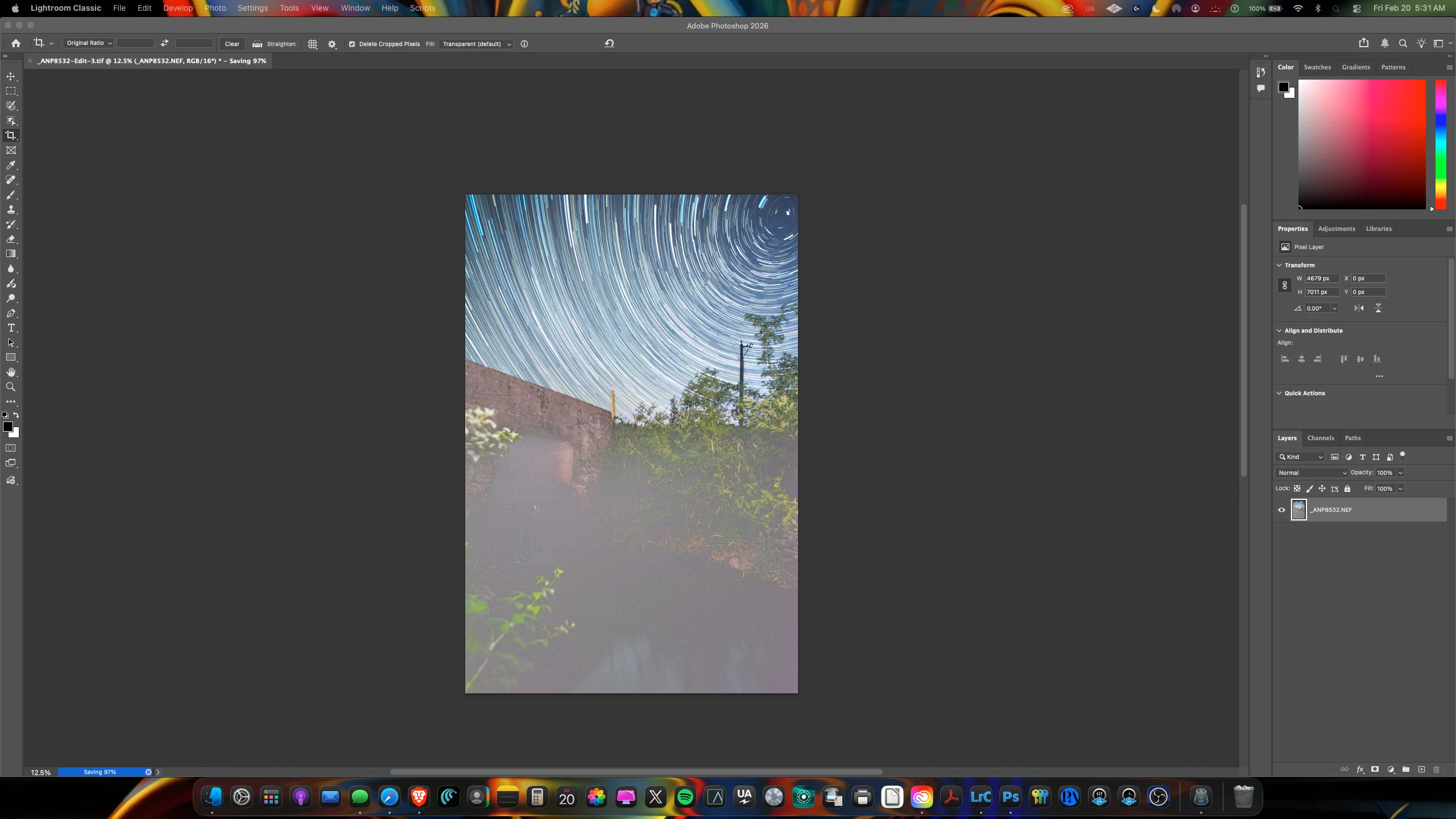
Merge Visible or Flatten Image, it makes the image foggy and brighter and destroys the image.

  • February 20, 2026
  • 2 replies
  • 40 views

I haven't used PS much the past couple of years. But I was trying to re-edit an old star stack. When I go to Merge Visible or Flatten Image, it makes the image foggy and brighter.


I don't think I am doing anything wrong as I have done this many times in the past, but maybe there have been changes I haven't been aware of or maybe it's my MacBook Pro M1Silicone 26.3 

I uninstalled and reinstalled, and same deal. DO I need an older version or did Adobe break something in their code? Even Command/Option/Shift/E didn’t work.


Any help would be nice as It won’t save (it’s stuck at 98%).


    Correct answer davescm

    To expand on Stephen’s answer.

    When you view at less than 100% you are not seeing a true preview of the image blend. As an example, at 50% four image pixels make 1 screen pixel. That is the case both before and after flattening but there is a major difference. Before flattening, the four pixels are averaged on each layer then blended.
    When flattening each individual pixel is blended then the four are averaged for the preview. For many, in fact, most photographs the difference is not noticable. But for images with fine noise i.e. major differences between those pixels, then it becomes very noticable. So the blend should always be checked at 100% zoom, which in Photoshop means 1 image pixel mapped to 1 screen pixel before flattening. 

    Check that first. If you still see a difference then please post again, with both before and after shown at 100% zoom.

    Dave

    2 replies

    davescm
    Community Expert
    davescmCommunity ExpertCorrect answer
    Community Expert
    February 20, 2026

    To expand on Stephen’s answer.

    When you view at less than 100% you are not seeing a true preview of the image blend. As an example, at 50% four image pixels make 1 screen pixel. That is the case both before and after flattening but there is a major difference. Before flattening, the four pixels are averaged on each layer then blended.
    When flattening each individual pixel is blended then the four are averaged for the preview. For many, in fact, most photographs the difference is not noticable. But for images with fine noise i.e. major differences between those pixels, then it becomes very noticable. So the blend should always be checked at 100% zoom, which in Photoshop means 1 image pixel mapped to 1 screen pixel before flattening. 

    Check that first. If you still see a difference then please post again, with both before and after shown at 100% zoom.

    Dave

    Stephen Marsh
    Community Expert
    Community Expert
    February 20, 2026

    You need to view at 100% where one display pixel = one image pixel.

    Aaronuws
    AaronuwsAuthor
    Participant
    February 20, 2026

    I appreciate the quick response! It does have the haze still when I zoom into 100% (even without the merge). The preview looks normal. I did an edit a few years ago, but it didn’t have this issue though. Maybe I am not fully understanding “You need to view at 100% where one display pixel = one image pixel.”