
mauricior6328708
Inspiring
August 26, 2016
Answered

Modal model or dialog box to determine the choice of options

  • August 26, 2016
  • 2 replies
  • 998 views

Hello everybody, greetings to everyone! I've been trying to understand a lot about Java script, but without much success. Programming is not for everyone. I know it will not be easy but it costs I ask. I have here a challenge for us to build a "modal" dialog box to perform various functions with different scripts. If possible some of the big developers forum here trying to create a simple modal model with at least 4 options and each option run a script corresponds to its proper function. I believe that with from four functions, I will get to edit the template and add other functions.

"The dream of graphics professional is a nightmare for the developer!"
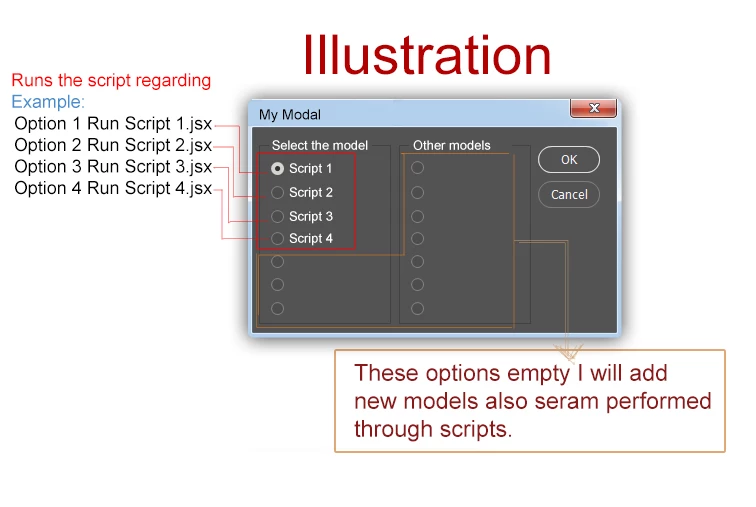
Use these scripts as the model options: (It will facilitate my understanding)

Scripts example:

http://zip.net/bdtr4L

This topic has been closed for replies.
Correct answer mauricior6328708

Jarda Bereza, thanks for the help! Sorry for the delay...

I've found the answer that solved my problem in Extensionbuilder3 forum

https://forums.adobe.com/thread/2201000

Thanks to the great master Davide Barranca "DBarranca". He created a great model and sent to me through social networks.

Thank you!

2 replies

Jarda Bereza
Inspiring
August 28, 2016

Hmm I noticed that I can also use tripple quotes instead slashes on everyline which is more comfortable. Example:

windowResource = """dialog {

    orientation: 'column',

    alignChildren: ['fill', 'top'],

    preferredSize:[300, 130],

    text: ' Split text layers',

    margins:15,


    sliderPanel: Panel {

        orientation: 'row',

        alignChildren: 'right',

        margins:15,

        text: ' Split by characters ',

        st: StaticText { text: 'Split by:' },

        te: EditText { text: '',  justify: 'left'}

        }


    specialPanel: Panel {

        orientation: 'row',

        alignChildren: 'right',

        margins:15,

        text: ' Special split ',

        chLetter: Checkbox { text: 'Each letter'}

        chParagraphStyles: Checkbox { text: 'Paragraph styles'}

        chCharacterStyles: Checkbox { text: 'Character styles'}

        chTab: Checkbox { text: 'Tab'}

        chLineEnd: Checkbox { text: 'Line end'}

        chLineBreak: Checkbox { text: 'Line break'}

        }


    bottomGroup: Group{

        chRemoveOriginal: Checkbox { text: 'Remove original layer'}

        cancelButton: Button { text: 'Cancel', properties:{name:'cancel'}, size: [120,24], alignment:['right', 'center'] },

        applyButton: Button { text: 'Do magic!', properties:{name:'ok'}, size: [120,24], alignment:['right', 'center'] },

    }

}"""

mauricior6328708
mauricior6328708AuthorCorrect answer
Inspiring
August 29, 2016

Jarda Bereza, thanks for the help! Sorry for the delay...

I've found the answer that solved my problem in Extensionbuilder3 forum

https://forums.adobe.com/thread/2201000

Thanks to the great master Davide Barranca "DBarranca". He created a great model and sent to me through social networks.

Thank you!

Jarda Bereza
Inspiring
August 28, 2016

Here is my UI code I am working on:

windowResource = "dialog {  \

    orientation: 'column', \

    alignChildren: ['fill', 'top'],  \

    preferredSize:[300, 130], \

    text: ' Split text layers',  \

    margins:15, \

    \

    sliderPanel: Panel { \

        orientation: 'row', \

        alignChildren: 'right', \

        margins:15, \

        text: ' Split by characters ', \

        st: StaticText { text: 'Split by:' }, \

        te: EditText { text: '',  justify: 'left'} \

        } \

    \

    specialPanel: Panel { \

        orientation: 'row', \

        alignChildren: 'right', \

        margins:15, \

        text: ' Special split ', \

        chLetter: Checkbox { text: 'Each letter'} \

        chParagraphStyles: Checkbox { text: 'Paragraph styles'} \

        chCharacterStyles: Checkbox { text: 'Character styles'} \

        chTab: Checkbox { text: 'Tab'} \

        chLineEnd: Checkbox { text: 'Line end'} \

        chLineBreak: Checkbox { text: 'Line break'} \

        } \

    \

    bottomGroup: Group{ \

        chRemoveOriginal: Checkbox { text: 'Remove original layer'} \

        cancelButton: Button { text: 'Cancel', properties:{name:'cancel'}, size: [120,24], alignment:['right', 'center'] }, \

        applyButton: Button { text: 'Do magic!', properties:{name:'ok'}, size: [120,24], alignment:['right', 'center'] }, \

    }\

}"

// define new window

win = new Window(windowResource);

//add combobox dynamicaly

var dropdownSplitingCharactersOptions = win.sliderPanel.add('dropdownlist',undefined,["remove character","left side","right side"]);

// set default options

dropdownSplitingCharactersOptions.selection=1;

win.show();

win.bottomGroup.cancelButton.onClick = function() {

  return win.close();

};

win.bottomGroup.applyButton.onClick = function() {


/* var splitBy = escapeRegExp(win.sliderPanel.te.text);

  if (win.specialPanel.chLineBreak.value==true){

      splitBy+="\r";

  }

  if(win.specialPanel.chLineEnd.value==true){

      splitBy += String.fromCharCode(03);

  }

  if (win.specialPanel.chTab.value==true){

      splitBy+="\t";

  }

  if (win.specialPanel.chLetter.value==true){

      splitByEveryLetter=true;

  }

  if (win.bottomGroup.chRemoveOriginal.value==true){

      removeOriginalLayer=true;

  }

  // read dynamic added options

  if (dropdownSplitingCharactersOptions.selection==0){

      removeSplitChar=true;

  }

  if (dropdownSplitingCharactersOptions.selection==1){

      splitCharOnLeftSide=true;

  }

  paragraphSplit = win.specialPanel.chParagraphStyles.value;

  characterSplit = win.specialPanel.chCharacterStyles.value;


  var settingsToRemember = {};

  settingsToRemember.splitBy=splitBy;

  app.putCustomOptions ("Split", settingsToRemember, true);*/

  win.close();

  /*doJob(splitBy);


  smartQuotes (qoutesSettings);*/

};

I commented code in onClick method because there are not functions and variables so you can run it. But it is for example and there is work in progress. I store settings in global variables.

Also Object Model Viewer in ExtendScript toolkit could be handy: http://sklad.bereza.cz/00-jarda/00_screenshot/2016-08-28_233814.jpg  Menu > Help > Object Model Viewer