
Question
Modifying a selection (e.g. "Border") causes feathering
I make a selection with the rectangular select tool. There is no feathering to it; it is completely solid, 100% opacity, all the way around. Anti-aliasing is disabled and feather is set to 0 px.
I go to Select > Modify > Border. It creates a border.
I go to fill in the modified selection area (with a brush or the paint bucket, same behavior either way) but instead of being solid, it's feathered the entire way around and the fill goes beyond the marked selection area.
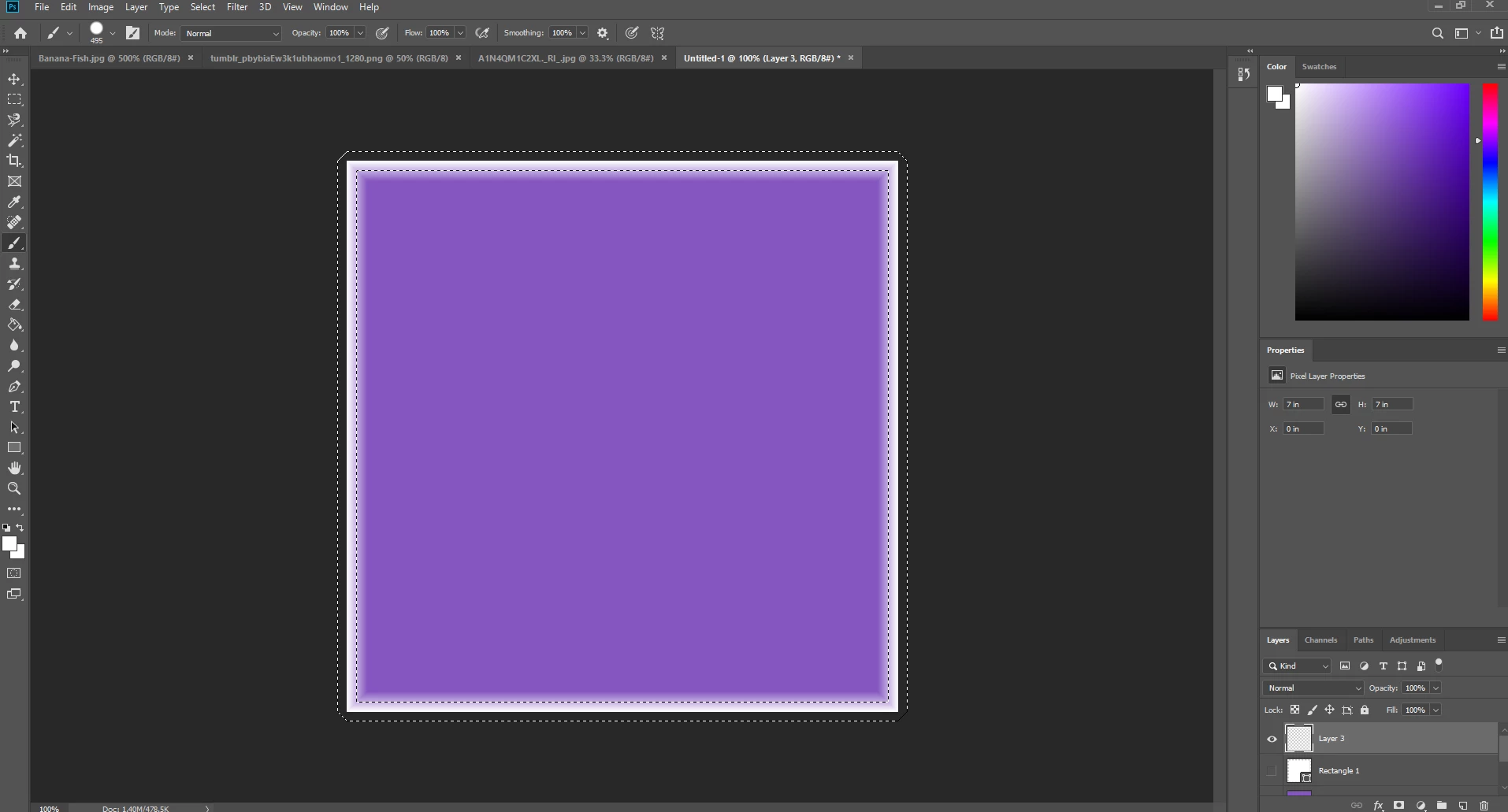
I need SOLID selections. If I wanted it to be feathered, I would set the initial selection to be feathered. How do I fix this so that modified selections don't become blurry/feathered/antialiased?
Windows 10 | Adobe Photoshop CC 20.0.5
 AdChoices