mason romero
Participant
September 1, 2018
Answered

Monochrome Color Help

  • September 1, 2018
  • 2 replies
  • 758 views

Although often seen as strictly B&W, Monochrome is loosely defined as a medium in photography using only different shades of a single color in an image. (Or something along those lines?) Anyway, I've been trying to add some sort of colored tint throughout my whole image. I converted it to B&W and did all of my other adjustments, I just cannot figure out how to add the tint. I wanted it to look more brown/orange-ish with a very slight tint of that color throughout the image. Any suggestions on how to achieve such a feat? Thanks!
This topic has been closed for replies.
Correct answer Rob_Cullen

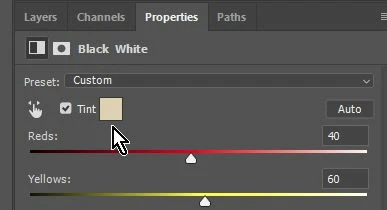
Apply a new "Black & White" Adjustment layer, and you have channel sliders and a TINT box that opens the Color Picker dialog-

2 replies

Rob_Cullen
Community Expert
Rob_CullenCommunity ExpertCorrect answer
Community Expert
September 2, 2018

Apply a new "Black & White" Adjustment layer, and you have channel sliders and a TINT box that opens the Color Picker dialog-

Regards. My System: Windows-11, Lightroom-Classic 15.3, Photoshop 27.5, ACR 18.3, Lightroom 9.3, Lr-iOS 10.4.0, Bridge 16.0.3 .
mason romero
Participant
September 2, 2018

Thanks! I was able to achieve the effect this way relatively easy after switching back to RGB (without having done that, it wouldn't let me add that adjustment layer). Thanks

Rob_Cullen
Community Expert
Community Expert
September 2, 2018

With the Adjustment layer method there is no need to 'Convert to Greyscale'. (that then requires reset back to RGB)

You just apply the B&W Adjustment to the image that is already in RGB.

"Greyscale" is rarely the best way to convert to monochrome as you need the RGB channels still available to adjust individually for contrast control.

Regards. My System: Windows-11, Lightroom-Classic 15.3, Photoshop 27.5, ACR 18.3, Lightroom 9.3, Lr-iOS 10.4.0, Bridge 16.0.3 .
Chuck Uebele
Community Expert
Community Expert
September 1, 2018

After converting to B&W change the color mode back to RGB, or just just the black and white adjustment layer. then you can add a gradient map adjustment layer to add the colors you want, or you can use the photo filters.

Straight B&W:

Added a gradient map, with the blend mode set to "Color" to give a bluish ting to the black birds feathers.

mason romero
Participant
September 2, 2018

I've almost got it--where do I go to set the blending mode to color? I'm sort of new at this, so I appreciate your patience!