donk7217242
Participant
November 21, 2018
Answered

Most tools greyed out after update of PS CC 2019

  • November 21, 2018
  • 4 replies
  • 3602 views

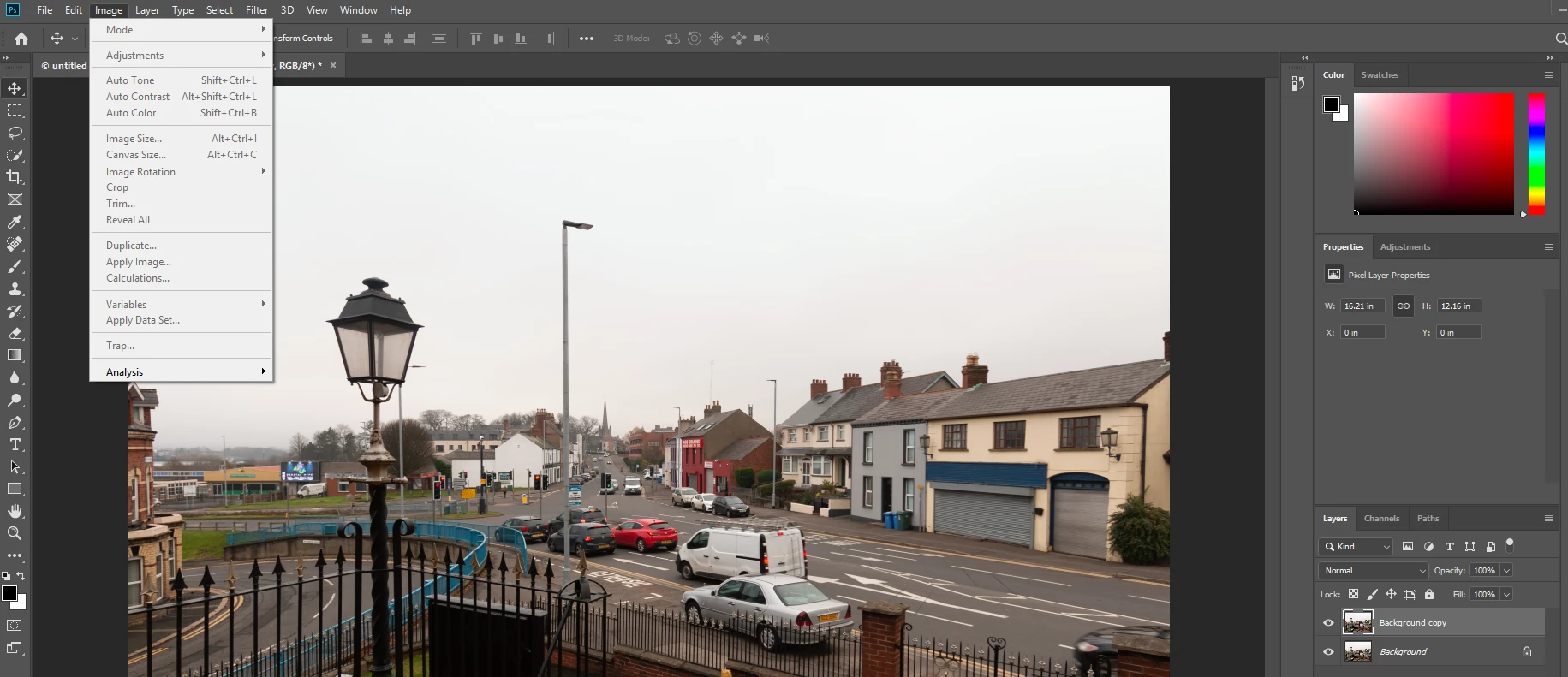
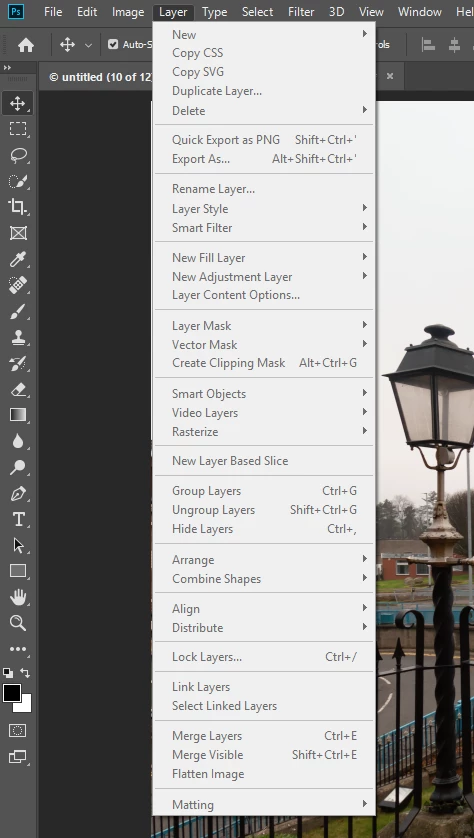
Nearly all the tools in each drop down are greyed out. Could be coincidence that its just after the CC2019 update.

Im using windows. The image is a DNG file opened via Lightroom as i usually do and have tried resetting preferences as some google searches have suggested. A couple ofscreen shots below
    This topic has been closed for replies.
    Correct answer

    Hi

    This is a known issue more info

    Bug - Image and Layer options are greyed out if and only if Photoshop CC 2019 is launched from Lightroom CC Classic

    The workaround is:

    1. open Lightroom CC Classic,

    2. open Photoshop CC 2019,

    3. Select any images, and right click then select 'Edit in Adobe Photoshop CC 2019'

    4. once the image is opened in Photoshop, the options under Image and Layers are now available.

    4 replies

    Known Participant
    December 20, 2018

    Not sure if this is applicable to Lightroom files, but many menu options will not be active if the image file is 16 or 32-bits/channel.  Check the image size using Image>Mode option from the menu bar and change the file to 8-bits/channel if needed..

    Inspiring
    December 14, 2018

    Simpler still to just check 'Disable Home Screen' in Edit/General.

    Bob Frost

    Participant
    December 14, 2018

    I suspected it had to do something with that UI abomination but couldn’t find a way to disable it.

    That did it!

    Participant
    December 7, 2018

    Not only from LR, but also if you open Images from Bridge into ACR, and from there with PS via "Open Image".

    Workaround is the same, you have to have PS open already.

    Since I edited vacation photgraphs just fine in the beginning of Nov. this bug was definitely introduced with 20.01

    Correct answer
    November 21, 2018

    Hi

    This is a known issue more info

    Bug - Image and Layer options are greyed out if and only if Photoshop CC 2019 is launched from Lightroom CC Classic

    The workaround is:

    1. open Lightroom CC Classic,

    2. open Photoshop CC 2019,

    3. Select any images, and right click then select 'Edit in Adobe Photoshop CC 2019'

    4. once the image is opened in Photoshop, the options under Image and Layers are now available.

    donk7217242
    Participant
    November 21, 2018

    Thanks Ged

    That has worked exactly as you said. And "nice" to know its a known issue.

    Much appreciated

    November 21, 2018

    You're welcome