
Participant
September 3, 2020
Answered

Mouse cursor disappear after starting Photoshop (Windows)

  • September 3, 2020
  • 3 replies
  • 11905 views

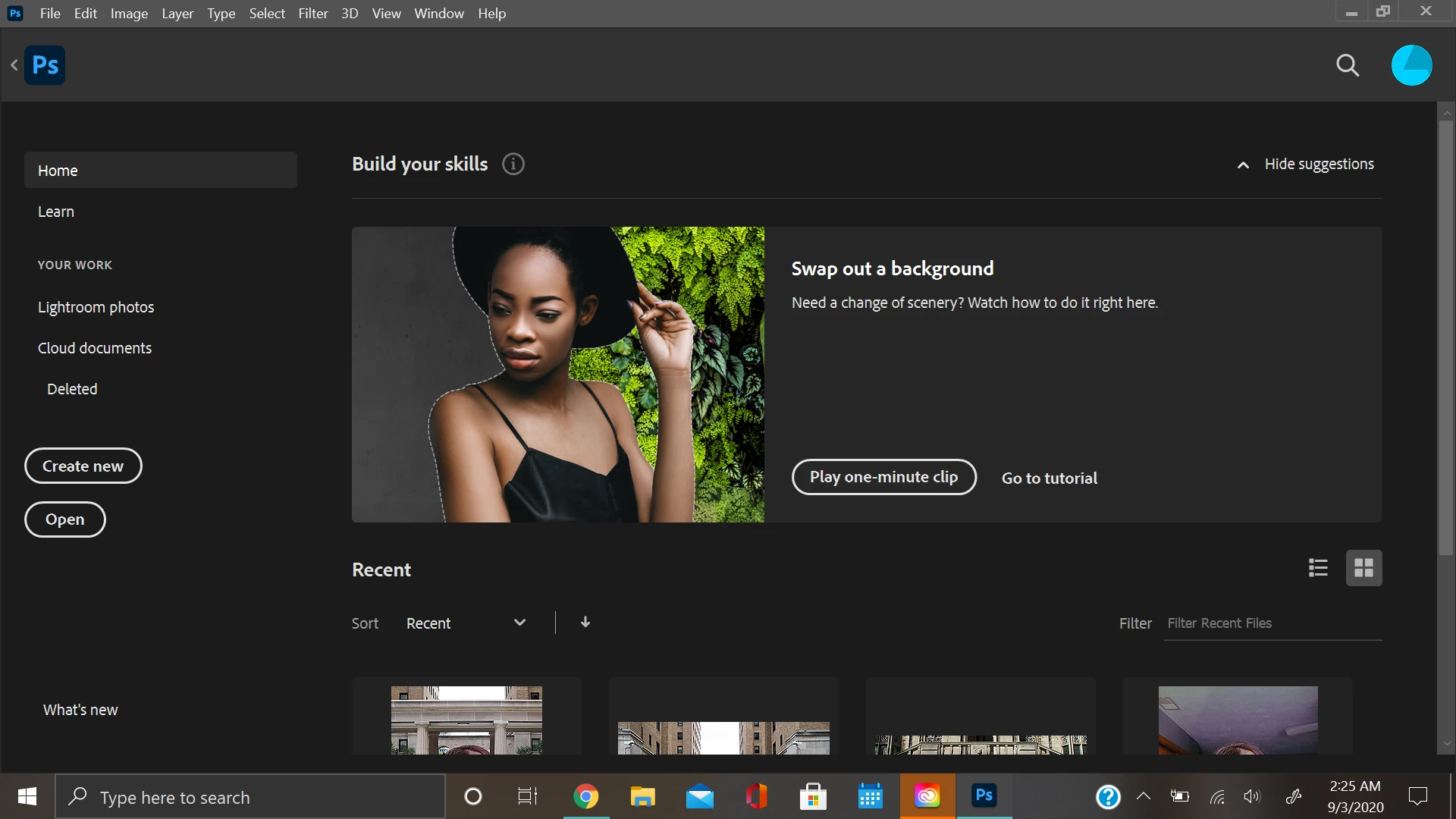
Hello, so I've had a bit of a rough time trying to solve this problem. My pointer disappeared in Photoshop, but not when I was actually working on a project. When I enter the application, I can't see my mouse at all (this isn't a brush problem but the cursor as a whole). I can't see where my pointer is when I'm trying to click "new project" which is why I am not doing well with navigating right now. I tried a few remedies, but nothing is working as most people's fixes are problems that are within the brush realm.


This is a picture of my screen when I enter Photoshop. As you can see, there is no mouse at all.
This topic has been closed for replies.
Correct answer APandl17

Hi I just got back onto Photoshop this morning and I guess my mouse is back now? It's just weird since it was gone last night.

3 replies

Participant
December 17, 2022

I know this is an old post but I had this issue today in Photoshop 2023, so thought I'd post the fix.
Rebooting PC didn't help. Neither did turning Capslock & Numlock on or off, which is recommended in some posts.
What did fix it for me was open the Windows mouse settings and under pointer options, unselect "Display pointer trails".
This gave me back my cursor in photoshop. Just to check it wasn't a fluke, I turned the pointer trails back on & the cursor disappeared in Photoshop again. So I'm pretty sure this is the issue. 

PECourtejoie
Community Expert
Community Expert
September 3, 2020

Hello, did you try to do a CTRL+N, enter to see if you can get inside Ps, and get a cursor then?


APandl17AuthorCorrect answer
Participant
September 3, 2020

Hi I just got back onto Photoshop this morning and I guess my mouse is back now? It's just weird since it was gone last night.

Akash Sharma
Legend
September 3, 2020

Hi there,


Sorry that your mouse pointer is getting dissappeared every time you start Photoshop on your Windows computer. 


Which version of Photoshop are you using? Please checkout the troubleshooting steps below:


  1. Does disabling the Start workspace helps the cause?
  • On a Windows computer choose Edit > Preferences > General and on Mac OS choose Photoshop> Preferences > General.
    Clear the Show "Start" Workspace When No Documents Are Open check box.


 2.  Restore the preferences for Photoshop, see this article for reference: https://t.co/ulJI7cGn1G You may want to backup your settings beforehand: https://t.co/4dX7gkr36D 


Let us know if that helps. 


Thanks,

Akash