
Participating Frequently
January 11, 2018
Answered

Move tool problem in Photoshop CC 2018
  • January 11, 2018
  • 7 replies
  • 7978 views

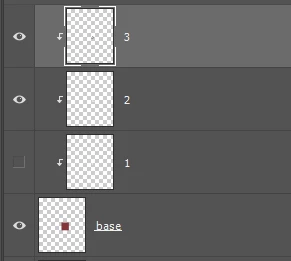
While I was working in this kind of situation, layer '1' was hidden, 'move tool' with the auto-select checked,

Ctrl+left click to the stuff on layer '2', it should be jump to the layer '2'.

But my PS will just jump to the layer 'base'.

Could anyone tell me how to fix this problem? This problem was not existed while layer '1' visible.

I tried reset the move tool and I don't have the same problem in CS6.

Thanks alot!

This topic has been closed for replies.
Correct answer mglush

Can you also show the contents of the window in a screenshot? It's hard to tell from just your layer's panel if there is anything on layer 2. If there is content on layer 2, then you need to click on the content (pixels) in the window to select that layer. We need to see more so we can help you better!

Michelle

7 replies

Participant
May 21, 2021

 "Auto-Select" checked in the Move tool's option bar? If so, uncheck it."

Participant
June 21, 2018

Hold CTRL while moving the layer, that seems to work for me.

Participant
February 22, 2018

I'm having the exact same issue and never had this problem in 2017 or earlier versions.  It is extremely frustrating!  Please look into this and fix as soon as possible as I use this feature all day.

Bojan Živković11378569
Community Expert
Community Expert
January 11, 2018

Just to confirm that what you have described is actual behavior in Photoshop CC 2018. Photoshop CC 2017 and earlier versions will work as you expect.

hikariyouAuthor
Participating Frequently
January 11, 2018

Yes. I also confirmed this with my friends, CC2018 will have this problem but 2017 and earlier versions will not.

hikariyouAuthor
Participating Frequently
January 11, 2018

Thanks for your replying! I knew I need to click right on the pixel. I work with this function for years.

I tried the same action in my elder PS versions with the same document (including CS6 and CC2017), and I didn't have this issue.

Since it's really annoying, I switched back to 2017 now.

But I really want to solve this problem, thanks again!

Participating Frequently
January 11, 2018

With most tools selected, holding down the Ctrl key auto selects and moves the layer under the cursor, and I don't have Auto Select ticked, so if you want to move any layer i think you should not use CTRL, but you can select the layer directly from layers panel

hikariyouAuthor
Participating Frequently
January 11, 2018

Thanks for replying.

I hold down Ctrl beacuse I was using Bursh Tool. I am an illustrator and I need to brush up in different layers and swith between them rapidly.

mglush
Community Expert
Community Expert
January 11, 2018

Hi again!

It is possible that this problem is happening because you have the layers linked together in a clipping mask? Try unlinking them, but put them in a folder to keep them together.

mglush
Community Expert
mglushCommunity ExpertCorrect answer
Community Expert
January 11, 2018

Can you also show the contents of the window in a screenshot? It's hard to tell from just your layer's panel if there is anything on layer 2. If there is content on layer 2, then you need to click on the content (pixels) in the window to select that layer. We need to see more so we can help you better!

Michelle

hikariyouAuthor
Participating Frequently
January 11, 2018

Thanks for your replying! I knew I need to click right on the pixel. I work with this function for years.

I tried the same action in my elder PS versions with the same document (including CS6 and CC2017), and I didn't have this issue.

Since it's really annoying, I switched back to 2017 now.

But I really want to solve this problem, thanks again!