

bartonlew
Legend
December 15, 2018
Answered

moving a selection behind foreground material

  • December 15, 2018
  • 3 replies
  • 1043 views

I want to move a selection but have part of it hidden behind foreground material as shown in the screen shot below.  I want to flip the background car wheel selection horizontally and add it to the right of the selection so that it appears to continue on in the background; it would overwrite the background portion of the mailbox (gray pixels) and end at the foreground edge of the mailbox (dark green pixels).  I will get rid of the rest of the gray pixels also.  I assume there is a fairly easy way to do this using a mask but can't figure out the workflow.  Any suggestions would be appreciated.  Thank you.
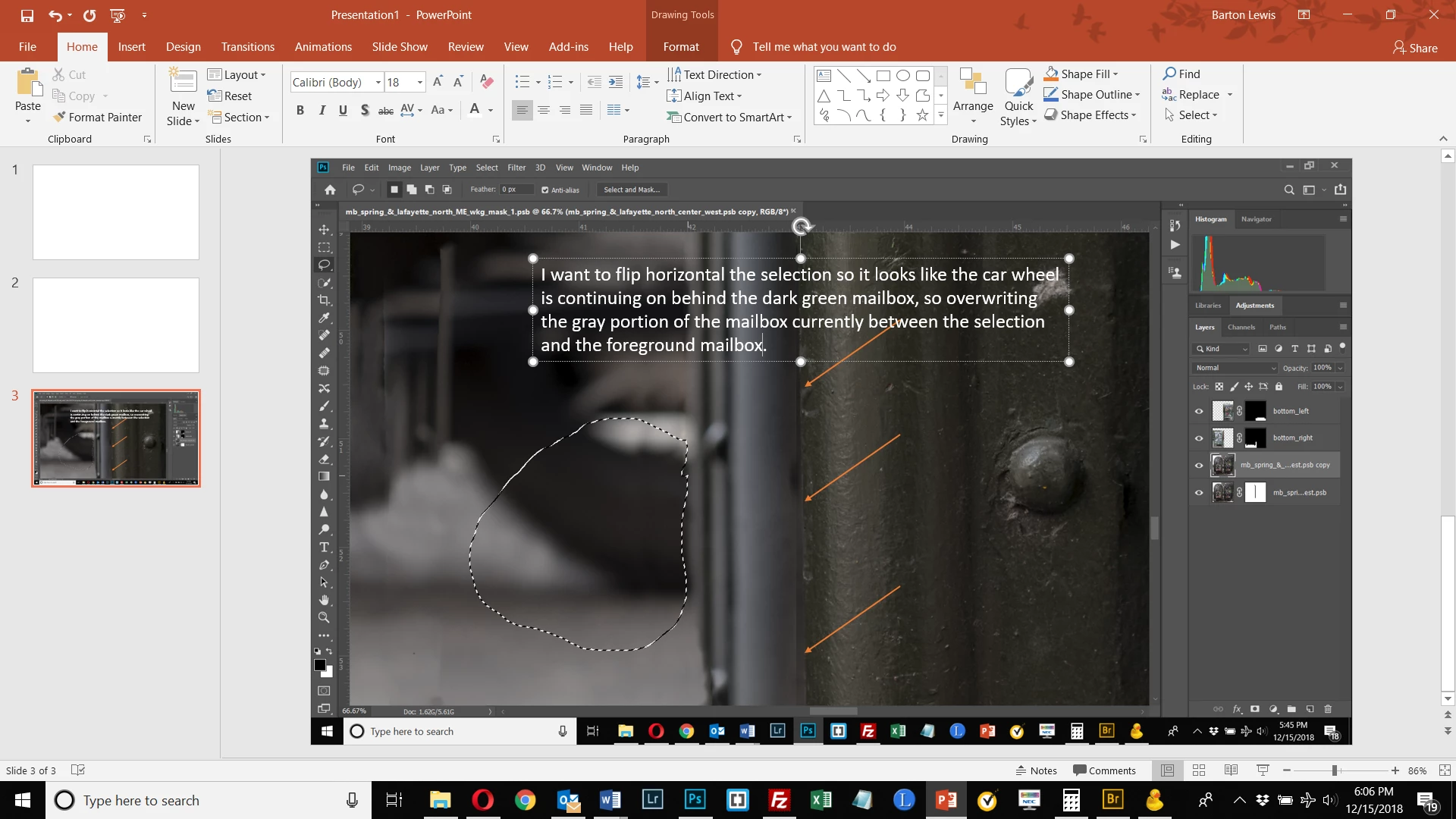
This topic has been closed for replies.
Correct answer davescm

Okay.  I was thinking it would be preferable to select the mailbox since that has a defined edge, and the Quick Selection tool could easily detect it, and somehow create a mask and move the tire layer behind that.  But if that's not possible, I guess I can zoom in at 100% or more to clean up the edge of where the tire is meeting up with the mailbox.


Hi

If you select the mailbox - then add the mask to the tyre copy above it with Layer >Layer Mask >Hide selection

Dave

3 replies

Trevor.Dennis
Community Expert
Community Expert
December 16, 2018

I am not entirely clear on what you are trying to achieve, but I'll give you a couple of tips using this mock up

Whenever I want to place an object behind another object, I more or less always move the new foreground object to a layer at the top of the stack, like this.  The reason is that this avoids possible issues with edges andanti aliasing.

Then select and copy the tire segment keeping it below the mailbox layer.

At this stage I have flipped the tire copy layer, but not moved  it.  I am showing to show you the problem with the edge.

Finally the flipped tire  copy is moved into position, and any edge issues are hidden _behind_ the copied mailbox layer.

So it comes down to always using layers when you can.  It allows maximum flexibility, and avoids edge artefacts.

BTW  When you copy the tire selection, make that layer a Smart Object in case you  decide to fine tune the Free Transform.  This will ensure that you don't lose quality, even if you take a dozen attempts to get the transform exactly how you like it.

bartonlew
bartonlewAuthor
Legend
December 16, 2018

Very helpful explanation and workflow.  Thank you.

davescm
Community Expert
Community Expert
December 16, 2018

Hi

Muqqarib - Transform selection just changes the border of the selection rather than transforming the selected content

Bartonlew :
Make your selection then press Ctrl+J to move it to a new layer.
Move that layer above the post box
Use Ctrl+T and flip it and move the layer into into position
Make a new selection of the area you want to show i.e. where the wheel coincides with the grey area.
Layer - Layer Mask - Reveal selection

Dave

bartonlew
bartonlewAuthor
Legend
December 16, 2018

Hi Dave, thanks.  Below I show your steps 1-3 - up to and including moving the selection into position on the new layer.  Now I want the edge of the new layer to end at the mailbox's green edge just to the left of where the new layer selection is overflowing onto it.  But you are saying to select the tire?  Since it's natural edge is overflowing the mailbox, I would have to make a manual selection (not using the Quick Selection tool), right?  Can't I use the Quick Selection tool to detect the edge  of the mailbox instead, and create a mask that hides the tire? 

davescm
Community Expert
Community Expert
December 16, 2018

Hi

No, dont select the entire tyre. Select the area of teh tyre that you want to be visible - use the polygonal lasso tool and then use Layer - Layer Mask - Reveal Selection.  That way it will hide the tyre elsewhere and once again reveal the edge of the mailbox.

Dave

Muqqarib Hassan
Inspiring
December 16, 2018

Hi,

Make your selection and right click on it and then select the Transform selection option

then again right click on it and select flip horizontal.

Hope so this is you are looking for.