Conner Belt
Participant
September 6, 2017
Answered

Multiply Blending Mode not working for one layer

  • September 6, 2017
  • 1 reply
  • 18411 views

I was close to completing a design which is a black contour drawing in front of a blank background. Some layers were painted with white (the hands) so that the lines wouldn't cross, so my plan was to merge all the layers into one and set the blending mode to multiply. For some reason, it stayed normal with a full white background (keep in mind background layer was turned off). I went back and realized one specific layer (which was used from an image and healing brush was also used) was not changing modes either. All other layers worked. I'm stuck...

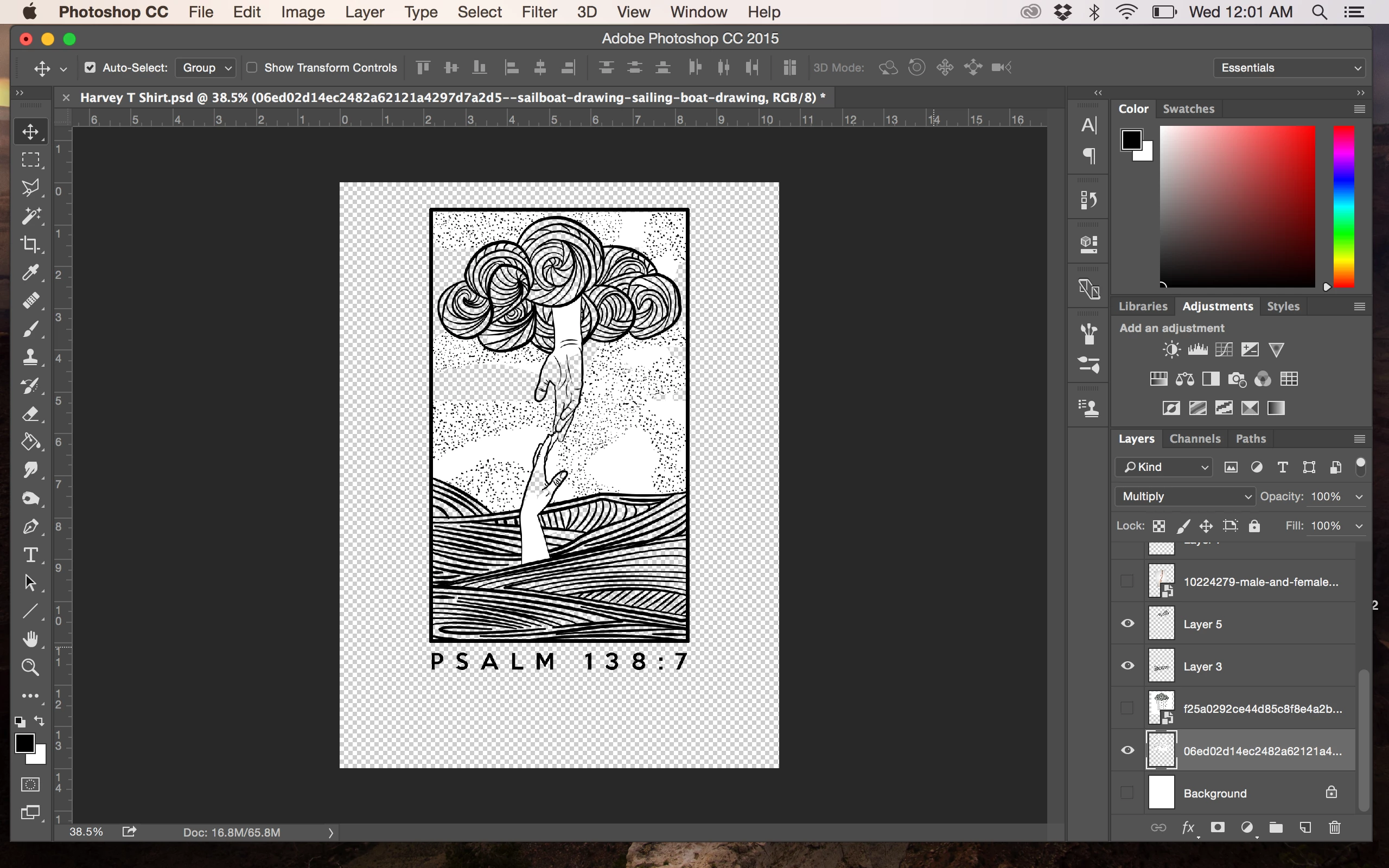
Check out the screenshot. Layer selected is the one that won't work. See how there's still white even with multiply on and the background turned off?
This topic has been closed for replies.
Correct answer Rob de Winter

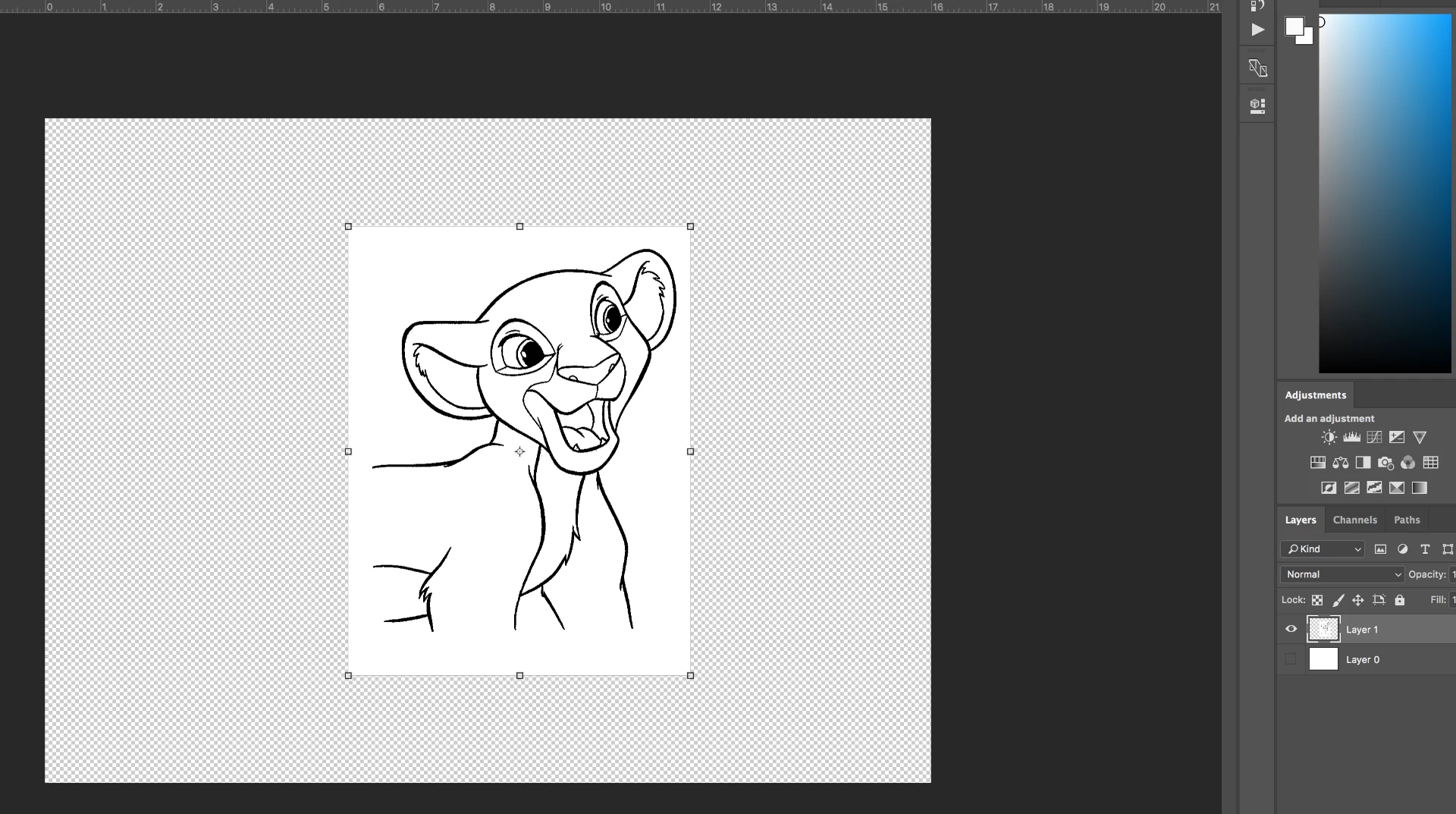
Hey, I hope I understand your question right: you want to remove the white background of the selected layer in your screenshot?

In that case, it's not possible with blending modes, because there is no background to blend it with. A better solution is this:

1) Select the layer you want to make transparent (make shure your background layer is transparent)

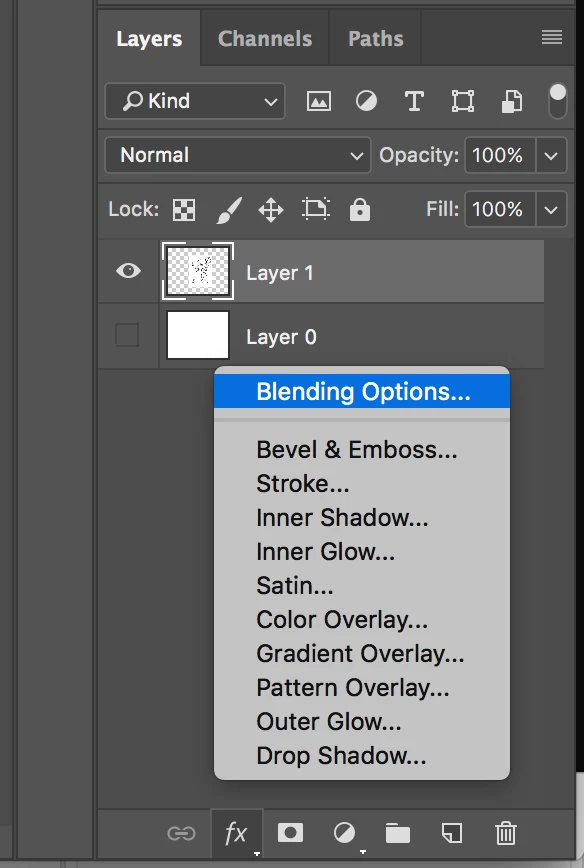
2) Select in the layer panel the FX-button and after that Blending Options

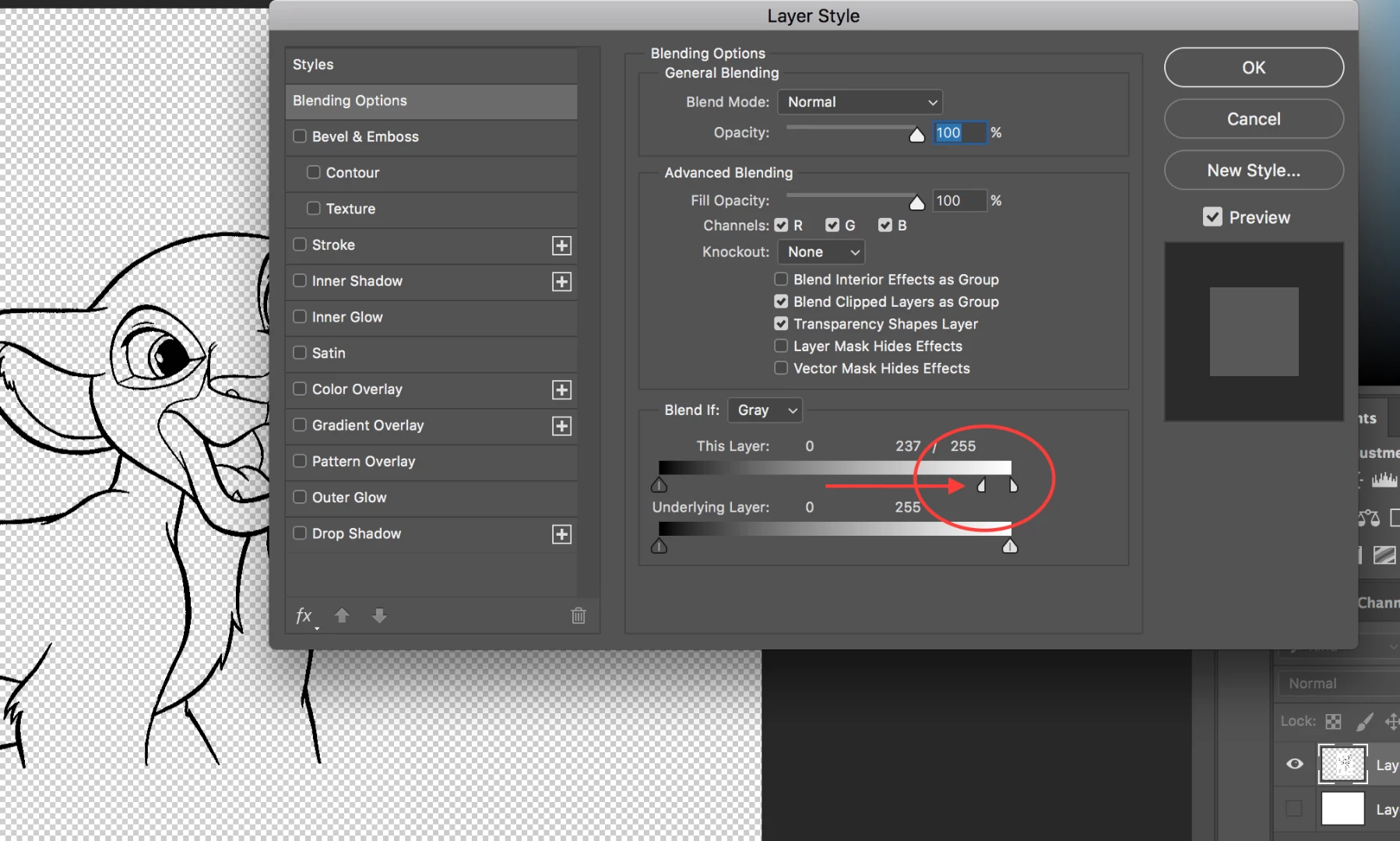
Manage transparency of the white part by dragging the arrows in the screenshot below. When you just drag, the surrounding area's (from black to white) will be very hard. I'd suggest that you hold ALT / Option while dragging. You can grab only the left part of the arrow. Then the transition between white and black then becomes much smoother.

I hope this works for you!

1 reply

Rob de WinterCommunity ExpertCorrect answer
Community Expert
September 6, 2017

Hey, I hope I understand your question right: you want to remove the white background of the selected layer in your screenshot?

In that case, it's not possible with blending modes, because there is no background to blend it with. A better solution is this:

1) Select the layer you want to make transparent (make shure your background layer is transparent)

2) Select in the layer panel the FX-button and after that Blending Options

Manage transparency of the white part by dragging the arrows in the screenshot below. When you just drag, the surrounding area's (from black to white) will be very hard. I'd suggest that you hold ALT / Option while dragging. You can grab only the left part of the arrow. Then the transition between white and black then becomes much smoother.

I hope this works for you!

Conner Belt
Participant
September 6, 2017

Yep, that worked! Thank you so much. That's a very useful trick to know for the future.

Community Expert
September 7, 2017

You're welcome! I think it's really a great trick to use sometimes