Participant
November 12, 2022
Answered

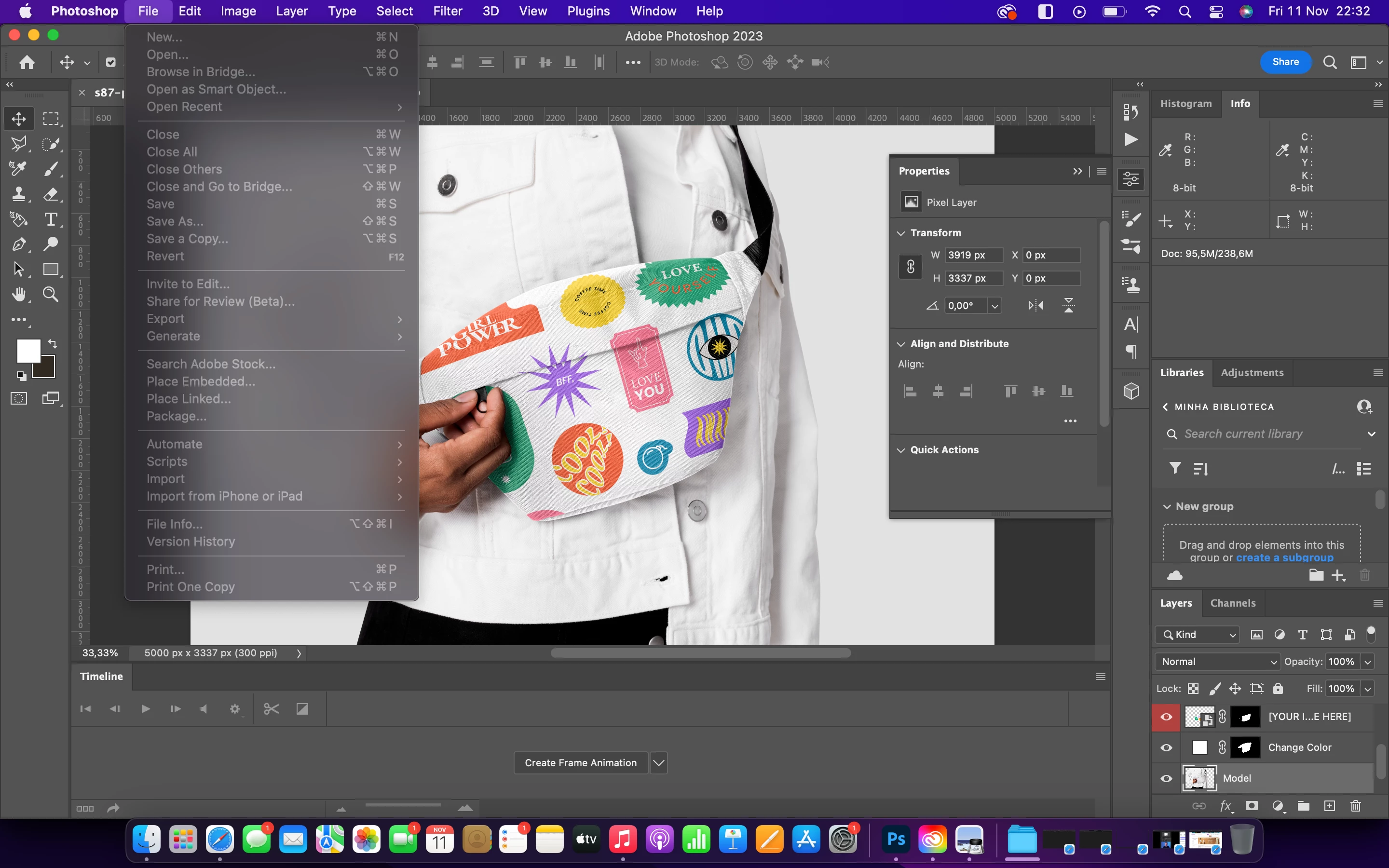
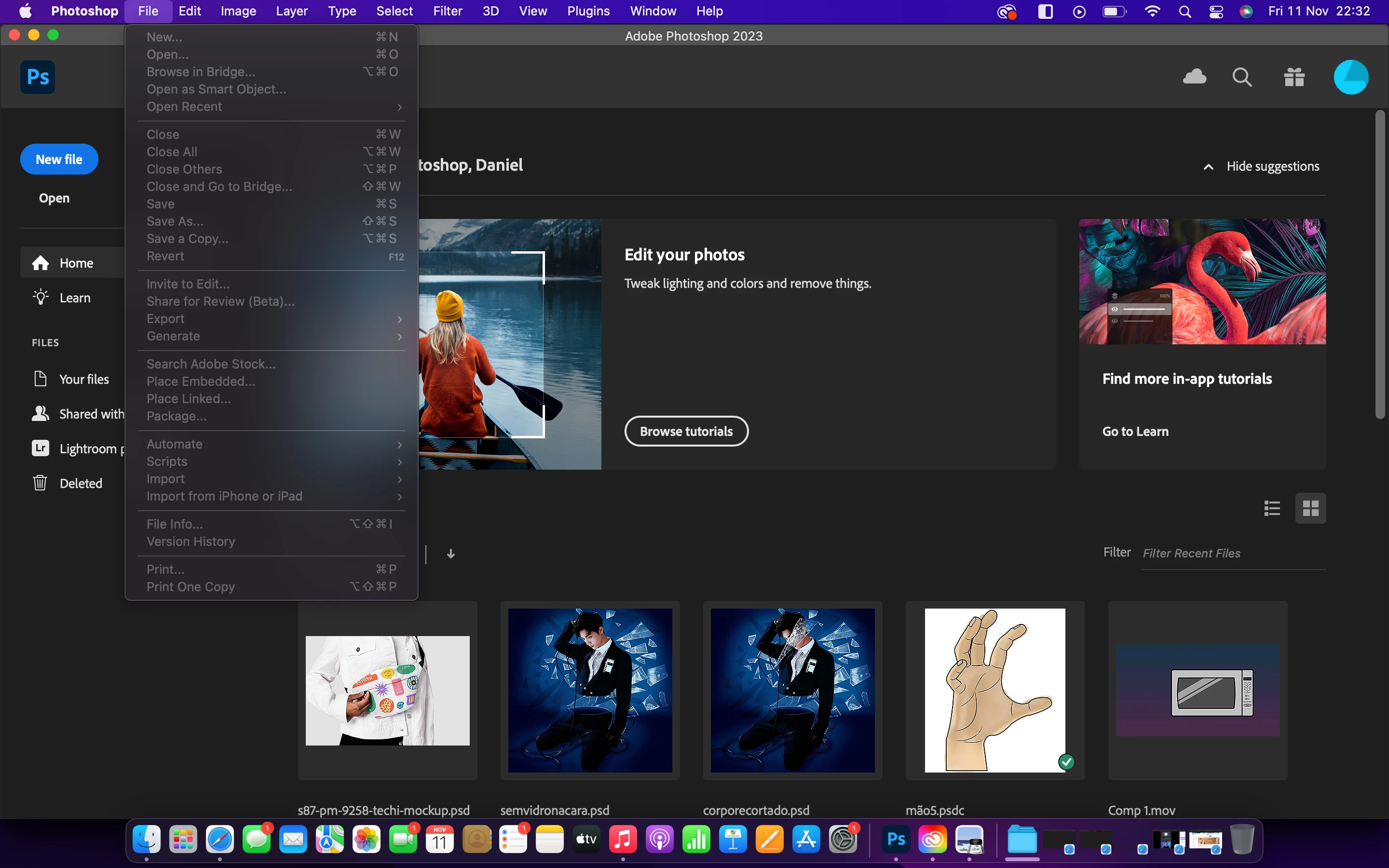
My entire menu greyed out in Photoshop

  • November 12, 2022
  • 2 replies
  • 10131 views

I just installed Photoshop 2023 and I started facing a problem I have never expeirenced with Photoshop another time. I tried to open a video on Photoshop and sudenly my entire menu greyed out. I closed the video and opened different images, I was not using anything from the options bar and the problem persisted. 

No, it is not possible to reset the preferences settings since the edit menu is not available. The shortcuts are not working either.

I haven't seem anyone reporting this bug online before, I think it might be something with the 2023 version of Photoshop. 
 

Correct answer jane-e

@Daniel23456732z2f0 


First try Quit and Relaunch, then try Shut Down, Reboot, and Relaunch.


If those don't work, reset Preferences this way:

  • Quit Photoshop
  • Hold down Ctrl+Cmd+Opt+Shift and keep holding them down
  • Click PS in the Dock. The shortcut menu will appear. Click Open.
  • When you see the dialog to reset preferences, release the four keys. A new preferences file will be created.


Jane


2 replies

Participant
November 12, 2022

It went back to normal after a few hours of closing and reopening... Thanks for your help

jane-e
Community Expert
jane-eCommunity ExpertCorrect answer
Community Expert
November 12, 2022

@Daniel23456732z2f0 


First try Quit and Relaunch, then try Shut Down, Reboot, and Relaunch.


If those don't work, reset Preferences this way:

  • Quit Photoshop
  • Hold down Ctrl+Cmd+Opt+Shift and keep holding them down
  • Click PS in the Dock. The shortcut menu will appear. Click Open.
  • When you see the dialog to reset preferences, release the four keys. A new preferences file will be created.


Jane