nshimandle
Participant
February 12, 2016
Answered

My file has a lot of blank space "outside" the artboard that I can't get rid of? How do I crop the file to the actual artboard size?

  • February 12, 2016
  • 24 replies
  • 53089 views

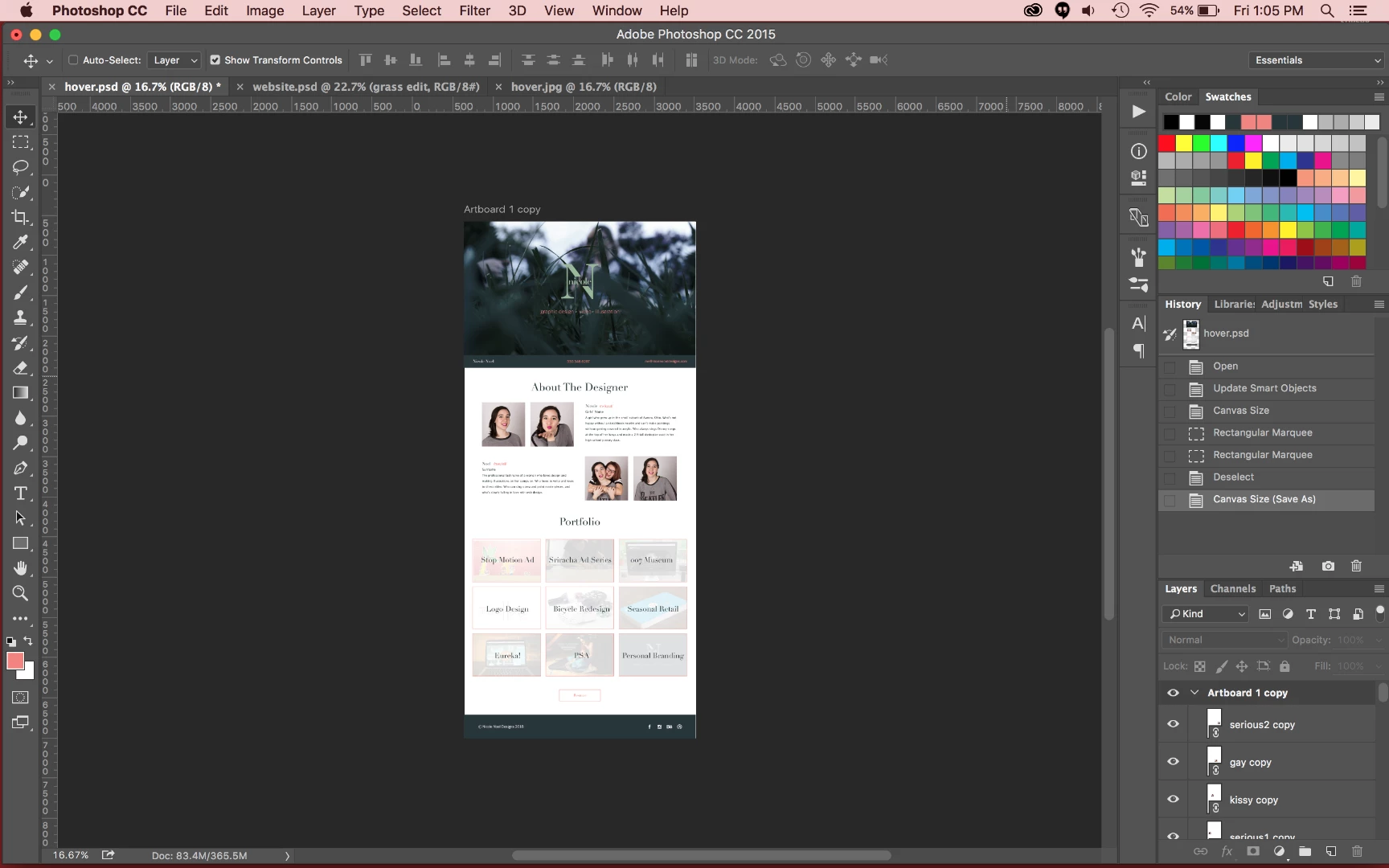
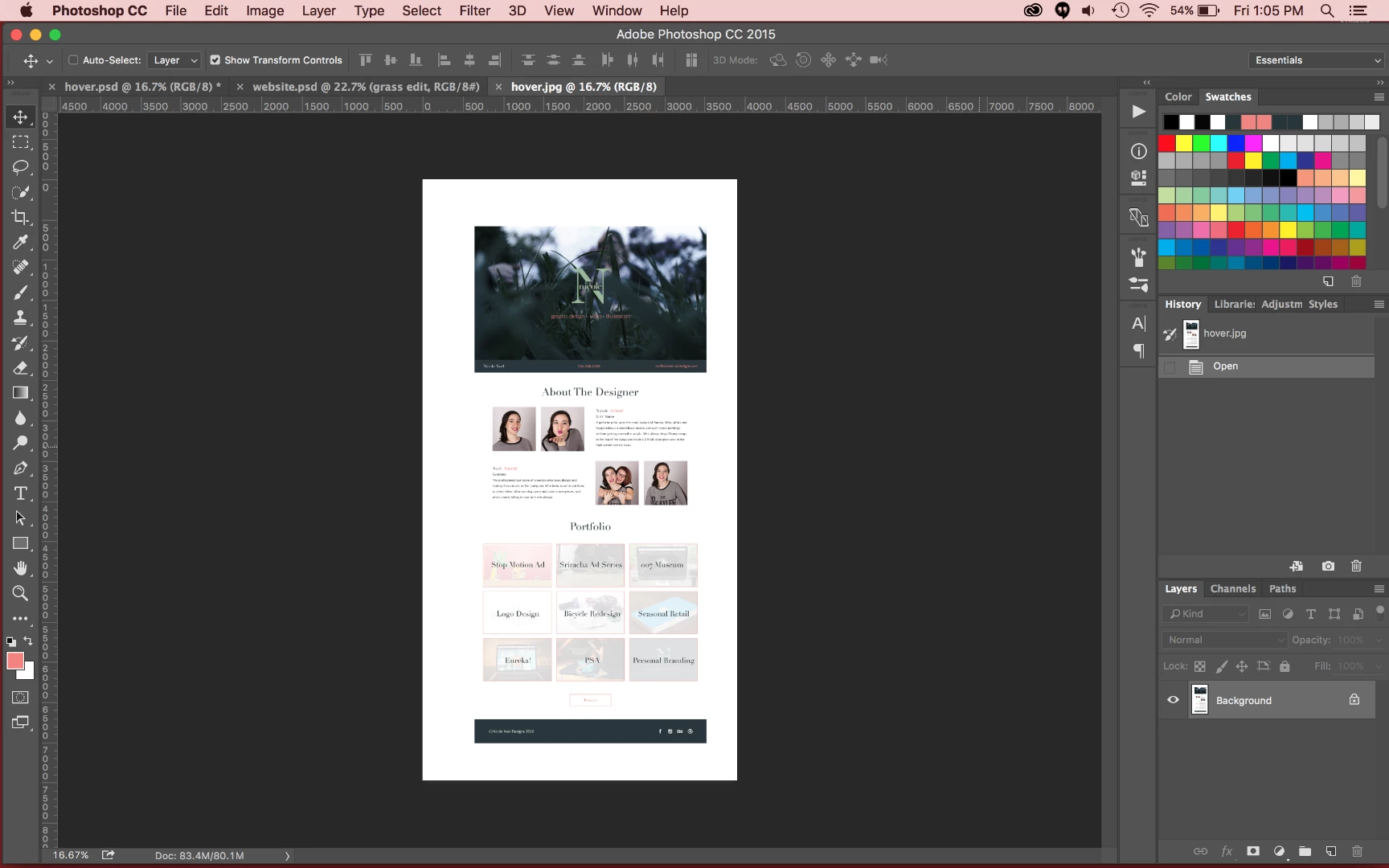
Above is my artboard and workspace, but when I try to resize the image (or save it as a jpeg to show the problem I'm having) there's a ton of white space outside of the artboard and the crop tool and artboard tool both say that my file is only as big as the above size, but its actually as big as the below screen grab.

I can't find anyone else having this problem. Am I the only one? How can I fix it? It's being a huge problem for web design. And it's done this for all of my web design projects since it updated to have artboards.

This topic has been closed for replies.
Correct answer ChristopherButler

Hi Nicole,

I am pretty sure this is a problem we are tracking; We have not addressed it yet, but it is on our list of things to solve.

Artboard documents have an auto-expanding canvas; this is part of the user experience that gives an infinite feel to the document; you can place things anywhere in the view and they should remain visible no matter where you drag them. To help maintain that illusion, we paint the entire matte area with the same color outside the artboards.

We hide this canvas from you, although it is still there. You can see how big it is at any given moment by choosing "Image>Canvas Size...". That size will change as things get moved around, getting bigger and smaller as needed. The hidden canvas size will snap to the next larger or smaller "tile boundary", which is nominally in 1024 pixel increments. This is done for performance.

The problem is that the export code is really unaware of the fact that artboards can grow and shrink the canvas. So when you export an artboard document, it looks at the current canvas size and just uses that. That's why you get that extra white space. This extra white space problem also happens for other things, like document thumbnails. We agree this is pretty annoying, and as I said, it's on our list to fix.

Try this workaround:

1. Get your document all ready to export.

2. Under the Artboard Tool, choose the gear icon (top tool bar, far right) and uncheck auto-size canvas

3. Choose the rectangular marquee tool and cover the Artboard from edge to edge. (Snap helps here)

4. Choose Crop. This will shrink the canvas to just the artboard bounds.

5. Export As..., pick your format, e.g. PNG. and export.

6. Verify no extra white space.

Note that "auto-size canvas" is a document-sticky property and is saved with the document.

24 replies

Participant
November 7, 2017

This is horrible. I can't resize an image or get anything done. I'm going in circles.

DaviOP
Participant
November 2, 2017

Hi guys,

I've found a solution. (Photoshop CC 2018)

Just select the "Artboard Tool" > Click the gear icon on the menu > Check the "Shrinkwrap Canvas on Save" box and try save/export the file now. For me, works perfectly.

Participant
November 7, 2017

That didn't work for me (Probably because I can't truely view the area I'm working with.

Blane_noir
Participant
October 19, 2017

Just updated to PS CC 2018 and the problem persists

Participant
October 5, 2017

The Artboard addition is doing absolutely nothing positive for me. All its done is create extremely lengthly process to saving out files. I REALLY REALLY hope this issue gets fixed. Such a frikken lus. C'mon Adobe. sort it out!!!!!

Participant
October 2, 2017

I just want a simple SAVE AS --> jpeg and don't want the stupid ARTBOARD (lamest feature ever) white canvas around my image (image is really small).

Participant
September 8, 2017

This was driving me nuts too, but thanks to ChristopherButler I was able to export correctly!  For those that the work around doesn't work for try creating a new document, input your canvas size and next to it, there is a checkbox for "artboard."  Make sure it's deselected and that should help you export normally.  Hope this helps!

kara fellows
Participant
August 15, 2017

This is a big problem for people using Photoshop for animation. When will it be fixed??

leactz
Participant
August 14, 2017

This is still a problem for me too. Please fix asap, as this is really not cool to deal with.

ChristopherButler
Adobe Employee
Adobe Employee
May 23, 2016

One more suggestion, and a lot simpler:

Use the File>Export>"Export Artboards To Files..." command. You can select which artboards to export. You can pick from a number of formats. And they are all cropped to the artboard edges.

No need to disable "auto-size canvas".

Participant
May 8, 2017

Thanks so much! just applied the "simpler" solution, and it worked like a charm! WOW, it was SOOOO frustrating earlier. PLEASE, hope there's a true "fix" coming along soon. I use Adobe CC

cheers,

dd

ChristopherButler
Adobe Employee
ChristopherButlerCorrect answer
Adobe Employee
May 23, 2016

Hi Nicole,

I am pretty sure this is a problem we are tracking; We have not addressed it yet, but it is on our list of things to solve.

Artboard documents have an auto-expanding canvas; this is part of the user experience that gives an infinite feel to the document; you can place things anywhere in the view and they should remain visible no matter where you drag them. To help maintain that illusion, we paint the entire matte area with the same color outside the artboards.

We hide this canvas from you, although it is still there. You can see how big it is at any given moment by choosing "Image>Canvas Size...". That size will change as things get moved around, getting bigger and smaller as needed. The hidden canvas size will snap to the next larger or smaller "tile boundary", which is nominally in 1024 pixel increments. This is done for performance.

The problem is that the export code is really unaware of the fact that artboards can grow and shrink the canvas. So when you export an artboard document, it looks at the current canvas size and just uses that. That's why you get that extra white space. This extra white space problem also happens for other things, like document thumbnails. We agree this is pretty annoying, and as I said, it's on our list to fix.

Try this workaround:

1. Get your document all ready to export.

2. Under the Artboard Tool, choose the gear icon (top tool bar, far right) and uncheck auto-size canvas

3. Choose the rectangular marquee tool and cover the Artboard from edge to edge. (Snap helps here)

4. Choose Crop. This will shrink the canvas to just the artboard bounds.

5. Export As..., pick your format, e.g. PNG. and export.

6. Verify no extra white space.

Note that "auto-size canvas" is a document-sticky property and is saved with the document.

AWESUM
Participant
August 4, 2017

Still no solution..? Basically the only thing we use Photoshop for is webdesign and making JPEG-exports takes up a lot of time and frustration now.