aleegokus
Participant
July 3, 2022
Answered

My Navigator Gone Crazy!

  • July 3, 2022
  • 9 replies
  • 386 views

Hello,


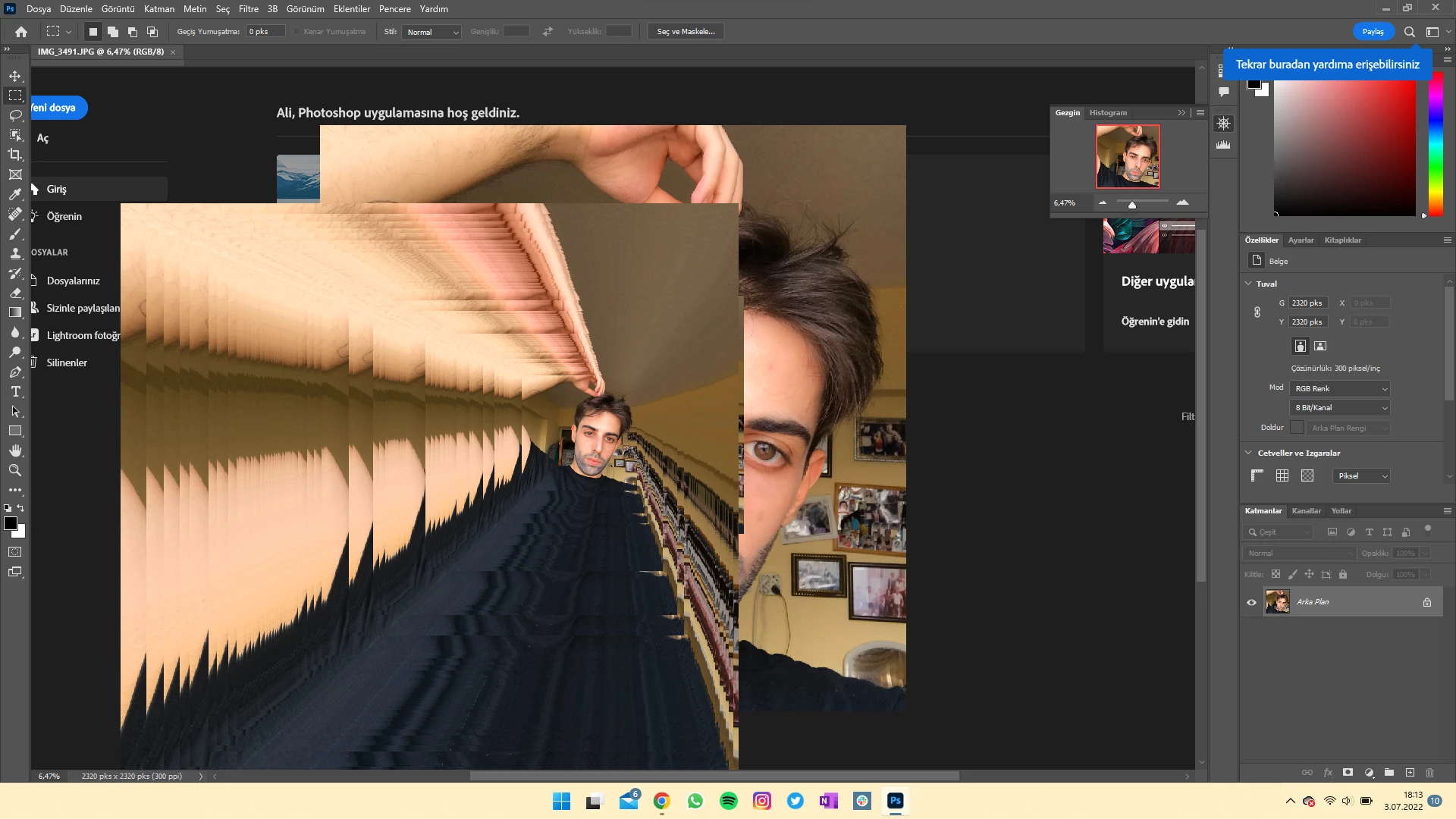
My PS got a couple of latest updates, my navigator has gone crazy ever since. I am attaching an SS so you can understand what I mean.


I tried reinstalling the app but none has worked. I am unable to work with the app at the moment and how I wish everything would be like it used to.


Thank you for any solutions in advance.


Details:

1. PS 23.4.1.

2. Windows 21H2

3. I start the app, try opening an image, and become unable to zoom out or zoom in or step right or step back.

4. Expected result would not be like below in SS.


Ali


This topic has been closed for replies.
Correct answer davescm

The next step should be to go to NVidia's website and download the latest driver for your GPU. I you have a choice between Game Ready drivers and Studio drivers then choose the Studio driver. When installing choose Advanced and Clean Install. That way you will overwrite any remnants of the old driver.

Once done, try re-enabling the GPU in Photoshop.


Dave

9 replies

davescm
Community Expert
Community Expert
July 4, 2022

Good to hear. Thanks for confirming 🙂

Dave

aleegokus
aleegokusAuthor
Participant
July 4, 2022

It seems like the driver has a couple of updates which I skipped so after updating it the navigation is like it was months ago.


Thank you for the help. 


My problem is solved now.


Good day.

davescm
Community Expert
davescmCommunity ExpertCorrect answer
Community Expert
July 4, 2022

The next step should be to go to NVidia's website and download the latest driver for your GPU. I you have a choice between Game Ready drivers and Studio drivers then choose the Studio driver. When installing choose Advanced and Clean Install. That way you will overwrite any remnants of the old driver.

Once done, try re-enabling the GPU in Photoshop.


Dave

aleegokus
aleegokusAuthor
Participant
July 4, 2022

Thank you! This worked finally!


What happens now? Will I experience a slow UI?

davescm
Community Expert
Community Expert
July 4, 2022

Yes - sorry for the misleading direction earlier - my mistake


It definitely does not look right. Can you go to Preferences > Performance and uncheck Graphics Processor then restart Photoshop. Does that resolve it?

Dave

aleegokus
aleegokusAuthor
Participant
July 4, 2022

Thanks, I found there, however now I can't really see the image.


Check ou the GIF I created below. Though I am using the navigation right, there is nothing moving.


Thanks


Ged_Traynor
Community Expert
Community Expert
July 4, 2022

@aleegokus it's acutally in the technology previews tab

aleegokus
aleegokusAuthor
Participant
July 4, 2022

Hello,


Thank you for your answer. 


Where is that checklist exactly? 


davescm
Community Expert
Community Expert
July 3, 2022

Can you try going to Preferences > Performance and checking 'Deactivate Native Canvas' then click OK and close and restart Photoshop


Dave