Participant
March 13, 2019
Answered

My opinion of layer masks

  • March 13, 2019
  • 3 replies
  • 1021 views

I understand what masking does. I apparently am not able to comprehend the process.

To the point. I select a photo - I make a duplicate layer - I click on the mask symbol in the layers palette - I hide all layers except the mask layer- I select black or white - I select a brush - I brush.

AND THERE IT ENDS. Final result.... NOTHING. Nothing reveals - nothing conceals.

I get zero result.

End game here - if you guys can make it work, I am very happy for you. I cannot... it is as simple as that. I quit on masks, I have wasted hundreds of hours coming back to this process again and again.

There is only so many times I can flog a dead horse. My brain is that dead horse... it is not going to get up now, or tomorrow, or next week.

I give up.... I am moving on without masks.

I love  Photoshop. I wish there was a  way to edit out masking so it just doesn't even appear in Photoshop. It is  the  most frustrating and  negative  experience I have  ever encountered  in PS
This topic has been closed for replies.
Correct answer Trevor.Dennis

Hi Ian.  My turn to try.

iank42545507  wrote

I cant get an active mask layer unless I make a  duplicate  layer  first.

It worries me that you mention 'duplicating'  the layer  before trying to mask it.  If both layers are the same, and you mask the upper layer, you won't see any change because the now revealed lower layer is exactly the same.  You need to use layers with different content.  Does that make sense?

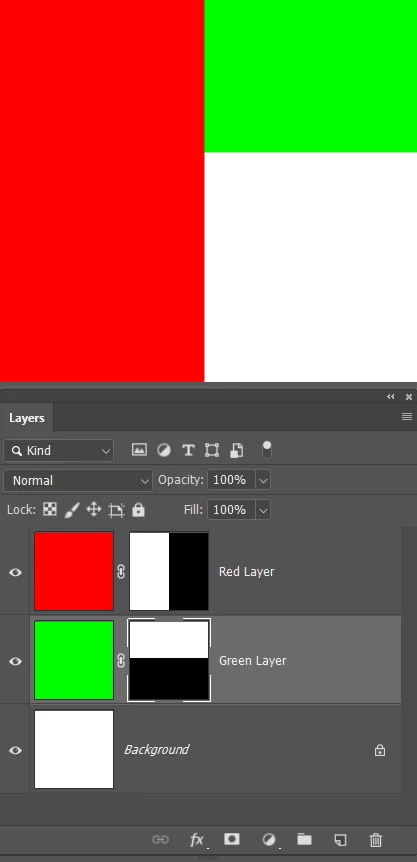
I have three layers below.

The upper layer is filled with red

The middle layer is filled with green

And the lower (Background) layer is filled with white.

I have added layer masks to both the red and green layers.

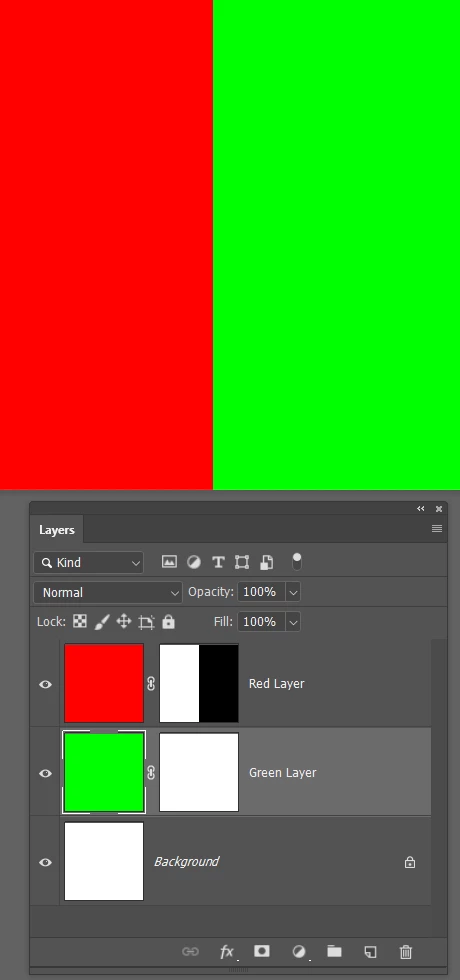
The right side of the red layer's mask is filled with black, which hides that side, and the green on the layer below it is revealed.

We can't see the background layer though.

Now I have filled the lower half of  the Green layer's mask with black, which allows the white background to show through, but only in the lower right corner.

Jane's memory aid is useful, and is the way we help people understand  how it works.

White reveals and Black conceals. 

3 replies

Participant
March 13, 2019

Hey macpawel,

I cant get an active mask layer unless I make a  duplicate  layer  first.

Hi Jane

I understand  what you are saying but I just get NO result from anything.

I appreciate  your offer  to help guys. I was  simply expressing my frustration, I have  given up.

I have  spent hours  and  hours reading countless tutorials. I just dont get it!

I am just going have  to assume  that masking is  NOT an option for  me,

I can post a  screen shot or  anything else, it wont matter, I will NEVER  understand this  process and  I dont wany anyone  else to waste  their  time trying to explain it to me. I am obviously to dumb to understand.

Trevor.Dennis
Community Expert
Trevor.DennisCommunity ExpertCorrect answer
Community Expert
March 13, 2019

Hi Ian.  My turn to try.

iank42545507  wrote

I cant get an active mask layer unless I make a  duplicate  layer  first.

It worries me that you mention 'duplicating'  the layer  before trying to mask it.  If both layers are the same, and you mask the upper layer, you won't see any change because the now revealed lower layer is exactly the same.  You need to use layers with different content.  Does that make sense?

I have three layers below.

The upper layer is filled with red

The middle layer is filled with green

And the lower (Background) layer is filled with white.

I have added layer masks to both the red and green layers.

The right side of the red layer's mask is filled with black, which hides that side, and the green on the layer below it is revealed.

We can't see the background layer though.

Now I have filled the lower half of  the Green layer's mask with black, which allows the white background to show through, but only in the lower right corner.

Jane's memory aid is useful, and is the way we help people understand  how it works.

White reveals and Black conceals. 

Participant
March 13, 2019

OOKAY.....

If you use same two layers - you can't make any changes to your final image.

RIGHT THERE  is  the  key to my not understanding this.

It is  like  trying to build  a clock and  leaving one  gear out of  the  build.... it wont work!!

Forgive  me  for  appearing so frikking stupid.

now  that I FINALLY understand  that I have to make a  layer  from the  background layer and  NOT duplicate  it;

I can then click on the  layer  mask button and  make  it active.

NOW  everything is  starting to fall into place!!

Thank you everyone  for  staying with me and  helping me  out.

jane-e
Community Expert
Community Expert
March 13, 2019

iank42545507  wrote

I understand what masking does. I apparently am not able to comprehend the process.

To the point. I select a photo - I make a duplicate layer -

Hi

The white part of a mask reveals what is on the current layer.

The black part of a mask reveals what is on the underneath layer if there is one and hides what is on the current layer.

Please show a screen shot of your image with the two layers and the layers panel with the mask on the one.

Jane

macpawel
Participating Frequently
March 13, 2019

If you use same two layers - you can't make any changes to your final image.

Try to do this….

add a new empty layer or drag any image to your final document

add mayer mask (hide all or reveal all - if you wish)

select mask and use brush (black or white depends of your mask color) to mask some areas - it should be works