Participant
November 12, 2025
Answered

Need advice on best/most efficient tools to use in specific project.

  • November 12, 2025
  • 3 replies
  • 116 views

Hello! I'm fairly new to Photoshop and have a very time consuming and possibly impossible project. 


I have a wall that has 2.5 " laminate planks of wood with a .25" gap in between each plank. I would like to create artwork for this wall, but would need to measure the planks and gaps perfectly to cut around those gaps in my artwork.


What is the most efficient and precise tool to use for this, or am I better off finding another way around?

Correct answer Trevor.Dennis

I think the issue is going to be scale. The size of each poster will depend on how you photograph it. A 2 inch poster that fills the frame in the camera/phone, will be out of scale with a 20 inch poster that fills the frame. 


There may also be an issue if the camera was not perfectly perpendicular to the center of the poster poster.

Lets deal with the this one first as the fix is easier, and that is Perspective Crop.  This will get things perfectly square, but the aspect ratio might be out, so either live with that, or fix it with Free Transform.
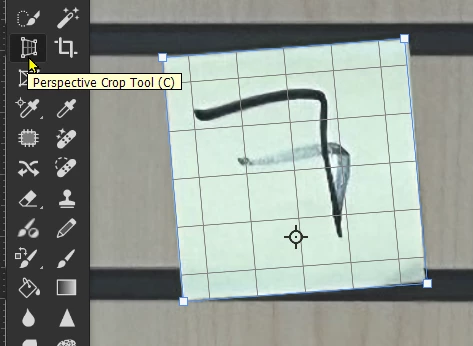
Use Perspective Crop to square up your wall image with it filling the frame.

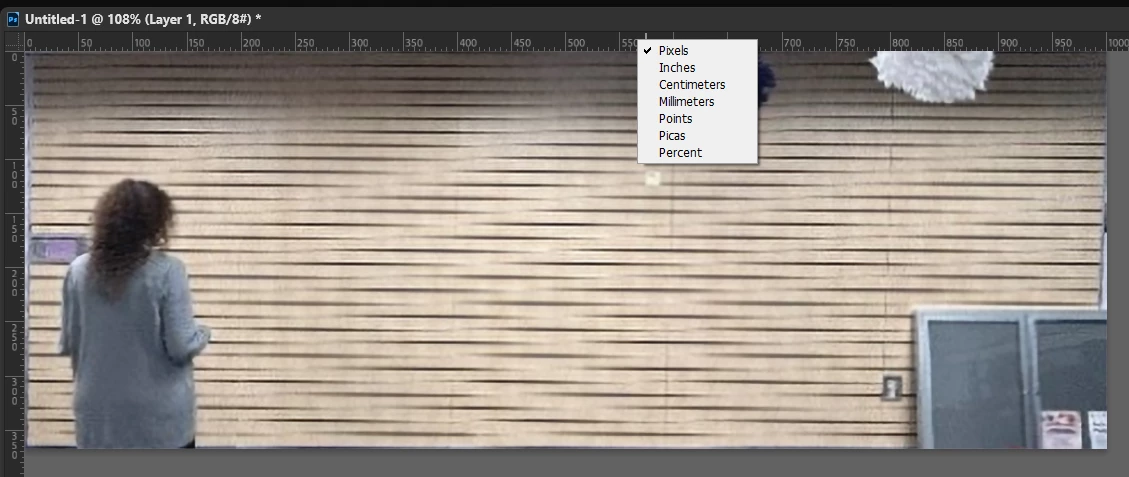
Turn on rulers (Ctrl r) right click inside a ruler and set the units (metric or imperial).

Now resize the image so that the rulers can equate to the size of the wall.
 

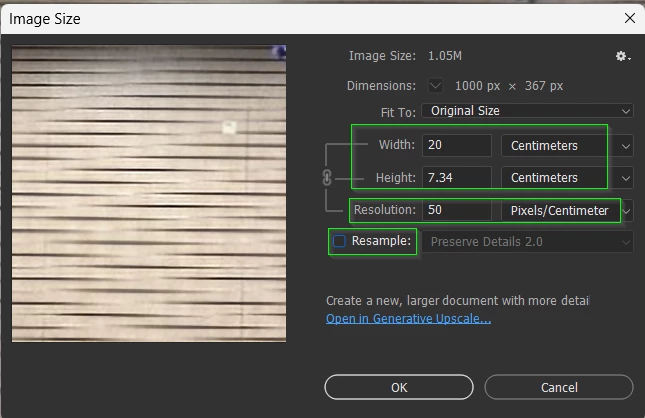
I have turned off Resample so the image pixels will not be changed.

It is currently showing the wall is 20 centimeters, and resolution is 50 pixels/centimeter

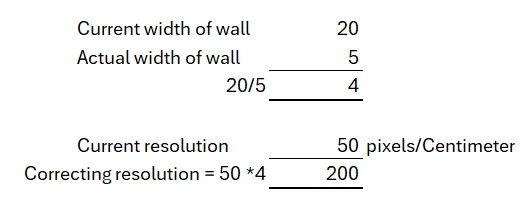
Let's say that the wall is actually 5 metres long (so we will interpret centimeters as metres going forward).
Do the math, that says we need to set the resolution to 200
And the size now matches reality (if we view centimeters as metres)
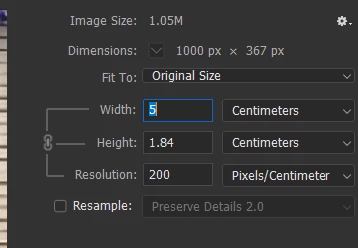
Now open Preferences and set appropriate grid units (base 10 if metric)

I also change the grid colour to make it more visible.


You now have a reference overlaid to set your posters to.
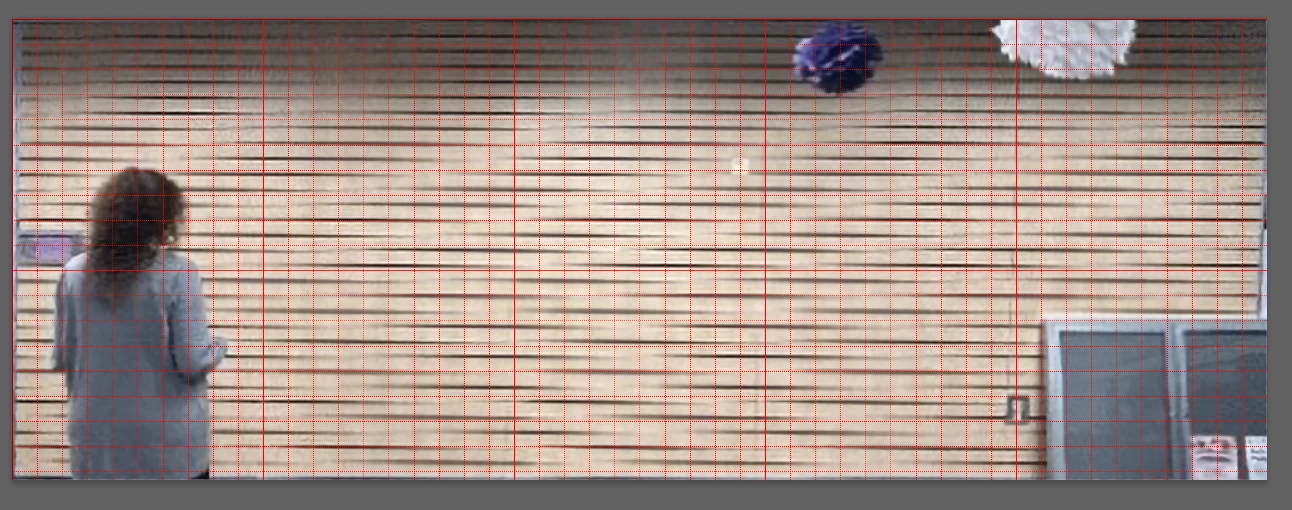
 

Resize each poster to the wall scale, and place them on the wall.  Each sub-grid line is 100mm in our case.  the images will snap to those lines if snap is turned on.


Tip:  With the Move tool selected, make sure Auto Select is disabled. You can then Ctrl select each poster by placing the cursor on it and Ctrl draging.


I hope you can work all that out. Just ask if you need more help.

 

3 replies

Trevor.Dennis
Community Expert
Trevor.DennisCommunity ExpertCorrect answer
Community Expert
November 12, 2025

I think the issue is going to be scale. The size of each poster will depend on how you photograph it. A 2 inch poster that fills the frame in the camera/phone, will be out of scale with a 20 inch poster that fills the frame. 


There may also be an issue if the camera was not perfectly perpendicular to the center of the poster poster.

Lets deal with the this one first as the fix is easier, and that is Perspective Crop.  This will get things perfectly square, but the aspect ratio might be out, so either live with that, or fix it with Free Transform.

Use Perspective Crop to square up your wall image with it filling the frame.

Turn on rulers (Ctrl r) right click inside a ruler and set the units (metric or imperial).

Now resize the image so that the rulers can equate to the size of the wall.


I have turned off Resample so the image pixels will not be changed.

It is currently showing the wall is 20 centimeters, and resolution is 50 pixels/centimeter

Let's say that the wall is actually 5 metres long (so we will interpret centimeters as metres going forward).

Do the math, that says we need to set the resolution to 200

And the size now matches reality (if we view centimeters as metres)

Now open Preferences and set appropriate grid units (base 10 if metric)

I also change the grid colour to make it more visible.


You now have a reference overlaid to set your posters to.


Resize each poster to the wall scale, and place them on the wall.  Each sub-grid line is 100mm in our case.  the images will snap to those lines if snap is turned on.


Tip:  With the Move tool selected, make sure Auto Select is disabled. You can then Ctrl select each poster by placing the cursor on it and Ctrl draging.


I hope you can work all that out. Just ask if you need more help.

 

Participant
November 13, 2025

Thank you so much! I believe this should solve my issue.

Genius
November 12, 2025

Photograph the wall straight on and use that as a template. You may have to do it in sections.

jane-e
Community Expert
Community Expert
November 12, 2025

Screenshots would help us to help you.


Without them, I am thinking:

Bottom layer: wall

Top layer: artwork

Select the gaps, then create a layer mask for the artwork layer that hides the wall and reveals the gaps. (If you mean the opposite, then invert the mask.)


I may have misunderstood, though, so please clarify.


Jane


Participant
November 12, 2025

Thanks Jane! I've attached images of the wall and my artwork, but I don't have the two in one project. The artwork is very simple, but I don't want to lose any of the words in the gaps. Sorry for the confusion!