kristinaray
Participant
May 4, 2018
Question

Need help with brush stroke overlapping!

  • May 4, 2018
  • 1 reply
  • 333 views

Hello! I have 2 questions.

1) I see videos where people paint different layers the previous layer painted stays under the new color (doesnt overlaps the new one).

How do you achieve that?

I tried creating different layers but it did't help. Should i use masks? I tried layer opacity 45 and brush 100 (as i found on the forum) but it also didnt help.

2) When I paint a big piece and then want to continue, the next stroke goes above that 1st color and that spot becomes darker (if I let go of the mouse and then use the brush over again in the same area) 😕😕

How can I make it all one color?

As an example this video where an artist does that perfectly well.
Thank you in advance!

    This topic has been closed for replies.

    1 reply

    c.pfaffenbichler
    Community Expert
    Community Expert
    May 4, 2018

    What are the complete Tool settings, in particular Blend Mode, Opacity, Flow, …

    Please post a meaningful screenshot including all pertinent UI elements (Options Bar, Layers Panel, …).

    When working with more than one Layers which Blend Modes did you try using, again please post meaningful screenshots? 

    kristinaray
    Participant
    May 4, 2018

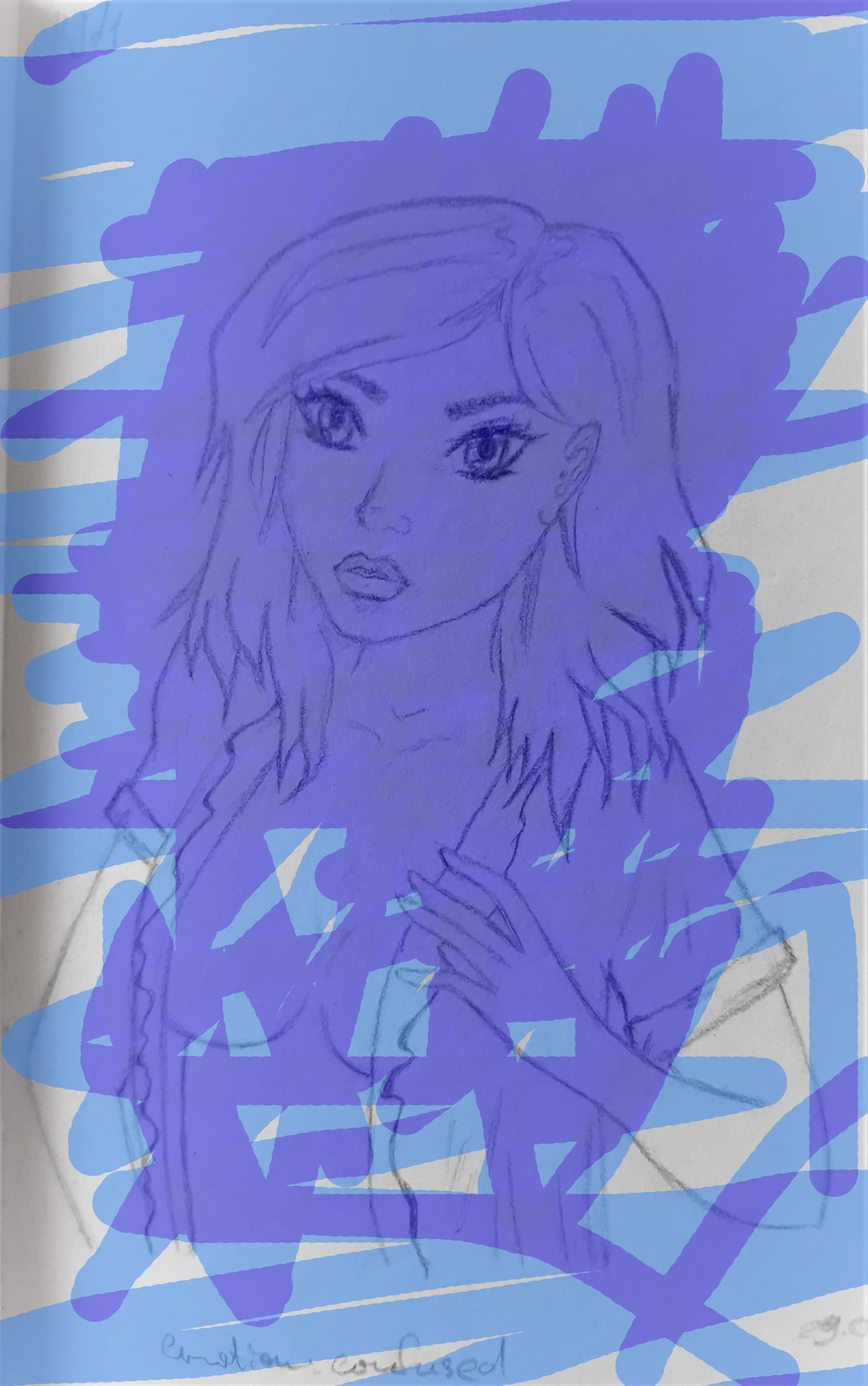
    I need different areas to be visible and colored (as on the 2nd picture). How can I achieve it not using a lasso tool?

    D Fosse
    Community Expert
    Community Expert
    May 4, 2018

    Try different Blend modes. This can be set for the entire layer, or the tool you're using. The most useful in your case will probably be Color and Luminosity, and also Lighten, Screen, Darken and Multiply. Try them out and you'll quickly get a feel for what they do.

    The brush tool also has a special blend mode called Behind. This works only in transparent areas, so will appear to go under existing brushstrokes.