Inspiring
January 14, 2017
Answered

Need help with making interior shots look nicer

  • January 14, 2017
  • 6 replies
  • 2079 views

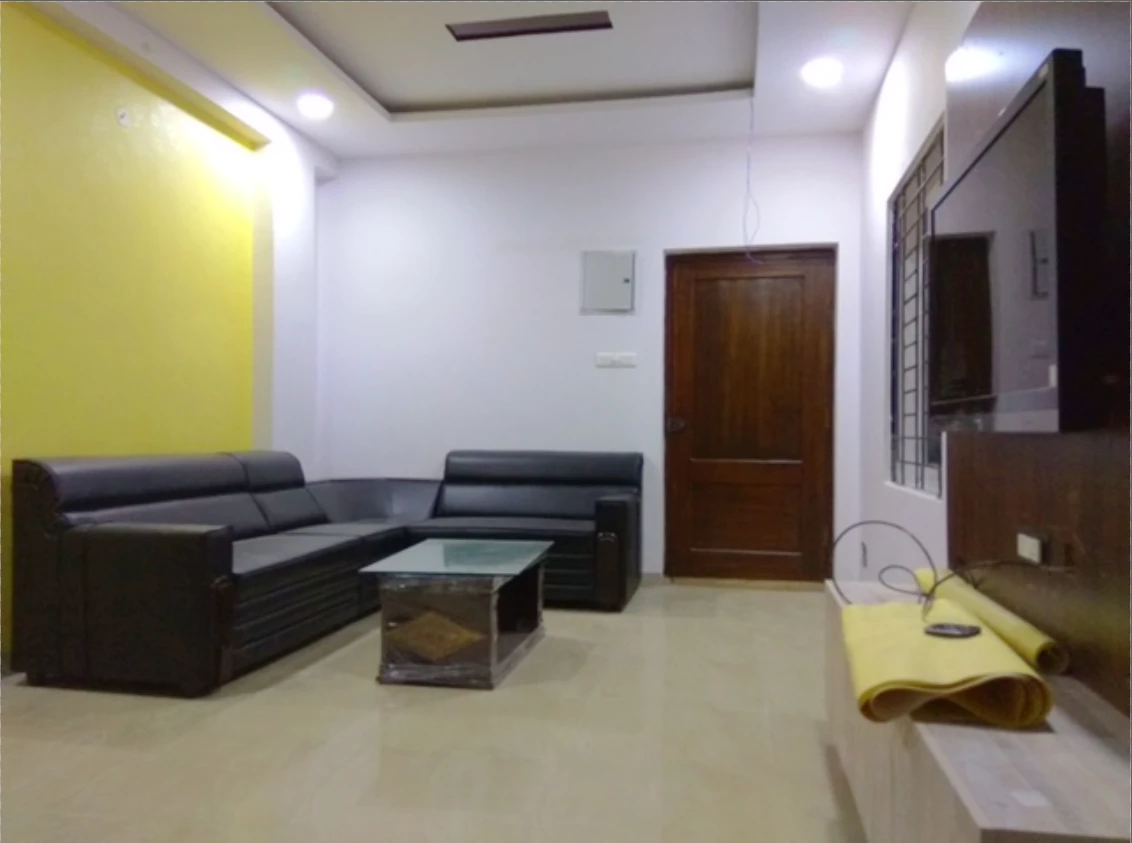
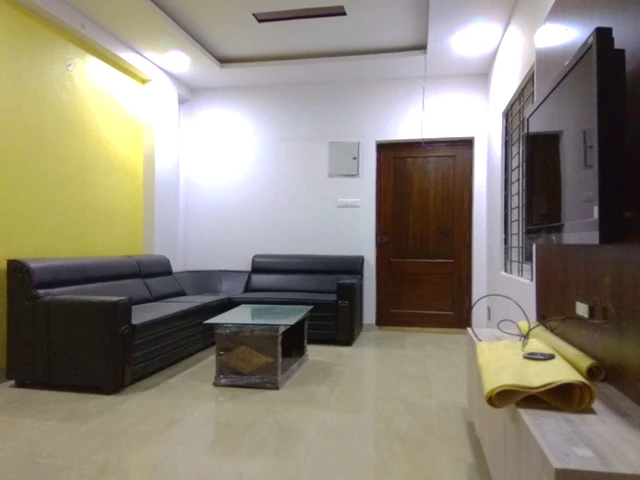
I have a client who gave me some pictures to use in a commercial.  Unfortunately the pictures aren't very good and I want to make them look nicer but I don't know much about photoshop.  I tried to improve the picture based on a tutorial I found and I am happy with it for the most part but there are these bright glare spots I want to get rid of.  Any advice?

Before:
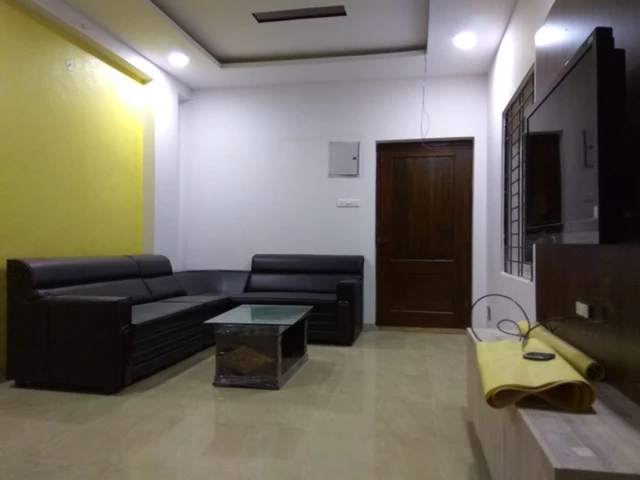
After:
This topic has been closed for replies.
Correct answer barbara_a7746676

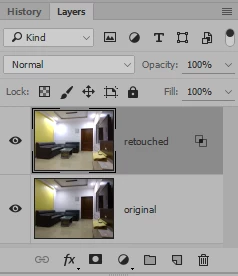
There are many ways to do things in Photoshop. One way which would be fairly fast, would be to put the original image and the retouched image on separate layers.

Then double-click the right side of the top layer (retouched) to open Layer Style.

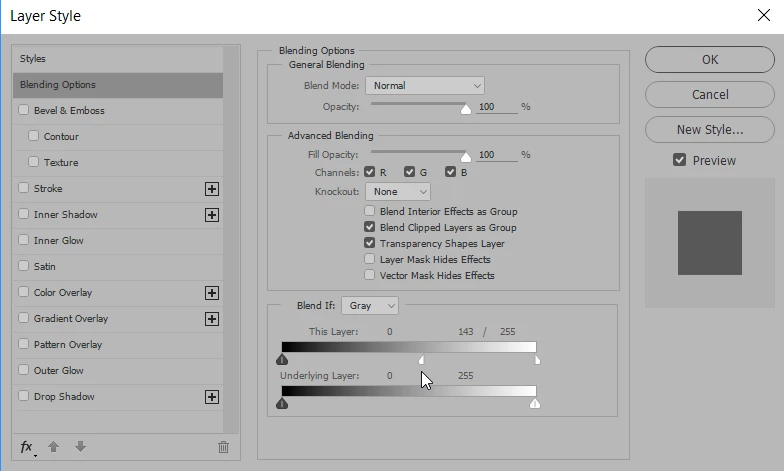
Move the white point slider of This Layer to the left. Hold down Alt or Option as you drag one side of the white point slider in order to split the two sides of the white point slider so that you have a smoother transition. That will hide the bright glaring spots on the retouched layer and let the lighter areas of the original show.

6 replies

lesliewand
Inspiring
January 15, 2017

well... if it's to be used in a commercial, then it really does require to be reshot professionally no matter what the client is trying to sell?

not only is it badly lit, it's poorly framed and unless they're selling whatever's rolled up on the right on the table, it's a pointless shot, literally. even a magazine on the table would give it some interest....

Trevor.Dennis
Community Expert
Community Expert
January 15, 2017

leslie wand wrote:

well... if it's to be used in a commercial, then it really does require to be reshot professionally no matter what the client is trying to sell?

not only is it badly lit, it's poorly framed and unless they're selling whatever's rolled up on the right on the table, it's a pointless shot, literally. even a magazine on the table would give it some interest....

That's the best advice from this thread so far.  I said it was unfixable, but it is actually worse than unfixable.  If the client took the shot, then you are doing them a disservice even trying to make it better.  Say to them very nicely,  "How about we try shooting it again?   If you want your customers to think of you as professional, you need to give them your very best work."

If your client is a man, then ask him to bring his wife/SO along to dress the set.  Get rid of that roll of whatever it is.  In fact well done Benjamin for doing a nice job of upressing the image.

postrophe
Inspiring
January 15, 2017

Hi

Wisely said and done Trevor.

Pierre

Inspiring
January 14, 2017

Thank you everyone for you help by the way.  I will probably try out all the methods for practice.

Trevor.Dennis
Community Expert
Community Expert
January 15, 2017

Seeing as this thread is still alive, would you mind uploading a bigger version of the image?  2000 pixels would be nice.

This is a ceiling light that might have been behind that blown out area.   100% Photoshop illustration.

Inspiring
January 15, 2017

I actually went with Barbara's method since the client wants this as quickly as possible and hers was the simplest.  I appreciate your help though and I will close this thread. 

Terri Stevens
Legend
January 14, 2017

you can get a nice boost to the saturation here with L*a*b mode. I think Trevor has shown how to overcome the problems with the image , so I have not replicated that , but here's a before and after with just saturation boosting.

Trevor.Dennis
Community Expert
Community Expert
January 14, 2017

I really wish people wouldn't get hung up on trying to fix what can't be fixed, when it is so easy to recreate as an illustration using Photoshop.  I wasn't going to go crazy with such a tiny image to work with, but with a full size picture you could rebuild the flat surfaces, and add a bit of texture if needed.  Composite on some light fittings and make them glow, and find some Walnut or Cherry wood texture for the wall panel.  Note a lot of so called hardwood textures are stained pine with a coarse grain that looks totally unreal, but the real thing is out there.

That's my two cents worth.  Rebuilding from scratch can be done with most things including portraits and skin tone and texture, and it is a lot more satisfying than struggling hopelessly bad photographs.

davescm
Community Expert
Community Expert
January 14, 2017

Use a curves adjustment layer to lift the centre and lower areas.

The add a new layer and get the clone stamp tool set to 30% opacity.

Put a selection marquee round each section in turn and clone from the darker to the blown out areas. You are not trying to eliminate them - just put a bit of detail back  in

Finally I balanced the colour in the camera raw filter

Dave

Inspiring
January 14, 2017

I like your results dave but I am a bit confused by your steps.  I don't know how to get the marquee as tight as you show in your example.  I also tried using the clone stamp tool but didn't see any results. 

davescm
Community Expert
Community Expert
January 14, 2017

Hi ,

I used the polygonal lasso

to put a tight selection around each area then used the clone stamp tool within it. The selection meant I did not have to worry about overspill when cloning right into the corners.

Dave

barbara_a7746676
Community Expert
barbara_a7746676Community ExpertCorrect answer
Community Expert
January 14, 2017

There are many ways to do things in Photoshop. One way which would be fairly fast, would be to put the original image and the retouched image on separate layers.

Then double-click the right side of the top layer (retouched) to open Layer Style.

Move the white point slider of This Layer to the left. Hold down Alt or Option as you drag one side of the white point slider in order to split the two sides of the white point slider so that you have a smoother transition. That will hide the bright glaring spots on the retouched layer and let the lighter areas of the original show.