

Joe Creative
Inspiring
January 15, 2019
Answered

Need Legacy Free Transform option for Adobe Photoshop CC 20.0.2

  • January 15, 2019
  • 1 reply
  • 1958 views

First of all... I'm surprise that Adobe read's their forums. So, thank you for fixing some bugs! You just forgot one thing!

You need to have an option for Legacy Free Transform. The Transform still has that crappy auto maintain aspect ratio. Many of us just hate that new option "transform". It should be the user that decides to click that option. Maybe that would be in option CC20.0.3? I understand that option is good for Adobe XD and Sketch Ui. So, saying that. You need to give the users a check box to check that option on or off.
    This topic has been closed for replies.
    Correct answer Jeff Arola

    Hi Trevor. I redid it again. I copy and pasted the info that the article was stating. No luck....

    Its the same thing. I still have to use my shift key to get what I want... but it's still maintains

    the same scale.


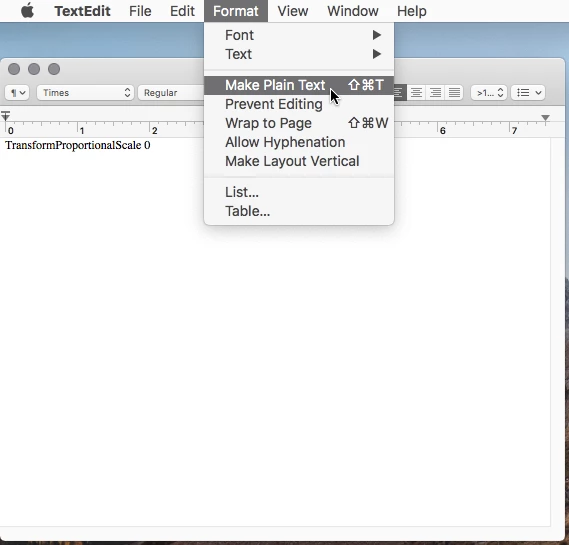
    On mac if your using TextEdit, before you save, go to Format>Make Plain Text

    Then when you go to save just paste PSUserConfig for the name.

    1 reply

    davescm
    Community Expert
    Community Expert
    January 15, 2019

    Hi

    I agree with you!

    In the meantime, if you are desperate to revert, you can do the following:

    1. Use Notepad (Windows) or a text editor on Mac OS to create a plain text file (.txt).
    2. Type the text below in the text file:

      TransformProportionalScale 0

    3. (Windows) Save the file as "PSUserConfig.txt" to your Photoshop settings folder. [Installation Drive]:\Users\[User Name]\AppData\Roaming\Adobe\Adobe Photoshop CC 2019\Adobe Photoshop CC 2019 Settings\

      (macOS) Do the following:
      1. Save the file as "PSUserConfig.txt" to the desktop.
      2. Control-click PSUserConfig.txt saved at the desktop and choose Copy from the pop-up menu.
      3. In the Finder, choose Go > Go To Folder. In the Go To Folder dialog box, type ~/Library/Preferences/Adobe Photoshop CC 2019 Settings/
      4. Paste the copied file at this location.
    4. Restart Photoshop.

    Dave

    Joe Creative
    Inspiring
    January 15, 2019

    Hi Dave,

    I'm running Mac. I did that and it didn't help at all. :*( I'll try it again. Maybe it got deleted after the update.

    Thank you!

    Joe

    Trevor.Dennis
    Community Expert
    Community Expert
    January 15, 2019

    Joe, can you double check the file location. 

    Did you leave a space before the 0 ?

    Did you use a zero and not the letter O?

    Are you testing on a raster layer?  Shape layers still have the old process, so would not make a difference.

    You can copy and paste from this site to be sure

    https://medium.com/@mikemurphyco/259-free-transform-photoshop-cc-2019-a309445af581