SusanSherman
Inspiring
April 20, 2017
Answered

Need to minimize over exposed background image areas

  • April 20, 2017
  • 2 replies
  • 2752 views

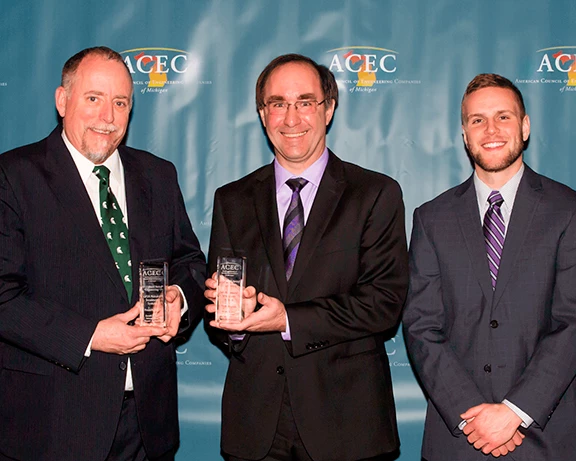
Among other adjustments that need to be made, I need to try to minimize the overexposed/over highlighted areas of this background. Unfortunately, neither the event planner nor the photographer understood the need to use a backdrop and lighting that minimized flashback.

I'm looking for some best practice suggestions for reducing the amount of highlight without darkening the entire photo and while keeping it as natural as possible. Thankfully, it appears that there are no sections where the image is entirely blown out (no pixel data), but I'm struggling because of the significant wave pattern that the vinyl backdrop creates with the bright highlights right next to the deep shadows. Unfortunately, this is the only photo I have to work with and I have to use it in my final project.

I use Photoshop CS6 Extended v 13.0.1 x64

on a Win 7 sp1 platform

Thanks in advance for your help!!

Susan

This topic has been closed for replies.
Correct answer Norman Sanders

1.  Image > Mode > RGB Color

2. Duplicate the layer

3. Eyedropper. Choose darkest blue. It is Foreground color for use in Step 9

4. Quick Selection Tool.  Select the men.

5. Use it to create mask (Layer mask symbol at the bottom of the Layers panel)

6. Invert the mask (Image > Adjustments > Invert

7. Choose the image in the duplicate layer

8. Use Curves to darken the highlight end of the curve

(This is a matter of personal taste. You may choose to darken it more than I did.  It will be tweaked again in Step 10)

9. Edit > Fill with Foreground color set to Color (See Step 3)

10. Use Curves to adjust tone level of the curtain

11. Choose the Mask and use soft edge Brush to reveal the logos  on the curtain

I suggest that you also clone away the sharp shadow alongside each head.)

2 replies

Norman Sanders
Norman SandersCorrect answer
Legend
April 20, 2017

1.  Image > Mode > RGB Color

2. Duplicate the layer

3. Eyedropper. Choose darkest blue. It is Foreground color for use in Step 9

4. Quick Selection Tool.  Select the men.

5. Use it to create mask (Layer mask symbol at the bottom of the Layers panel)

6. Invert the mask (Image > Adjustments > Invert

7. Choose the image in the duplicate layer

8. Use Curves to darken the highlight end of the curve

(This is a matter of personal taste. You may choose to darken it more than I did.  It will be tweaked again in Step 10)

9. Edit > Fill with Foreground color set to Color (See Step 3)

10. Use Curves to adjust tone level of the curtain

11. Choose the Mask and use soft edge Brush to reveal the logos  on the curtain

I suggest that you also clone away the sharp shadow alongside each head.)

SusanSherman
Inspiring
April 20, 2017

THANK YOU! Your steps got me to the perfect solution and I made a few additional adjustments of my own along the way. I still haven't completed any of the OTHER edits yet, but, as you can see below, the image is already MUCH better that what I started with!!

I tried to mark your answer as "correct" but my computer kept telling me there was an error. So, if it does not show as the correct answer when I post this reply, I am sorry for that. I always know that the folks at the Adobe Forums will come through for me!!

Norman Sanders
Legend
April 20, 2017

Nice job! Ya done good.

Try that "Correct" option at another time. It just may work. The important thing is that you were able to get the result you wanted.

barbara_a7746676
Community Expert
Community Expert
April 20, 2017

You could start by making a selection of the background with the Quick Selection tool.

Then a quick Curves adjustment.

If you have a bit more time, using the clone stamp and content aware fill, you could get rid of the harsh shadows around the heads, as I've done around the ear on the far left.