Participating Frequently
August 28, 2015
Answered

New File Naming Macros?

  • August 28, 2015
  • 2 replies
  • 632 views

Hey guys this might be a long shot,

I'm creating some actions to take a given image, resize it to specific dimensions and create three new documents with three different selections from my original file. I'd like to figure out a way to have the three newly created files to have a name that reflects both their source file's name and then serialize their file name with some custom text. I know a few of these features exist in some of the batch functions, but they wont work the way i need them because when the action i have made creates a document it always uses the same generic file name.

Is there a way to create new files with some sort of conditional text? for instance when a new file is created from the script it would use the file name of the source image? or something like this?

Ideally i'd like to end up with four files; one that is the original and my three crops all perfectly labeled in an automated fashion:

OriginalFile 1.Tiff

OriginalFile 1- Crop 01.Tiff

OriginalFile 1- Crop 02.Tiff

OriginalFile 1- Crop 03.Tiff


Even more ideally i'd like for a large source folder of images to be batch processed in this way and for the sequence of image serials to reset every third image so that i would end up with something like this:


OriginalFile 1.Tiff

OriginalFile 1- Crop 01.Tiff

OriginalFile 1- Crop 02.Tiff

OriginalFile 1- Crop 03.Tiff

OriginalFile 2.Tiff

OriginalFile 2- Crop 01.Tiff

OriginalFile 2- Crop 02.Tiff

OriginalFile 2- Crop 03.Tiff

etc.


Thanks in advance
Correct answer JJMack

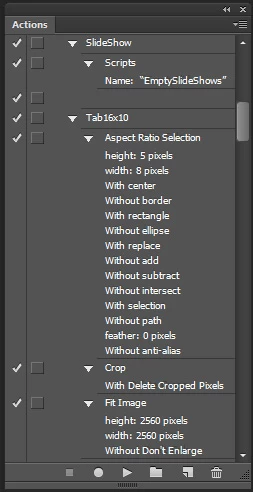
The actions can be very simple.  If fact mine are identical except for the setting recorded into the plug-in steps.  I wrote a script AspectRatioSelection based on Adobe Fit Image plug-in script design.  I use it, Image Crop and the Fit Image plug-in in my actions.  The SlideShow action uses two script.  One I wrote to empty my output folder and the other the recorded Image Processor Pro step which Photoshop Action Platte does not show what has been recorded.  I used Record again to show you in my previous append what was recorded.

The scrip I wrote to empty my output folder could be very destructive so I hard coded the folder that will be empties of files.

/* ==========================================================

// 2015  John J. McAssey (JJMack)

// ======================================================= */

// This script is supplied as is. It is provided as freeware.

// The author accepts no liability for any problems arising from its use

/*

<javascriptresource>

<name>EmptySlideShows</name>

<about>$$$/JavaScripts/EmptySlideShows/About=JJMack's EmptySlideShows.^r^rCopyright 2015 Mouseprints.^r^rScript utility for action.^rNOTE:Empty SlideShows onUsers Desktop</about>

<category>JJMack's Action Utility</category>

</javascriptresource>

*/

#target photoshop

app.bringToFront();

var TreeRoot = '~/Desktop/SlideShows';

clearTree(TreeRoot)

app.togglePalettes();

function clearTree(tFolder) { // folder object

    var sFolder = new Folder(tFolder); 

    if (sFolder.exists) {

       var procFiles = sFolder.getFiles(); 

       for (var i=0;i<procFiles.length;i++){                                    // loop through this folder contents 

           if (procFiles instanceof File ){ procFiles.remove(); }        // Delete  File

           else if (procFiles instanceof Folder){ clearTree(procFiles); } // search the subfolder  

           }

      }

  }; 

2 replies

JJMack
Community Expert
Community Expert
August 28, 2015

plevac wrote:


Even more ideally i'd like for a large source folder of images to be batch processed in this way and for the sequence of image serials to reset every third image so that i would end up with something like this:


OriginalFile 1.Tiff

OriginalFile 1- Crop 01.Tiff

OriginalFile 1- Crop 02.Tiff

OriginalFile 1- Crop 03.Tiff

OriginalFile 2.Tiff

OriginalFile 2- Crop 01.Tiff

OriginalFile 2- Crop 02.Tiff

OriginalFile 2- Crop 03.Tiff

etc.


Thanks in advance

Very easy to do that all you need is three cropping actions and the Image Processor Pro plug-in script.   Being that Image Processor Pro is a Photoshop plug-in you could even record it into an action.   When you record using a plug-in in an action the Plug-in records the setting you used in its dialog recording the action step into the step recorded.  When the Action is played  the plug-in bypasses displaying its dialog and uses the setting recorded into the actions step.  No user interaction is required to complete a dialog. You could setup a source folder and a destination folder on your desktop.  You could then clear out these folders after recording the action.  Then add a new set of images to the source image folder. all you would need do is open Photoshop and play the action.  Your cropped file will be created.  With the source file name and the custom text you want in the cropped files names.

JJMack
plevacAuthor
Participating Frequently
August 28, 2015

where in the creation of the action can i specify the naming conventions/custom text?

JJMack
Community Expert
Community Expert
August 28, 2015

The naming is done by the script and the dialog you record in the image processor pro step.  The action you create only need to make the selection then do a crop.  You record into the Image Processor pro step which action to use for each output file. I do it a bit differently.  I crop images to the aspect ratio I want the output image to be respecting the  images orientation. So if  I set a 3:2 aspect ratio Landscape image will be center cropped to 3:2 and Portraits to 2:3.  Once Cropped I the resize for the longest side.  I could have the Image Processor Pro  do the resize however I do it in the action for I can also batch the action if I only want to create one output image size.  It make no difference If the Action does the fit image process or the the Image Processor Pro does the fit image process. In fact both could and the results would be the same.  Here is how I filled the the Image Processor Pro Dialog out in my action I save 8 output image for each image in sub folders in the output folder.  You do not need to use sub folders all output file can he into the same folder.  Just make sure to add your custom text the the output file names.

JJMack
Chuck Uebele
Community Expert
Community Expert
August 28, 2015

That should be done with scripting.

plevacAuthor
Participating Frequently
August 28, 2015

Could you give me some direction as how to set that up? I'm not very familiar with scripting or any coding for that matter

Chuck Uebele
Community Expert
Community Expert
August 28, 2015

Let me move your post to the scripting forum. Someone there might have some good info for you.