Participating Frequently
December 1, 2020
Answered

New to Photoshop and I am trying to digitise some artwork

  • December 1, 2020
  • 5 replies
  • 940 views

Hi there, 


I am new to Photoshop and Illustrator and I am trying to get some of my sketches digitised but I am having trouble removing the background. 

I've used the magic wand tool in Photoshop to try and do this but when I take the file to illustrator, you can still see some of the background inbetween the drawings! Sighs, I've searched the web and I am being to feel hopeless, any help I can get will be truly appreciated. 


Thanks in advance. 

Kind Regards, 
Ani
This topic has been closed for replies.
Correct answer Norman Sanders

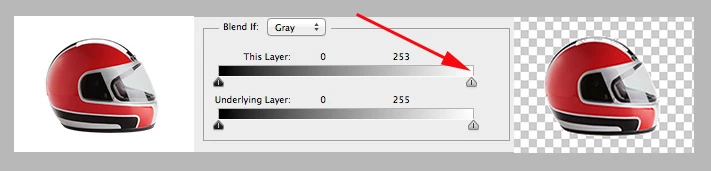
Although the sample above uses a photo rather than a drawing, I believe the Blend If command will deliver the result you want.

If there is a lock on the background layer holding the image, drag the lock to the trash.

Place a transparent layer below the image layer

Double click on the image layer to bring up Layer Style

In the Blend If section, gently move the right slider to the left until the background disappears.

If, at that point, you feel the break to transparent is too abrupt, (pencil drawing or wash drawing) hold down the Option key and click on the left side of the slider to split it, and then drag the left half further left to vignette the tonal break.

* Flatten the image and save as a psd file. (If you save as a jpg, the white will return.)

Note:

*You can now place this file, as a Layer, on another file, perhaps containing a light flat color or other image


5 replies

PrepressPro1
Legend
December 1, 2020

If you are using a scanner to digitize the art you might want to check if the scanner can set white point and black point prior to scanning. Setting the paper as the white point and the darkest of the drawing lines as the black point. 

Participating Frequently
December 1, 2020

Hi PrepressPro1, 

Thanks for that, I will definelty check the settings for scanning in artwork in the furture. 

Kind Regards, 
Anisa 


D Fosse
Community Expert
Community Expert
December 1, 2020

Here's a tip: get the whole right before you start worrying about the details.


Don't you think this looks a lot nicer? Maybe it's not even necessary to remove the background. But if you still want to do that, it's a lot easier now -

Participating Frequently
December 1, 2020

Hi D Fosse, 


Thanks for your response, I tried that and got the photo exactly like that but the lines were a bit too dark for what I am trying to do. 

I really apprecaite the help still 🙂 

Kind Regards, 

Anisa 

Norman Sanders
Norman SandersCorrect answer
Legend
December 1, 2020

Although the sample above uses a photo rather than a drawing, I believe the Blend If command will deliver the result you want.

If there is a lock on the background layer holding the image, drag the lock to the trash.

Place a transparent layer below the image layer

Double click on the image layer to bring up Layer Style

In the Blend If section, gently move the right slider to the left until the background disappears.

If, at that point, you feel the break to transparent is too abrupt, (pencil drawing or wash drawing) hold down the Option key and click on the left side of the slider to split it, and then drag the left half further left to vignette the tonal break.

* Flatten the image and save as a psd file. (If you save as a jpg, the white will return.)

Note:

*You can now place this file, as a Layer, on another file, perhaps containing a light flat color or other image


Participating Frequently
December 1, 2020

Hi Norman, 


Thanks for the reply, I will try this now and let you know if it works. 


Kind Regards, 

Anisa 

Participating Frequently
December 1, 2020

Hi Norman, 


Thank a milllion for that! This is exactly what I was trying to achieve! You've saved me a few grey hairs! 


Kind Regards, 

Anisa 

Participating Frequently
December 1, 2020

Hi Marlon, 


Thank you, I am going to explore those links now. 


Kind Reagrds, 
Anisa 

Chuck Uebele
Community Expert
Community Expert
December 1, 2020

Can you post some examples of the background that you're trying to remove?

Participating Frequently
December 1, 2020