aranee
Participant
November 11, 2017
Answered

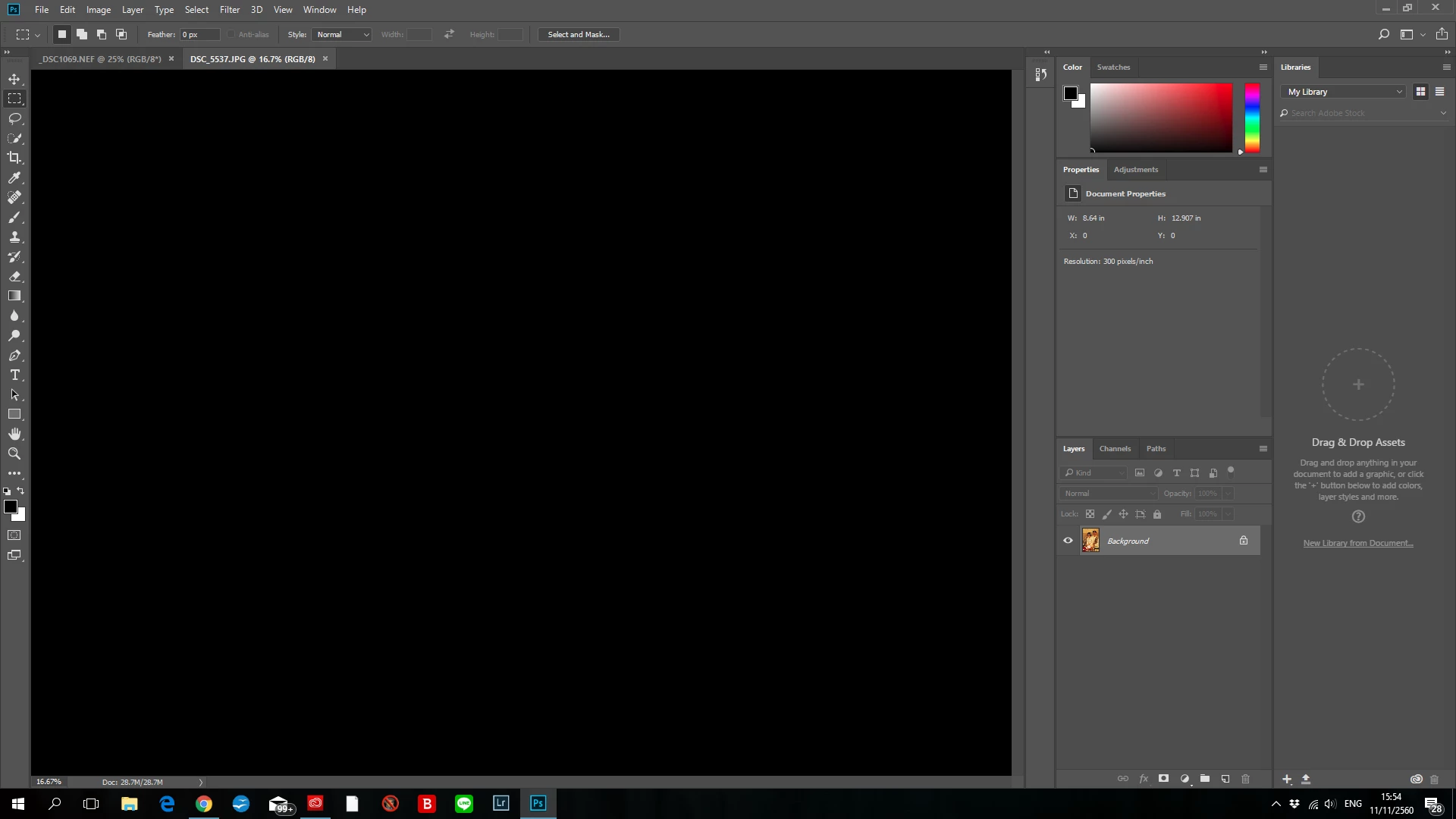
Opened files in Photoshop CC all appear black. What should I do?

  • November 11, 2017
  • 5 replies
  • 97684 views

I've just updated to the earliest version of Photoshop cc about a week ago. First time I open the program is by clicking "Edit in Photoshop" from Lightroom Classic CC. A couple of times the pictures appeared black in Photoshop and I just closed the files. Then I tried the same thing again and twice it showed the pictures and I could edit and save them. Another day I used "edit in Photoshop CC" in Lightroom again, and the picture appeared as gray and white little pixels. I then tried opening files directly from Photoshop CC and they all appeared gray and white pixels.


Then I tried uninstalling and then I restarted my computer and then reinstalled Photoshop CC. When I opened files, they all appeared black on screen. Well, actually if it's a JPEG file, it's black (on the small  layer window on the right of the screen, it still shows the picture, but the picture on the main screen is black. If it's a Raw file, the Camera Raw window came first and showed the picture. But when I clicked "open image,"  it showed all black on the main screen again.


Anyone has any idea what happened and what I should do?


Thank you for your help.

    Correct answer DelphiZoa

    Hi Aranee,

    Is your Graphics Processor (GPU) up to date? Without knowing what kind of computer you're using, I can't direct you exactly how to check. Just in case here's some info for Windows: Update the graphics driver | Windows 8, 7, Vista​.

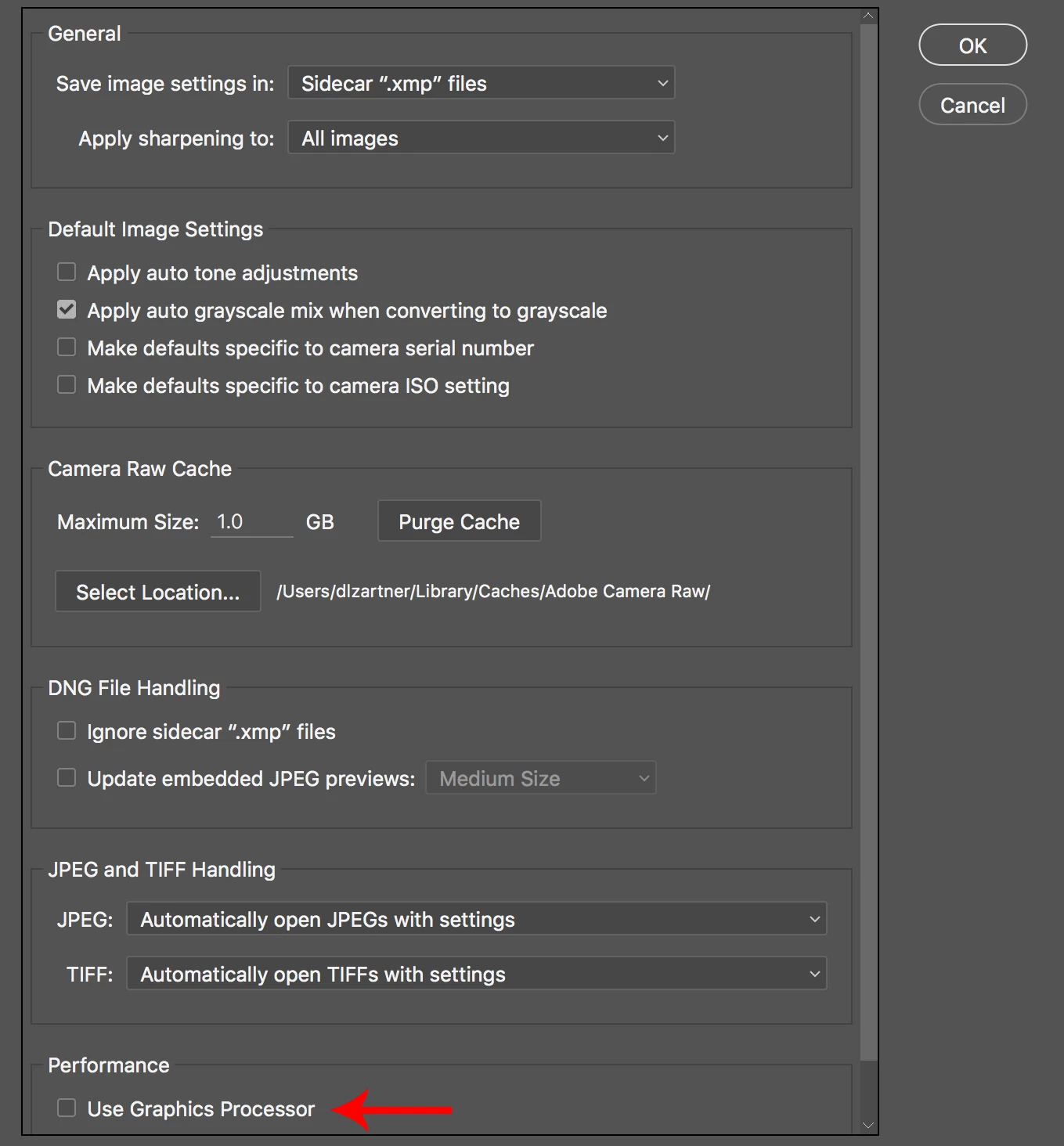
    You can also try bypassing the issue. In Photoshop, go to Preferences > Camera Raw, and then, in the pop-up menu under "Performance", uncheck the toggle for "Use Graphics Processor". BTW: you shouldn't experience any loss of performance with this fix.

    5 replies

    Participating Frequently
    October 18, 2021

    I experience the same for PS 2021 but realized earlier version 3d layers are not compatible, so deleted the 3d layers from the document, saved and reopened, and then everything is fine. Hopefully this helps!

    ariela33452544
    Participant
    May 26, 2020

    Thank you for this! Worked for me after I followed your directions then restarted Photoshop.

    Participant
    June 16, 2020

    DelphiZoa & Ariela,  

    Changing the "Use Graphics Processor" to Off, then quitting & restarting Photoshop worked for me.  Thanks for posting.

    garymak
    Inspiring
    December 17, 2022

    Here it is the end of 2022 and Adobe STILL has this problem with utilizing the GPU.  And the solution is stillt he same.  Mac Ventura on a top-of-the-line monster MacStudio, with all the power Darth Vader could dream of, including Sidewinder Missiles, yet, the solution is to "turn the graphic processor off."  So, tell me, Adobe, why bother having that option at all if the solution every year seems to be "turn GPU off"???

    Participant
    January 20, 2020

    And how does it work, with IMac? Im sitting here in front of a black screen and have no idea to fix that.

    Deadlines...

    Participant
    January 28, 2020

    I need help with this too - how do imac users fix this issue 

    Participant
    January 28, 2020
    Hey 👋
    I deinstalled and installed it again. Now it works. And I did an Mac update before. Hope it helps you .

    Holen Sie sich Outlook für iOS
    Participant
    January 3, 2018

    All opened images are still appearing black for me. I am using the latest Adobe Photoshop CC on Windows 10 PC.

    I have tried the following:

    - checking to make sure I have the latest graphics processor drivers (I do)

    - restarting and/or opening while pressing CTRL/ALT/SHIFT

    - uninstalling and reinstalling latest Adobe Photoshop CC

    - going to Preferences>Camera Raw and unchecking "Use Graphics Processor" and restarting app and computer

    Nothing is working.

    This sux.

    Participant
    January 3, 2020

    Same here....the supposed fix did not work for me either. I can see the thumbnail in the Layers panel though, but I can't work on it...

    DelphiZoa
    DelphiZoaCorrect answer
    Participating Frequently
    November 11, 2017

    Hi Aranee,

    Is your Graphics Processor (GPU) up to date? Without knowing what kind of computer you're using, I can't direct you exactly how to check. Just in case here's some info for Windows: Update the graphics driver | Windows 8, 7, Vista​.

    You can also try bypassing the issue. In Photoshop, go to Preferences > Camera Raw, and then, in the pop-up menu under "Performance", uncheck the toggle for "Use Graphics Processor". BTW: you shouldn't experience any loss of performance with this fix.

    aranee
    araneeAuthor
    Participant
    November 14, 2017

    Thank you very much for replying, DelphiZoa.

    I must admit that I don't know much about computer,so by "what kind of computer," you meant the specification of my computer? I'll have to look that up. For now I know that it's a Dell's desktop Inspiron with Core i7 and Samsung's V-Nand 850 EVO SSD (500GB). And I'm using Windows 10.


    Anyway, I'll try doing as you suggested and see if it's work.

    Thank you again!