Participant
May 13, 2021
Answered

P: Photoshop 22.4 - Missing Save as formats from the menu

  • May 13, 2021
  • 107 replies
  • 448800 views

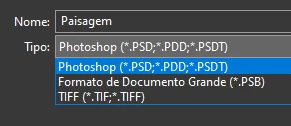
I just updated to the mentioned version and the formats dropdown list only shows 3 formats: Photoshop (*.PSD;*.PDD;*.PSDT), *.PSB and TIFF (*.TIF;*.TIFF).

This topic has been closed for replies.
Correct answer Noelle Shamroukh

Hi All,


We appreciate your feedback on the recent “Save a Copy” change. To address your concerns, we have created two new options in Photoshop 22.4.2 that will enable both revert to the legacy “Save As” workflow and/or omit the addended “copy” when saving as a copy. These options can be found in the File Saving Options section under Preferences > File Handling.


To quickly summarize, you will now have the option to revert to the legacy “Save As” workflow (from before recent changes) on both macOS and Windows. Enabling this preference will make both the “Save As” and “Save a Copy” commands operate within the same “Save As” dialog box with all its previous options, including the “as a copy” checkbox. The only difference between the two commands will be whether the checkbox is automatically selected (when using “Save a Copy”). Additionally, you will now have the option to not append copy when saving a copy. On macOS, if you enable the legacy workflow, the option to not append copy will be forced ‘on’ due to the changes made in macOS 10.15 and later. On Windows, the two preferences will operate independently.


We hope these preference options will help ease some of the frustration you encountered using the new “Save a Copy” command.


Please note, reverting to the legacy “Save As” workflow may increase the risk of overwriting file names and lost work. A new dialog will pop-up warning customers of this risk when selecting either one of these preferences on macOS. On Windows, the legacy “Save As” operates in a manner that is safe, so a warning dialog will only pop-up when selecting the option to not append copy to the file name.


For more details on each preference and how they differ by platform, please see our updated new feature summary page.


Thanks, 

Noelle

107 replies

Participant
March 29, 2024

This is incredibly frustrating! I don't understand WHY Adobe feels the need to constantly fix things that aren't broken. I do not have time to learn updates every time I open an app. If it were some radical new improvement or feature, that's one thing, but changing basic things like being able to quickly save a file in a format like you have done a zillion times before is just another time-wasting and (probably) uneccasary step. 

Derek Cross
Community Expert
Community Expert
March 29, 2024

There are counter-arguments/reasons, if you care to look, but in the meantime as Jeff posted:
You can revert to the old behaviour by going to

Settings > File Handling and checking Enable legacy "Save As"

Participant
April 9, 2024

I understand. Thank you for the help with this, Derek! 

Participant
February 20, 2024

Since JPG and PNG have been downgraded to be saved as "Save As A Copy" I continuously see myself doing extra unnecessary clicks. By bringing them back into the "Save As" section, I can save numerous versions when working on a file much faster.


The "Save As A Copy" is in my opinion a real downgrade.

Jeff Arola
Community Expert
Community Expert
February 20, 2024

You can revert to the old behaviour by going to Preferences>File Handling and checking Enable legacy "Save As"


Edit>Preferences>FileHandling (Windows)

Photoshop 2024>Settings (Preferences)>File Handling (Mac)

Participant
April 9, 2024

Thank you, Jeff!

Participant
September 11, 2023

jane-e
Community Expert
Community Expert
September 11, 2023

@Sung3217474409y5 


If you wanted us to examine your screenshot and figure out your question, I think it's that you are missing the control for "Default File Location"


Either you have an earlier version of PS and need to upgrade

or

You need to reset your Preferences

https://helpx.adobe.com/photoshop/using/preferences.html


If I made the wrong guess, please clarify.


Jane


Participant
April 9, 2024

Correct guess. This caught me off guard when I was in a hurry. Thank you, Jane!

Mohit Goyal
Community Manager
Community Manager
July 9, 2023

Hi all


You may already know that flatted file formats have been relocated from the "Save as" menu option to the "Save as Copy" option in Photoshop. To learn more about this workflow update, please refer to the following quick tip: https://community.adobe.com/t5/photoshop-ecosystem-discussions/learn-how-to-save-all-file-formats-from-photoshop-s-save-as-dialog-quick-tip/td-p/12933468?cgen=ZFN4FD71&mv=other


Or see this video tutorial link


Hope it helps,

Mohit

Community Expert
July 9, 2023

Just my personal view, I think it's awful and very confusing workflow. I'm a community expert using Adobe products for 25 years and this is probably the worst update in years, in my opinion.

davescm
Community Expert
Community Expert
July 9, 2023

Personally, I think it makes sense and avoids users from losing document content inadvertently. You can of course revert to legacy Save As workflow in Preferences - File Handling, if you don't like the newer way.

Dave

Berto82
Participating Frequently
December 15, 2022

where are the old jpg formats and other file types? When I click on "save as" I have a few formats available and among these there are no longer png and jpg. This has been going on for a few weeks/months.

TheDigitalDog
Inspiring
December 15, 2022
Author “Color Management for Photographers" & "Photoshop CC Color Management/pluralsight"
Participant
December 16, 2021

Hello, I think there is a bug with the "legacy" implementation. I have the latest Photoshop and the lastest Windows OS. I have "Enable Legacy Save As", "Do not append "Copy" to file name" and the "Save As to Original Folder" options selected.

Issue is that the Save As does NOT save to the original folder, I have to manually specify it when I use the Lightroom, Edit in, Edit in Photoshop 2022 option. I think it may be saving to a previous folder, not the one where the original file (usually the .NEF in my case) when I access Photoshop from Lightroom. I am pretty sure this used to work, that I did not have to manually specify the original folder (the one in Lightroom, containing the raw files). Right now, this is impacting my workflow, as I have to take the time to specify the intended file location in Photoshop.

Participant
November 24, 2021

yeah that a  [inappropriate language removed]  update from adobe. save a copy so every time if you wanna save in jpg "ctrl + alt + s" on windows. and they though good to add "copy " in the file name that you will have to manually remove (such annoying feature and so usless + such lot of time lose) 

Participant
November 14, 2021

Thank you - several people who listed the solution to go into preferences, file handling and check the box enable legacy save as.... 


As for those of you stating you want to roll back... I have several version of PS on my main computer as I have plug ins that do not work as well with the newer versions... when I want to use them, I just open that PS version, open the PSD I am working on and then use my plug ins.  It's all good.

Participant
November 10, 2021

This is messing with my workflow, and I don't know if there's a way to switch settings to fix my problem. I'll lay out what I'm doing, because I don't know how else to explain it.

1. I open a jpg.

2. I edit the file in some way.

3. I press save.

4. I am taken to the dialog box that saves a PSD file. However, I just want to save the file with my edits, not create a PSD document.

5. Instead of using "Save" I choose "Save A Copy", because this is the ONLY way I have found to save a jpg.
6. I still have to erase the word "copy" after the filename, which doesn't help when doing batches.


The reason this messes with my work flow is because when you create an action that saves as a copy, it doesn't erase the word "copy" from the filename. It just creates a new copy with the word -copy at the end.


This all changed in the May update. I am frustrated by this update and really wish you would not have changed the save's normal functions.


ANYWAY, how do I fix this in photoshop so that I can do my batches quickly. This new method just doesn't work for what I need to do.

JJMack
Community Expert
Community Expert
November 10, 2021

If you flatten the document File Save will write over your jpeg file.  If you enable legacy  save as  when File Save  switches to Save AS to give you the opportunities  to save layered file format you can choose jpeg instead if Legacy Save As is enabled and save  a flat version of your layered  document  over your existing jpeg file after you confirm that is what you want to do,

JJMack
Participant
November 11, 2021

Thanks for the tip! I am going to try this out.

Participant
November 4, 2021

With every update, Adobe pushes me harder and harder to explore alternative programs. These "features" are anything but. Just a bunch of suits and marketing geeks thinking up things to change for no reason other than to justify their over-paid positions. Or they are legitimtely bereft of basic intelligence and simply want to troll their user-base. Within the next 3-4 updates I bet the preferences section will be 50+ pages with 90% of the options being "enable legacy ____" -  what a joke.


Derek Cross
Community Expert
Community Expert
November 4, 2021

After your rant, you may care to read this recent post from Conrad Chavez, author of "Adobe Photoshop Classroom in a Book (2022 release)":


Adobe Community Professional ,
8m ago

Copy link to clipboard


LATEST
Lumigraphics wrote:

Except it WAS broken


Correct. In addition to legitimately fixing old broken code, many of the other recent changes have had to do with bringing Photoshop up to date. For Save As, it could be argued that the old way was wrong, because many applications do not offer non-native formats in Save As; they put all those formats (JPEG, etc.) in an Export or Save a Copy command…which is exactly how Photoshop works now.


Another “legacy” issue is proportional scaling without the Shift key. Again, using Shift for proportional scaling is no longer the standard in newer applications, especially for consistency with mobile versions where there is no Shift key. The new Photoshop default is consistent with other current applications. (The main mistake Adobe made there was to not also make the change in other applications like InDesign and Illustrator.)


It’s true that old habits are burned into our muscle memory, so it’s a pain when they are changed. But just because something was done a certain way 25 years ago often doesn't mean it’s still the best way today. Things change fast in tech, so it helps to be adaptable.

Legend
November 5, 2021

For whatever reason, Adobe is struggling to communicate the what and why of all the changes to its userbase. This isn't a new thing in business.