Participating Frequently
September 10, 2017
Answered

Paint Bucket Tool filling blank areas.

  • September 10, 2017
  • 2 replies
  • 2111 views

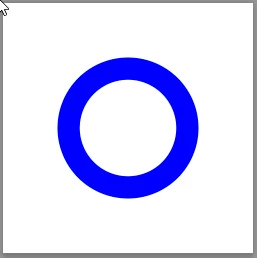
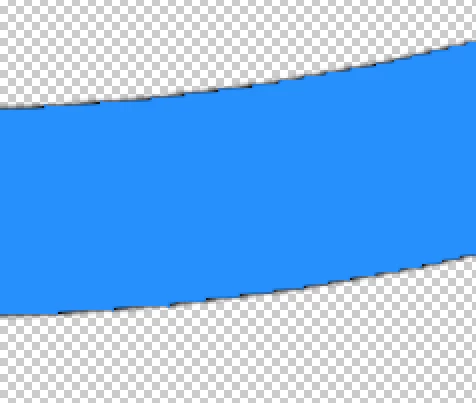
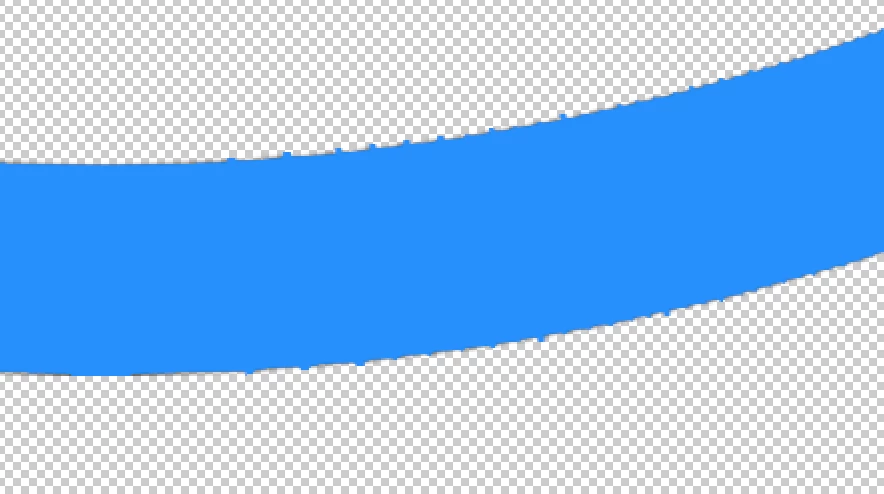
Hi.I'm trying to fill in a black circle with different colours but every time i try little lines fill in random places.I have tried playing around with Tolerance, Anti Aliasing and the contiguous option but the only different result i would get were bigger lines poking out (shown in picture) or part of the original colour still present (shown in picture)
This topic has been closed for replies.
Correct answer davescm

Are you colouring all the solid pixels on that layer? If so then doing this may work better

Add a new Color Fill layer above your circle layer (Layer -New Fill Layer - Solid Color)

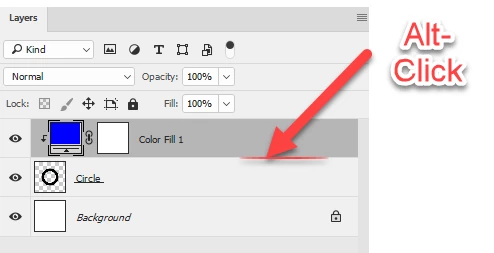
Alt Click on the border, in the layers panel, between the two layers. A small down arrow will appear and the color fill layer will be clipped to the layer below

Using this method you can change the colour at any time by clicking and editing the color fill layer

Dave

2 replies

davescm
Community Expert
davescmCommunity ExpertCorrect answer
Community Expert
September 10, 2017

Are you colouring all the solid pixels on that layer? If so then doing this may work better

Add a new Color Fill layer above your circle layer (Layer -New Fill Layer - Solid Color)

Alt Click on the border, in the layers panel, between the two layers. A small down arrow will appear and the color fill layer will be clipped to the layer below

Using this method you can change the colour at any time by clicking and editing the color fill layer

Dave

MWB123Author
Participating Frequently
September 10, 2017

Thank you so much for your help!!

davescm
Community Expert
Community Expert
September 10, 2017

You're very welcome

Dave

andreamaestri
Participating Frequently
September 10, 2017

Hello MWB123​ The paint bucket tool isn't good to paint over raster images, in this case your circle, it can paint over even on the anti-aliasing pixels,  you can try to use the pen tool and mask over you circle, then hide your underneath layer. This method should create a more clean and precise work. Let me know if this is helpful.

MWB123Author
Participating Frequently
September 10, 2017

Hi! Thank you so much for you help. I have tried this on one section of my circle and it seemed to work.Is there a way to select all the pixels of the circle because i have a transparent background. Thanks

andreamaestri
Participating Frequently
September 10, 2017

Just use CTRL+Click (Command+Click on Mac) on your layer like this

Or you can use the load selection tool on Select>Load Selection

A more extensive tutorial can be found here : Load selections from a layer in Photoshop

I hope this will help you!