
Participant
January 16, 2019
Answered

Panels not sticking!

  • January 16, 2019
  • 2 replies
  • 1197 views

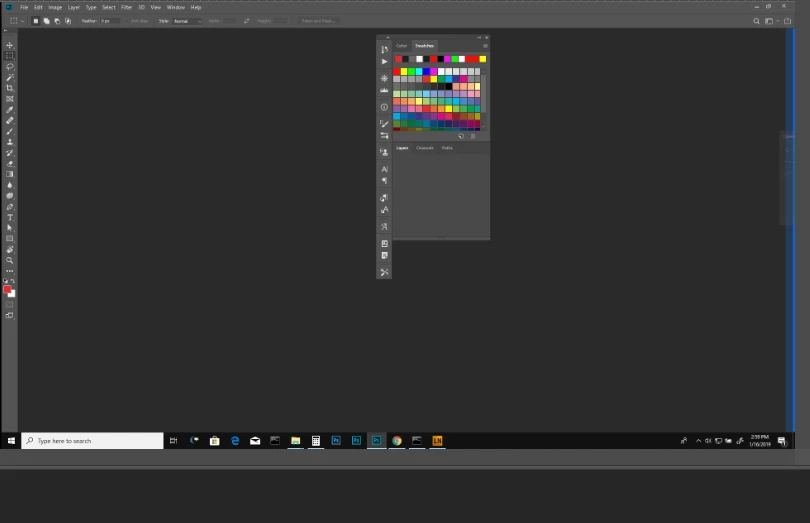
I am having real issues with my panels (layers/info/history etc) not sticking to the upper right hand side of my workspace.  I can group the panels (blue line OK) but when I try to lock the panels onto my workspace on the upper right side of my screen I do not get a blue line and they just float.  If I drag them to the bottom of my work space they will lock (but thats NOT where I want them).  My tools pallet is fine.  Please help meeeeeeee
    This topic has been closed for replies.
    Correct answer JJMack

    On windows reset any of Adobe supplied Workspaces and you will find palettes docked to Photoshop right frame side.  Here I switched Adobe default workspace and undocked the palettes docked on right  side. I then grabbed the layer palette and dragged it to the right side till the frame side turned blue.  Its hard to do some tomes you need to play around with the position.  Note here the Layers palette is mostly off screen before the side turned blue.

    2 replies

    Trevor.Dennis
    Community Expert
    Community Expert
    January 16, 2019

    Try reducing the Photoshop window size so you  can definitely see the edge

    I notice that when I do this have just floated the collapsed panels I just dragged away from the edge, those  panels remain in position relative to the monitor edges, and NOT relative to the Photoshop window.  This meant that reducing the Photoshop window size initially hid some of those panels, so beware.

    Have you tried resetting the relevant workspace?

    [EDIT]  Sorry JJ.  I posted this just after the OP said your post fixed things for him.

    JJMack
    Community Expert
    JJMackCommunity ExpertCorrect answer
    Community Expert
    January 16, 2019

    On windows reset any of Adobe supplied Workspaces and you will find palettes docked to Photoshop right frame side.  Here I switched Adobe default workspace and undocked the palettes docked on right  side. I then grabbed the layer palette and dragged it to the right side till the frame side turned blue.  Its hard to do some tomes you need to play around with the position.  Note here the Layers palette is mostly off screen before the side turned blue.

    JJMack
    mrdofnycAuthor
    Participant
    January 16, 2019

    That does it! Jeeze! I have been wasting my time for months and asking everyone. You Sir are a GENIUS!

    Many thanks