
Pasting from Illustrator to Photoshop causes "mismatched color mode" dialog to appear, both RGB
I'm posting this to discussions instead of bugs because I'm not sure if it's something I'm doing wrong or what.
Anyways, I am using PS 2022 and Illustrator 2022.
When I copy a shape from Illustrator to Photoshop, this dialog appears:
Please note the following:
• Some of the content in this selection will be rasterized.
• Copied content from an Illustrator document has a different color mode. We’ll convert it to match your Photoshop document, but colors might change.
Continue Pasting?
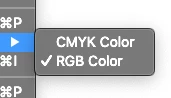
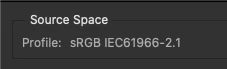
I double checked that both were in RGB mode, but this dialog appears anyways, and the colors appear desaturated and wilted after it's done pasting.
I am mentioning pasting specifically because the newest version of Photoshop allows you to paste from illustrator and preserve layers and it's very handy for the kind of graphic I'm doing.
This happens with both 3D and 2D shapes.
 AdChoices