
AlanG6613
Participating Frequently
February 16, 2017
Answered

PDFs, embedded fonts, and strange print colours

  • February 16, 2017
  • 2 replies
  • 838 views

Hello, I was hoping somebody could shed some light here, because I've discovered WHAT the problem is, but I have no idea WHY the behaviour occurs. I also hope this is the right place for it...

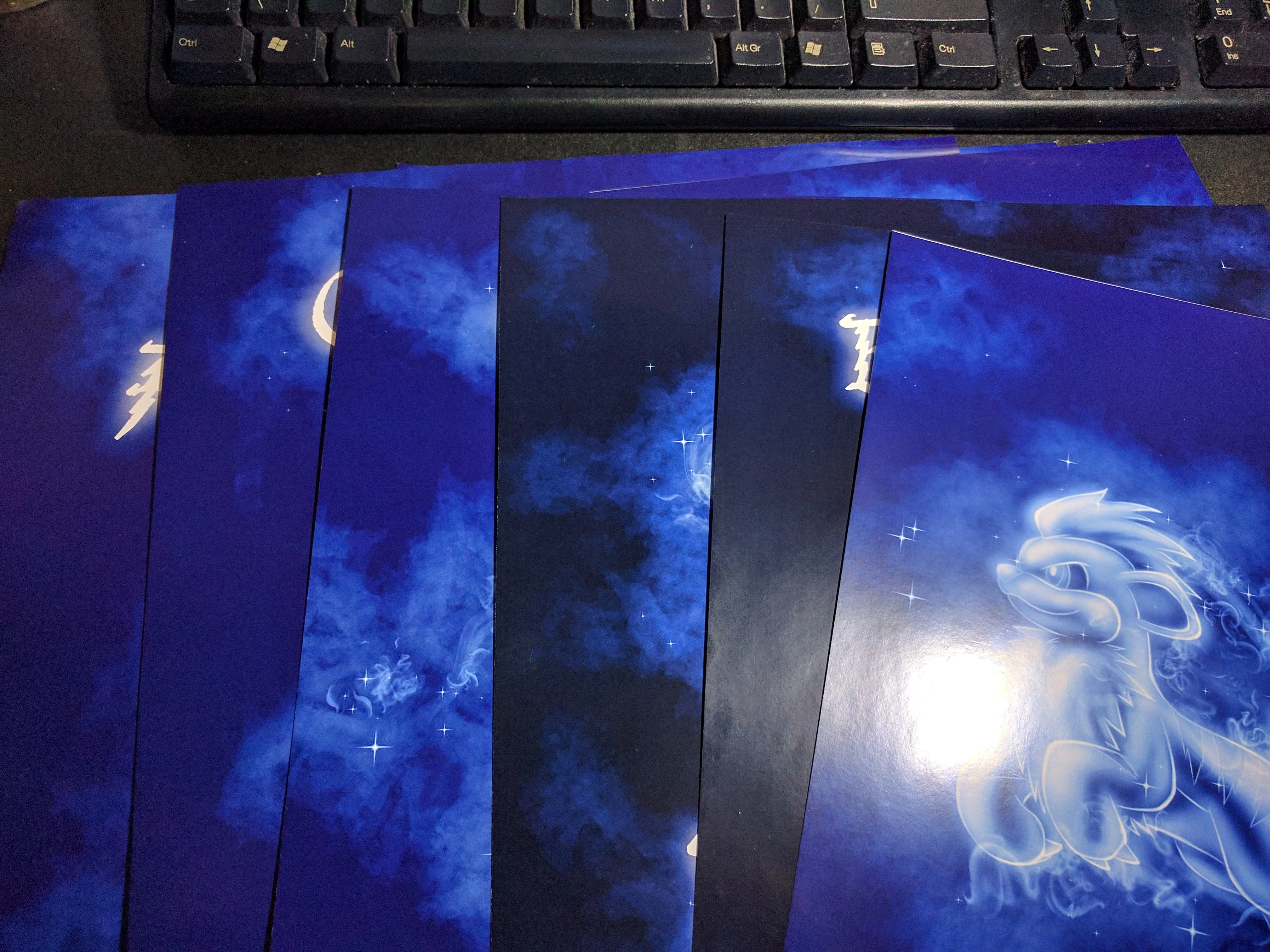
I'm troubleshooting a weird issue with some proofs I had made at a local print shop. I sent them PDFs that I had output from Photoshop of a series of visually similar images, but a small number of prints came out much darker than the others. You can see the discrepancy clearly in this image. That background blue is noticeably darker on two prints, right?
I did a test print of two differing files on my home photo printer, and while the difference is more subtle, it's still present. So it's not something the print shop are doing, it's something in the file.

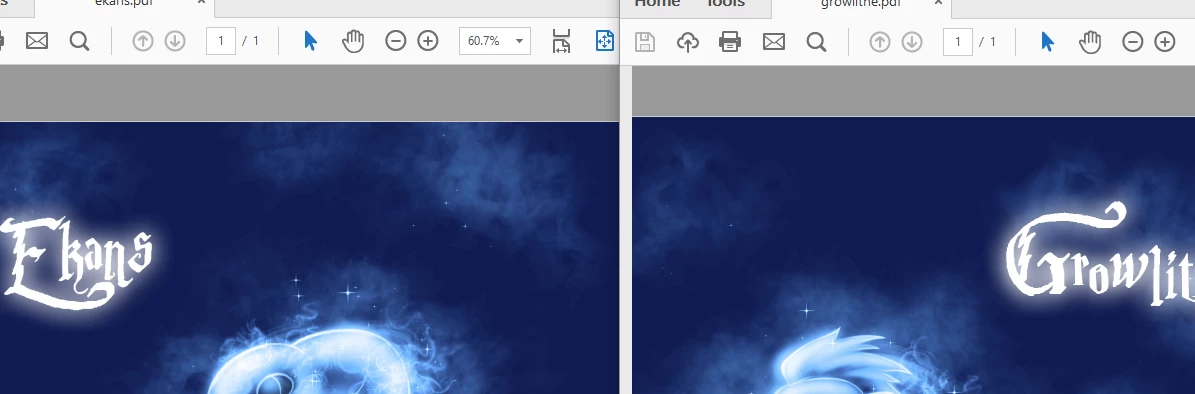
The colour discrepancy is not present on screen. In the section of screengrab below, I have opened two PDFs in Acrobat Reader: the left image prints darker than right, but on screen they're identical.
I quickly noticed that the "dark" PDFs were around 200 KB smaller in filesize than the "bright" PDFs, so I investigated the possible differences. PDF output settings are identical. I finally found that there's only one difference that the "dark" files have in common:
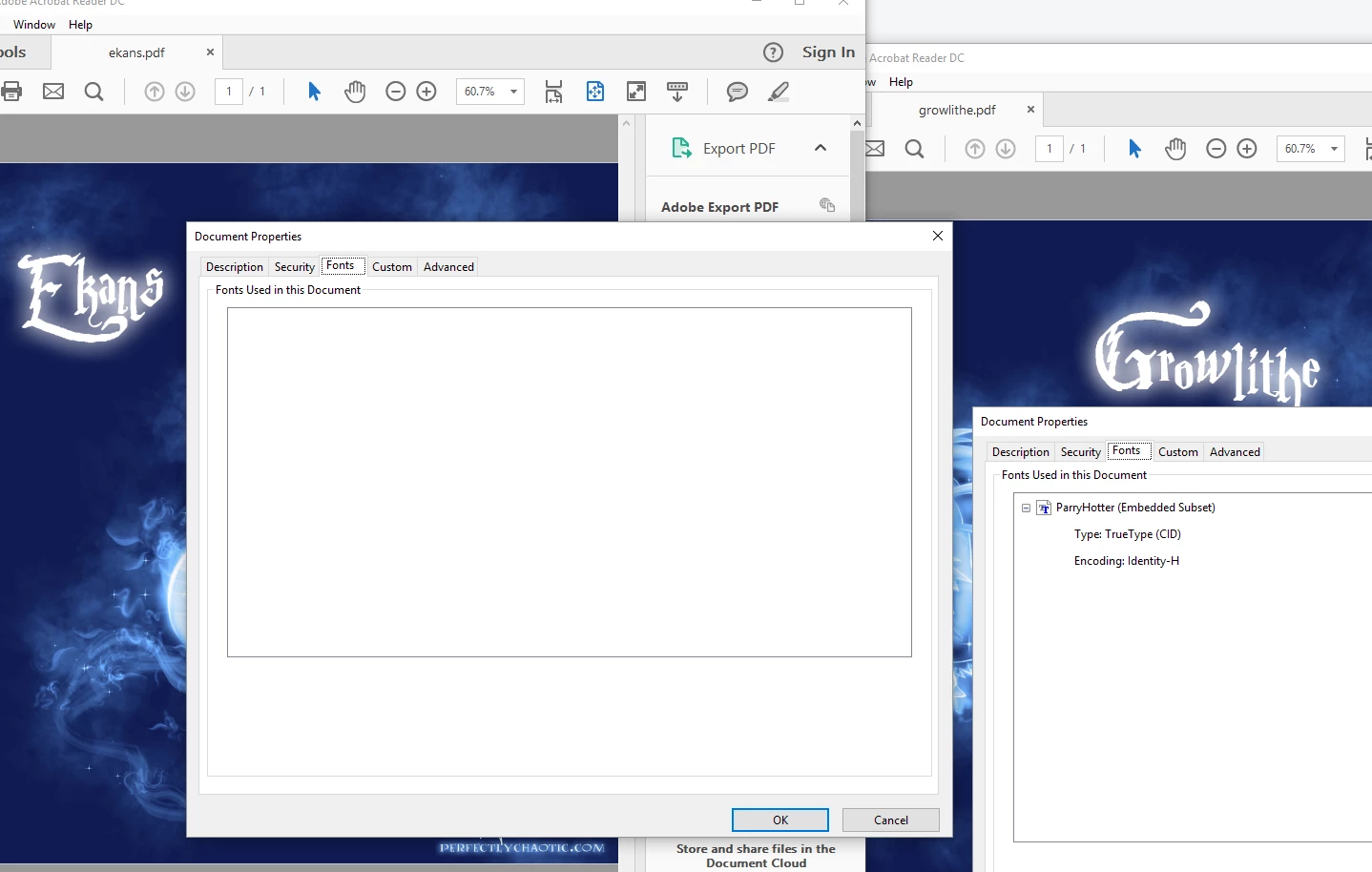
On the rightmost "bright" PDF, I had a text layer, and so the type was saved in the PDF as a vector, with embedded font. The left "dark" PDF had its type rasterized at some point while I was working on it, so no vectors, no font. This is true of all the "dark" prints, and explains the file-size discrepancy.

So. The presence of a text layer in the PDF is altering the colour of the print. Great, I can solve that. But I want to know: WHY?! Is this a known behaviour of PDF files? Is the text layering an alpha channel of some sort over the entire image? I am baffled why this should be the case, but it's demonstrably true!

I could bring all the prints into consistency by just flattening all layers before PDF output. The trouble is, I actually prefer the "bright" versions. So if I knew why the text causes this, I could apply the tweak to my images directly, instead of relying on the strange workaround of having a text layer inexplicably tinting everything.

I'm using a fairly old version of Photoshop, CS5. So if the answer is "upgrade", that's fine. I just noticed that I've been using a default output setting of "Acrobat 5 (PDF 1.4)", if that could be a factor.

Thank you for any insight,

Alan

This topic has been closed for replies.
Correct answer D Fosse

Try again with another PDF preset that includes the color profile. It's probably best that you stick to sRGB until you know more, but as long as the profile is there it should reproduce correctly regardless.

The Photoshop color settings just provide defaults. Single files can have different profiles, so you need to check this for each file. If they're different, use "convert to profile", not "assign profile".

RGB numbers are relative to color space. The numbers need to be recalculated to produce the same color in a different color space. This is the core of color management, and this recalculation is what "convert to profile does".

If it's still different, come back.

2 replies

c.pfaffenbichler
Community Expert
Community Expert
February 16, 2017

Are the layered Photoshop files all identical with regard to Color Space and bit depth?

Which Color Space?

AlanG6613
AlanG6613Author
Participating Frequently
February 17, 2017

Hi, thanks for getting back to me, C.

The PSDs are identical in bit depth. The color space, I am less familiar with; I must confess relative ignorance. I left these as default, and have not Assigned Profile to any. But the Working Space reports sRGB IEC61966-2.1, and U.S. Web Coated (SWOP) v2 for both files. As far as I can tell, they're identical.

In the PDF save dialog, I have "No Conversion" and "Don't Include Profile". I probably need to learn more about this, but it is like that for both.

It seems, based on your comments, and help received elsewhere, that this is something Colour Space/Profile related, and I need to learn how to correctly apply these in future. That doesn't really explain why they differ, though, if I've been applying the same default to everything. Someone elsewhere told me that Photoshop simply isn't the best tool for outputting PDFs, and sometimes runs into trouble when combining mixed raster/vector/text content.

D Fosse
Community Expert
D FosseCommunity ExpertCorrect answer
Community Expert
February 17, 2017

Try again with another PDF preset that includes the color profile. It's probably best that you stick to sRGB until you know more, but as long as the profile is there it should reproduce correctly regardless.

The Photoshop color settings just provide defaults. Single files can have different profiles, so you need to check this for each file. If they're different, use "convert to profile", not "assign profile".

RGB numbers are relative to color space. The numbers need to be recalculated to produce the same color in a different color space. This is the core of color management, and this recalculation is what "convert to profile does".

If it's still different, come back.

c.pfaffenbichler
Community Expert
Community Expert
February 16, 2017

Can you provide two »conflicting« pdfs for comparison?

AlanG6613
AlanG6613Author
Participating Frequently
February 17, 2017
c.pfaffenbichler
Community Expert
Community Expert
February 17, 2017

Both pdfs contain untagged RGB images.

It seems possible the pdfs containing the type elements were flattened and a different work space was assumed.

You may want to ask the print shop which Color Space you should provide the pdfs in and separate on saving the pdfs.

Also always pass off PDF/X, not unprofiled pdfs!