Pen pressure... semi working? (Photoshop CC 2019)
I recently got a new laptop after some issues with the old one (new model is an HP 15-dw0008ca, the old one was an ASUS X555D). There were no issues on the old ASUS one (Ps CC 2018) however on the new HP laptop when I downloaded Ps CC 2019 I ran into a bit of a problem. There seems to be some pen pressure recognition, but it appears to be lacking. So when attempting to draw a line with the default Hard Round Pressure Size brush, the little circle marking the cursor doesn't come anywhere near being filled, however, when using the default Hard Round brush the paint fills in the lines just fine. When using the Hard Round Pressure Opacity brush, the paint does fill in the cursor boundaries, but even when pressing down hard on my tablet, I can't seem to get the opacity past, I'd say, 25%. Both computers ran on Windows 10.
To demonstrate, in this figure all brushes used were at 125 px and at 100% opacity. The red square is a reference to the colour and opacity I would have liked to see.
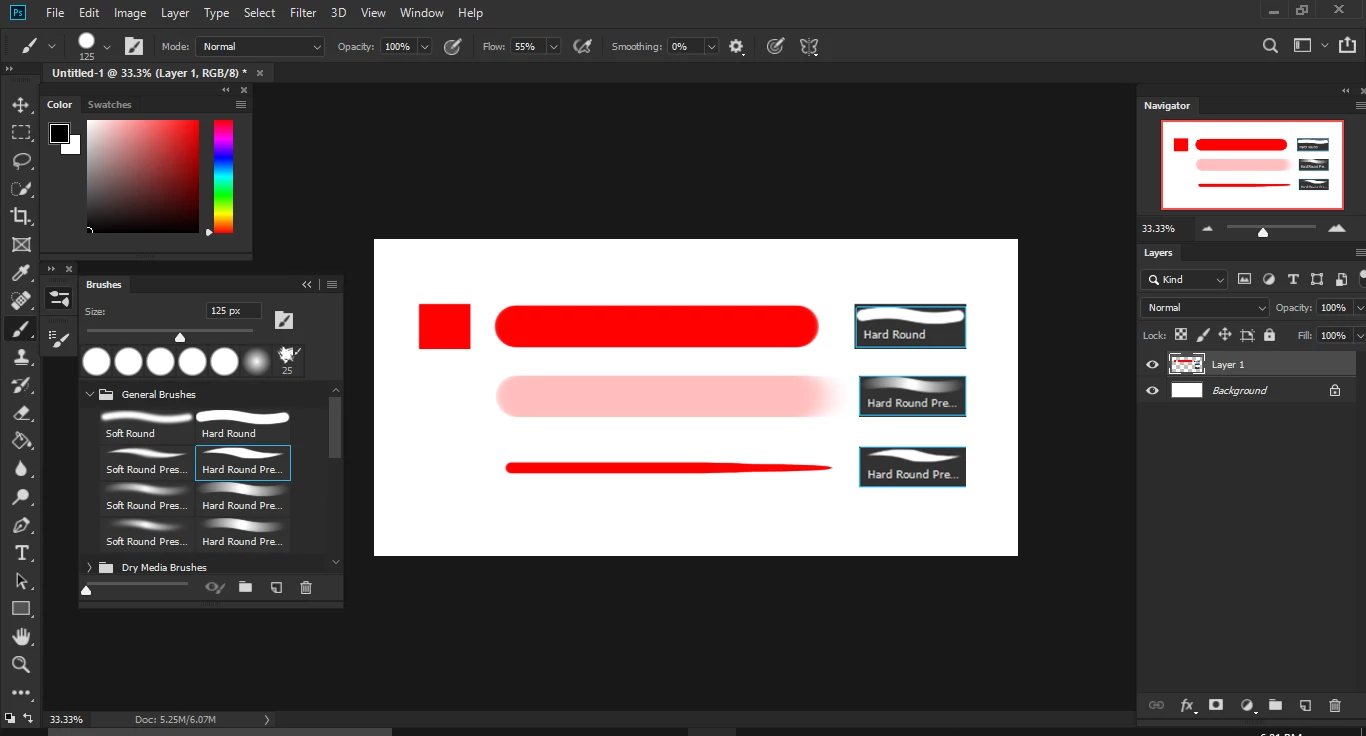
It seems to only be a problem with Photoshop because when I opened Krita all the brushes reacted fine to the pen pressure. So the pen pressure does work it's just not at the fullest I think.
I have already tried the following:
1) Uninstalling and reinstalling the tablet driver (I use a Gaomon M106K),
2) Clicking the little pen pressure icons on the upper toolbar,
3) Going into the brush settings and playing with the parameters,
4) Resetting the tools,
5) Uninstalling and reinstalling Photoshop,
6) Turning off my computer and back on again,
7) Installing older versions of Ps,
😎 Enabling and disabling Windows ink,
9) Messing around with my Gaomon pen settings,
10) Changing the painting cursor to Normal and others.
I have genuinely no idea what this could be and any help would be greatly appreciated!
 AdChoices