KillerRabbit
Known Participant
October 16, 2017
Answered

Pen Tool curves are barely visible. Are there any options to make them more conspicuous?

  • October 16, 2017
  • 5 replies
  • 8584 views

Hello everyone,

When I like to make precise masking or cut outs in Photoshop I like to use the Pen Tool. Once I finish I simply select it and nice easy clean cut outs.

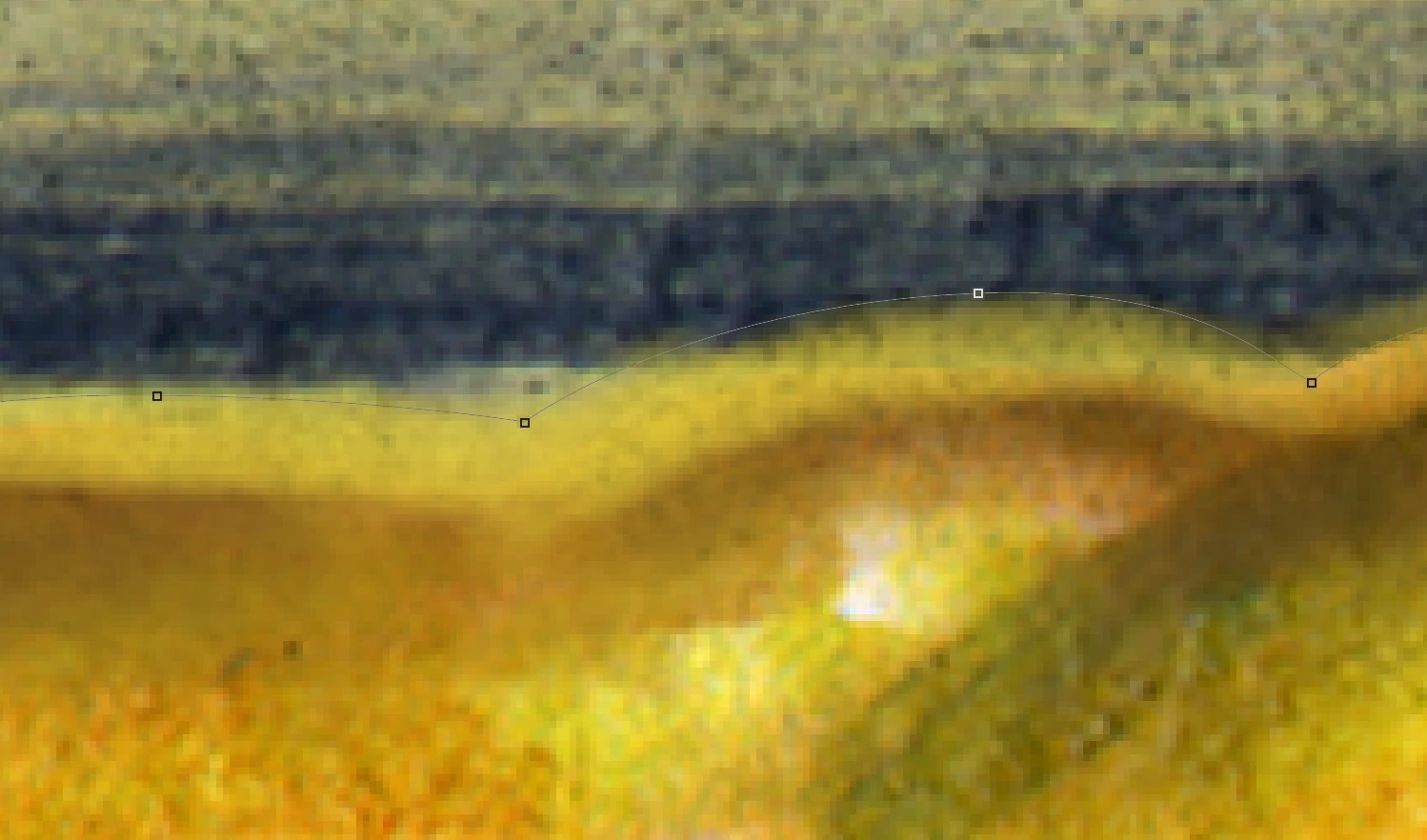
The problem is I can see the paths while I'm working in Photoshop anymore. I have a 4K iMac and upgraded to PSCC last year. Now the paths and anchors are so light or thin that I can barely see them. The other annoying thing is that it is a lot harder to pick anchor points and curves to adjust or join points. You need more precision to pick the path. This slows down the production and not to mention more frustrating and time consuming. The visibility issue also happens with the marching ants (marquee) when something is selected.

Is there any way to make them stand out more and be more responsive? I had to start making an separate layer with very garnish color overlays so I can see them better, but I guess I was used to thicker and more conspicuous designing for these tools. They are too "hi-def" perhaps. I rather they be a little more bulky and noticeable.

I was thinking maybe there is something that I can do in preferences that I'm not aware of.

Thanks.
This topic has been closed for replies.
Correct answer barbara_a7746676

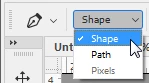
This is a long-time problem. The workaround I've used is to choose Shape instead of Path in the Options bar.

Then you can set No Fill and a Stroke width and color.

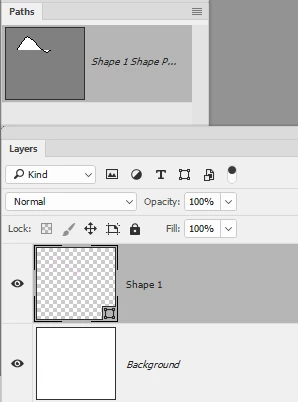
The path will appear on a separate layer as well as in the Paths panel.

When you're done, you can delete the shape layer and save the path in the Paths panel.

5 replies

Participating Frequently
March 6, 2020

As much as this workaround seems to work fine it doesn't solve the problem and it's 2020! My pen tool changes in the middle of creating a path... How do we get Adobe to finally address this? I have tried to change the path thickness in the tool preferences but that suddenly goes to a really thick line (even if I set it to 1.5px). Reseting the tool doesn't work. Nightmare.

davescm
Community Expert
Community Expert
October 18, 2017

Check out today's Photoshop CC update (version 19.0) for new path colour and size options

Dave

barbara_a7746676
Community Expert
Community Expert
October 18, 2017

Dave,

Thanks for bringing that improvement to our attention.

DiazArtist,

List of enhnacements at Photoshop CC new features | More library asset support

alexyork
Participant
October 26, 2017

A similar issue here is that the Line Tool is always pure black when drawing, no matter which mode you are in or what kind of path settings you choose. So if you're drawing on a dark image (i.e. all the time!) the line tool is completely invisible during drawing. This makes using it a real pain now. It needs to pick up the colour that you are drawing it i.e if your foreground colour = red then the line should be red while being drawn.

KillerRabbit
Known Participant
October 16, 2017

Barbara,

I found a topic inside the link you sent me to request implementations that seems helpful. It doesn't help the anchor section issue, but it might help see the paths a little better.

Photoshop: It's hard to see the paths/lines that are drawn using the pen tool in Photoshop CS5, CS6 | Photoshop Family C…

barbara_a7746676
Community Expert
Community Expert
October 16, 2017

Thanks for sharing that post. The Photoshop preference setting is somewhat helpful. It would be nice if Photoshop gave users the option of changing the color of the path to a contrasting color (not just for shape layers).

Trevor.Dennis
Community Expert
Community Expert
October 16, 2017

An oft used trick is to create a new layer, fill it with black, and set its opacity to 50%.  This forces the path to white with decent contrast

The worst case then becomes when the background is full white, which will appear as 50% grey because of the black layer.

KillerRabbit
Known Participant
October 16, 2017

Trevor, Are you using am 4K display? I wish the lines looked a lot like that. Not for me. It doesn't matter what I do really to the background whether I make it bright pink or darken it. The paths are hard to see. The anchors are a lot more visible, but sometimes I can't tell if the path is continuous or I lost it along the way. Also this doesn't solve the issue of selecting paths where you have to be really precise to select the anchor points. A miss more than half the times. I think it's a display problem. When I upgraded all of a sudden everything is a lot more tiny. The options bar and everything else. It's funny how things seemed easier with lower resolution monitors and now when I need glasses to see things are even more smaller and harder to select. Not a good sign for the aging PS users.

barbara_a7746676
Community Expert
barbara_a7746676Community ExpertCorrect answer
Community Expert
October 16, 2017

This is a long-time problem. The workaround I've used is to choose Shape instead of Path in the Options bar.

Then you can set No Fill and a Stroke width and color.

The path will appear on a separate layer as well as in the Paths panel.

When you're done, you can delete the shape layer and save the path in the Paths panel.

KillerRabbit
Known Participant
October 16, 2017

Thanks Barbara. That look like a way for me to be able to move a little easier, but it doesn't solve the problem with the "too precise" anchor points. Oh well. Hopefully there will be some option in future updates.

barbara_a7746676
Community Expert
Community Expert
October 16, 2017

Yes, and hoping we don't go blind using the pen tool before Adobe comes out with an update. You can submit enhancement requests at Feature Request/Bug Report Form