Participant
May 20, 2019
Answered

Pencil presets inc mirroring?

  • May 20, 2019
  • 1 reply
  • 408 views

For 40 years I swore I was utterly crap at art.

until I discovered the mandala setting in photoshop, now Im well away however.. I have annoyances and I need your help.

I want to record 2 pencil settings.

1. 4 way mirror under mandala setting, where the 4 way cross covers the whole page centered on the center of the image

2. 8 way mirror under mandala setting, where the 8 way cross covers the whole page centered on the center of the image

For the life of me I cant seem to save them under tool presets, or actions.. how? how do I save these?  it seems you can save next to everything else, but I cant see this.

Please save my sanity, as I kinda find partly odd that the 8 way replication is more like 16 in the sense you can only draw half of the 8th you pick as the other half is auto copied for you .. But, needing help please.. Ive watched videos and read pages, and none mention saving things like the mirroring settings
This topic has been closed for replies.
Correct answer davescm

Hi

Open a new document.

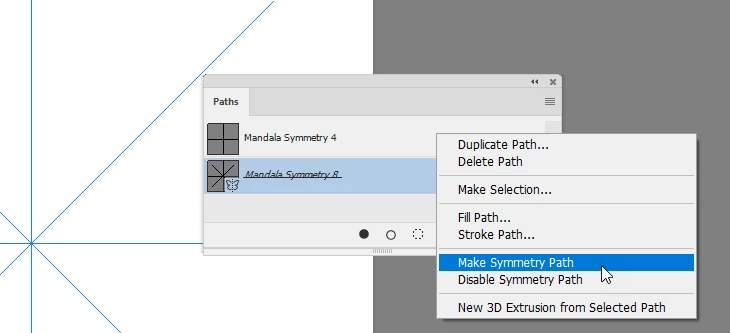
With the brush tool selected make a symmetry path for your mandala 4, size it and centre it then click OK and name it in the paths panel

Make a new symmetry path, size it, centre it then click OK and name it in the paths panel.

You can repeat this for other symmetry paths.

Save the document as yourchosenname.psdt - note the "t" on the end of psd. That saves a template file.

When you want to use symmetry - open the template file - use Image size to make the size you need and then go and create . You can switch to your preset symmetry paths by right clicking on one of your preset paths panel and choosing "Make symmetry Path".

When you are finished use Save and save your created work as a standard PSD file.

I hope that helps you.

Enjoy using brush symmetry - you can do a lot with it ......................:

Dave

1 reply

davescm
Community Expert
davescmCommunity ExpertCorrect answer
Community Expert
May 20, 2019

Hi

Open a new document.

With the brush tool selected make a symmetry path for your mandala 4, size it and centre it then click OK and name it in the paths panel

Make a new symmetry path, size it, centre it then click OK and name it in the paths panel.

You can repeat this for other symmetry paths.

Save the document as yourchosenname.psdt - note the "t" on the end of psd. That saves a template file.

When you want to use symmetry - open the template file - use Image size to make the size you need and then go and create . You can switch to your preset symmetry paths by right clicking on one of your preset paths panel and choosing "Make symmetry Path".

When you are finished use Save and save your created work as a standard PSD file.

I hope that helps you.

Enjoy using brush symmetry - you can do a lot with it ......................:

Dave

bugfinderAuthor
Participant
May 20, 2019

Ooh, I shall try that thank you, the template bit is less appealing although setting up a default 8 way with added layer (I keep forgetting) would be useful, but mainly because I want to be able to switch between .However the reason it matters to me is thus.. Previously in my life, I could spend weeks drawing something, and it would look like dog barf and people would need to ask me what it was.  This weekend, I made this

there is huge room to improve, blah blah but, there were painful times when i wanted to draw a line on the middle of the sections, or over the sections, and I found it painful to try.  So if I can flip to quarters I can pencil on that magic line (yes I do know 1 leaf and 2 petals got coloured by accident in the above)

So let me go find that paths section..

davescm
Community Expert
Community Expert
May 20, 2019

I like it

Dave