



bartonlew
Legend
October 7, 2020
Answered

Perspective warp grayed out in Photoshop 2020 on Windows

  • October 7, 2020
  • 1 reply
  • 5297 views

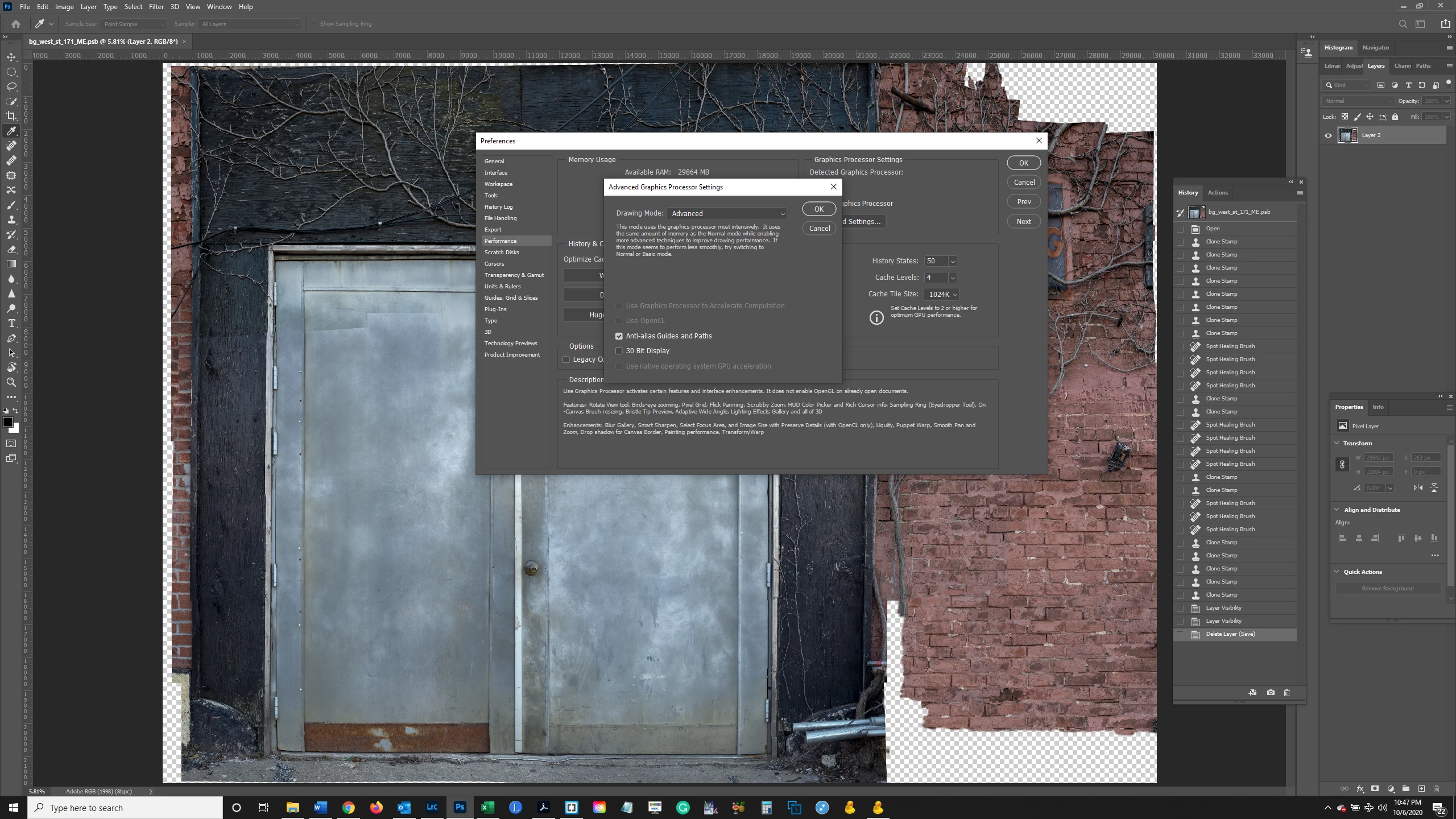
Perspetive warp is grayed out.  I went to Edit preferences>Performance and Use Graphics Processor is checked.  However, in Advanced, Use Graphics Processor to Accelerate Computation is grayed out, and I read somewhere that that should also be checked.  Any idea what is going on?  Thanks.


{Thread title edited by moderator}
 

This topic has been closed for replies.
Correct answer JJMack

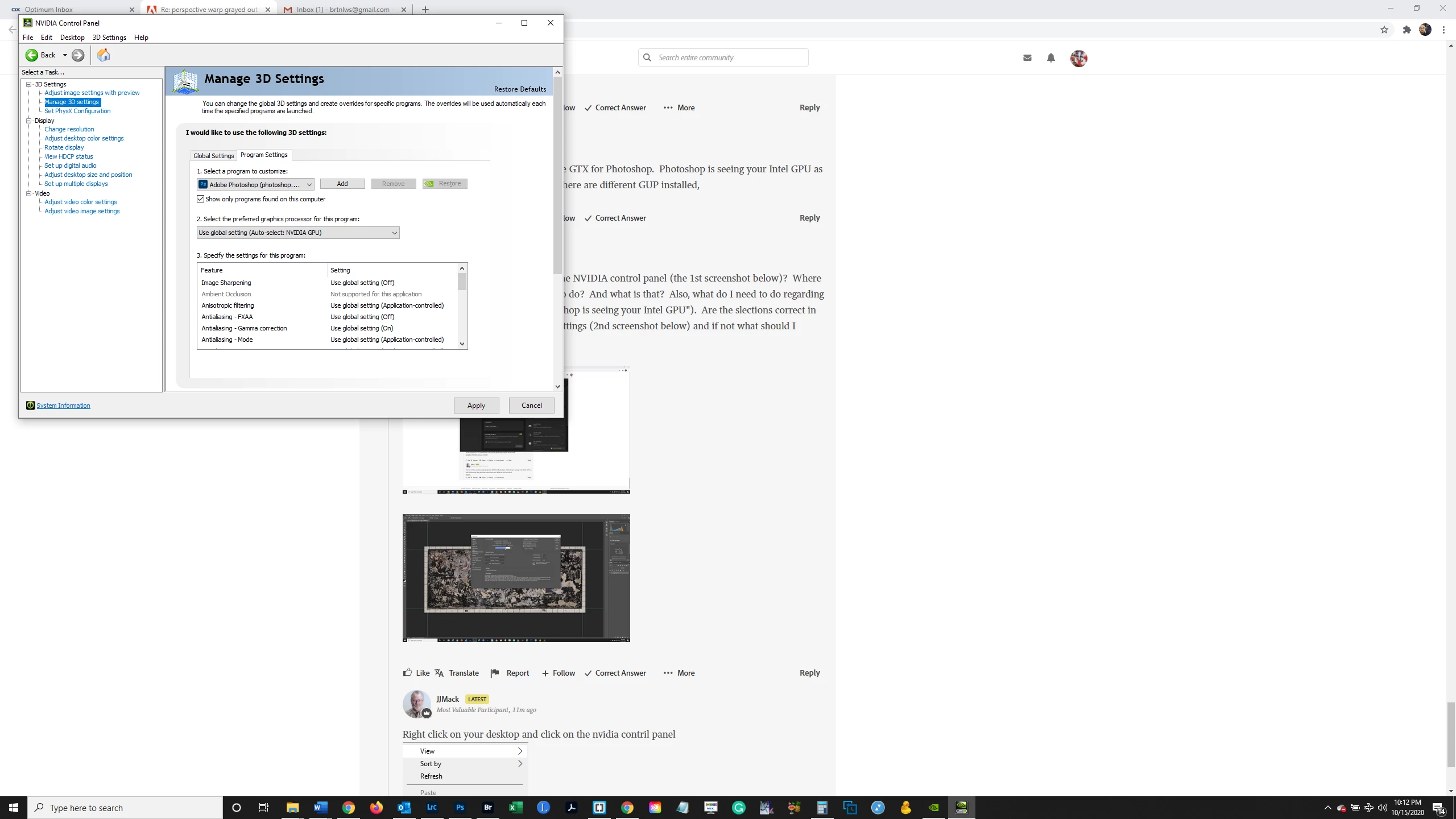
Thanks.  I did not know that's how you get to it.  And then what:  go to Manage 3d settings>Program settings and choose Photoshop like in the screenshot below?  And then click either Add or Apply, or both in that order?


Check the 2 preferred GPU pull down menu for GPU. I do not have that option I only have one GPU. See it you can set use the nvadia gpu.  Autoselect may not be right and make both available.

1 reply

nikunj.m
Legend
October 9, 2020

Hi,


We're sorry about the trouble with Photoshop. Would you mind sharing the version of Photoshop you are using and also tell us which graphics card do you have on the computer?


You can try the steps suggested here: https://helpx.adobe.com/photoshop/kb/troubleshoot-gpu-graphics-card.html


Please let us know if it helps!

Regards,

Nikunj

bartonlew
bartonlewAuthor
Legend
October 9, 2020

My verison is Adobe Photoshop Version: 21.2.4 20200922.r.323 2020/09/22: 8e8e91e8543 x64

My graphics card is NVIDIA GeForce GTX 1050 Ti

I performed the step referred to in the link of disabling the GPU and restarting Photoshop, and perspective warp was still grayed out.

JJMack
Community Expert
Community Expert
October 9, 2020

Have you tried installing Nvidia Studio Driver release 9/17/2020?

NVIDIA STUDIO DRIVER

 
Version: 456.38
Release Date: 2020.9.17
Operating System: Windows 10 64-bit
Language: English (US)
File Size: 608.97 MB
 
JJMack