
Inspiring
January 25, 2019
Answered

Perspective Warp Guidance - Grids and straighten buildings

  • January 25, 2019
  • 3 replies
  • 3230 views

I have an image with two buildings on the vertical edges of the frame are leaning in and buildings between them, which are at a much lower height that I want to 'protect'. When I create the grids by following the instructions laid out in Greg Benz​'s video with the sea stack, I'm unable to get the grids to snap together the way I want.

I tried to do Transform -> Perspective, which works beautifully, but the lower buildings between the two buildings get squashed a bit.

So I have a few questions:

  1. How could I do the Transform -> Perspective and keep the lower buildings from being affected?
  2. When doing Perspective Warp, is there a way to get the grids to snap to each other and maintain their rectangular shape?
    1. It seems that an edge will snap to an existing edge, but in a shape I don't want.

Note I don't want the sky between the two edge buildings to be affected so I need to protect this area as well.

I was thinking to approach the problem as a three sided building, which I believe makes sense. However for this to work I think the grids should connect.

Thanks for any help and/or guidance.

David
This topic has been closed for replies.
Correct answer Norman Sanders

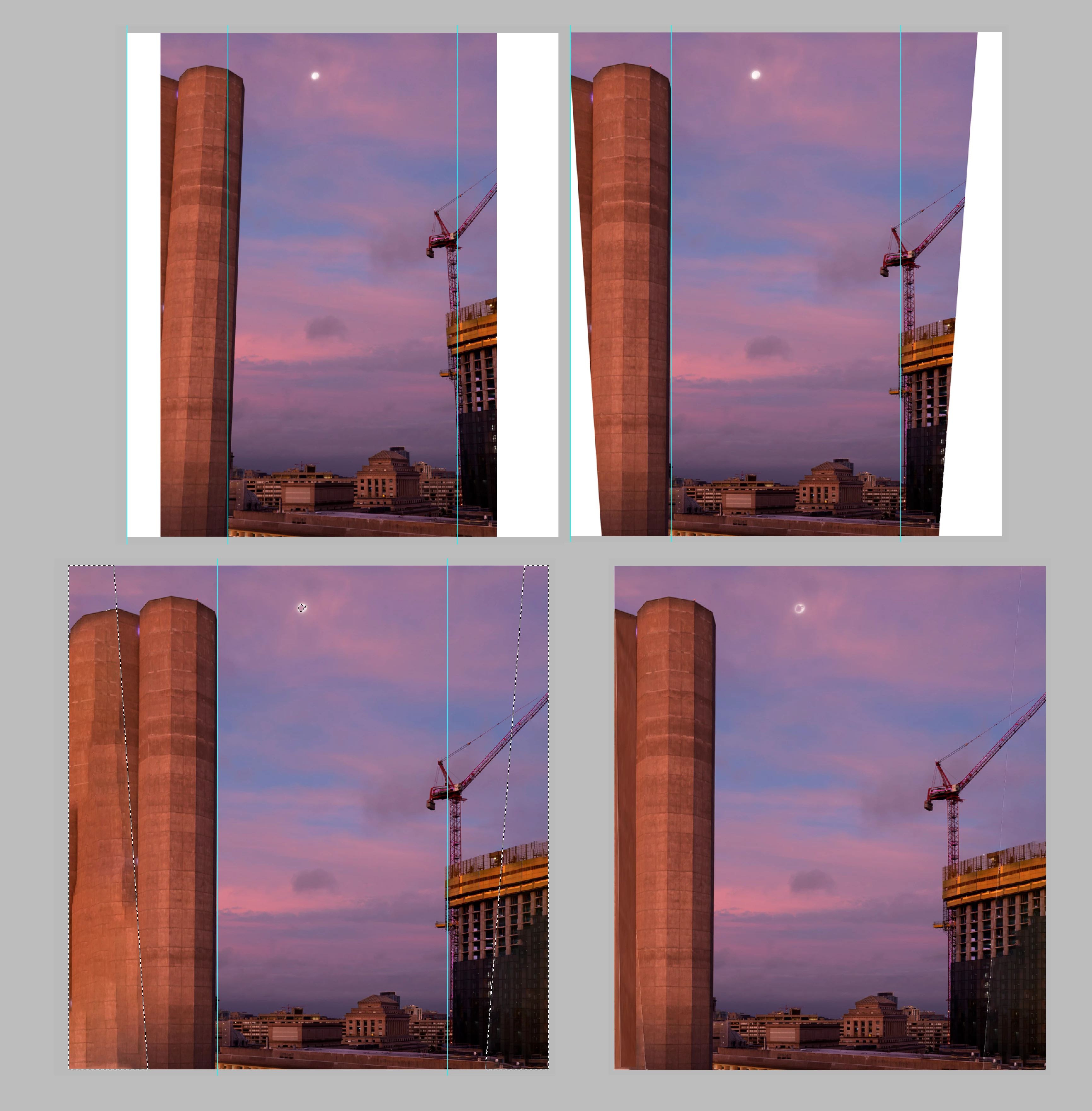
Consider this:

Fig 1. Widen the canvas

Fig 2. Drag out reference lines from the Ruler. Then Edit > Transform > Distort to straighten the keystone effect

Fig 3. Select the white area and then Edit > Contact Aware Fill

Fig 4, Crop in on the left, select a portion of the outer unit and create a common tone with Edit > Transform of a section for its entire length.

Not shown: If the original file proportion is important, you may Content Aware Fill with sky

NOTE: Often, this type of transform has a tendency to make items in the image slightly squat. If that is apparent to you, you may elongate the entire final image with Edit > Transform Distort after addition a bit of height or length to the canvas.

3 replies

Trevor.Dennis
Community Expert
Community Expert
January 26, 2019

Perspective Warp only makes sense when you have two adjacent plains to manipulate, and that is not the case here.  So I would simply use Free Transform, and drag the corner handles while holding down the Ctrl key.

Note I have diagonal lines for Free Transform, because I made the layer a Smart Object.  This lets you edit the Transform to make fine adjustments, while keeping the handles at the corners of the original image.  This is a big advantage when using Free Transform.

The disadvantage of this approach is that you can't use Content Aware Fill to fix the missing corner, because Smart Objects are not directly editable.    I don't actually know of a workaround for this, other than rasterising the SO.

Trevor.Dennis
Community Expert
Community Expert
January 26, 2019

You can make a fuller fix filling the missing corners with Content Aware Fill, and new updated CAF does a surprisingly good job.  There is so misalignment of the floors on the right hand structure, but I think you could avoid that by taking smaller stabs at it, and fixing it in multiple smaller stages.  Note I added som width to the Canvas to make room for the additional pixels.

Norman Sanders
Norman SandersCorrect answer
Legend
January 26, 2019

Consider this:

Fig 1. Widen the canvas

Fig 2. Drag out reference lines from the Ruler. Then Edit > Transform > Distort to straighten the keystone effect

Fig 3. Select the white area and then Edit > Contact Aware Fill

Fig 4, Crop in on the left, select a portion of the outer unit and create a common tone with Edit > Transform of a section for its entire length.

Not shown: If the original file proportion is important, you may Content Aware Fill with sky

NOTE: Often, this type of transform has a tendency to make items in the image slightly squat. If that is apparent to you, you may elongate the entire final image with Edit > Transform Distort after addition a bit of height or length to the canvas.

Jeff Arola
Community Expert
Community Expert
January 26, 2019

Can you post a sample image?

What version of photoshop are you using?

Do you have a link to the video?

DaBrownCOAuthor
Inspiring
January 26, 2019

Hi,

I'm using PS 20.0.2.

Image attached: I'm probably good with the image the way it is, but would

like to have the perspective correction to compare and more importantly to

know how to do it in the future.

Here is the link to the video: https://youtu.be/XNWf_IjaX0g

Thanks,

On Fri, Jan 25, 2019 at 11:20 PM Jeff Arola <forums_noreply@adobe.com>

Jeff Arola
Community Expert
Community Expert
January 26, 2019

Unfortunately, the adobe forums don't accept email attachments.

You have to use the Insert Image button on the forum.