
Known Participant
July 2, 2020
Answered

Photoshop 2020 Question

  • July 2, 2020
  • 4 replies
  • 877 views

Hope I'm in the right place here.
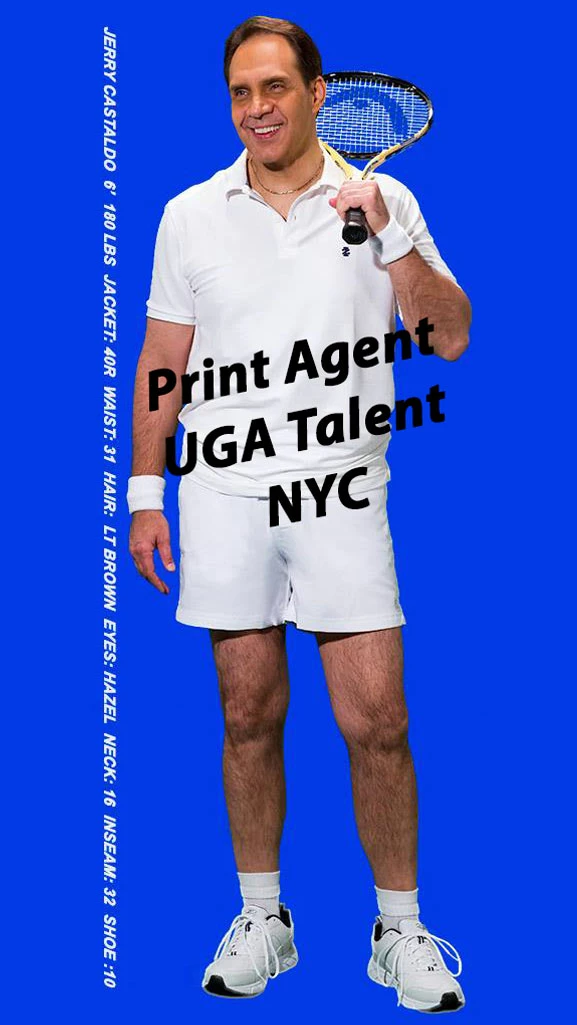
I have this photo open in Photoshop and the Image size is 400 wide X1025 pixels tall.
I simply want to change the Aspect Ratio to 16:9, or 9:16 (sorry, I forget what Facebook wantes the Story photos to be), so that the head and feet arent' cut off. I see that the Crop and the Aspect Ratio somehow work together, so I'm having trouble.
Any help would be appreciated.
Thank you.
    This topic has been closed for replies.
    Correct answer KR Seals

    I worked a little more on your original image. By creating a color fill layer behind the original and matching the color, I was able to creat a 9:16 version of the image. However, the text, being in the original image is still close to the person. You should be able to do the same thing, selecting the text and move it to whatever position you want.

    4 replies

    KR Seals
    Community Expert
    Community Expert
    July 8, 2020

    @Girocast, you are welcome. No, I am retired and enjoy having almost no responsibilities. I closed my photography business last year.

    Ken Seals - Nikon Z 9, Z 8, 14mm-800mm. Computer Win 11 Pro, I7-14700K, 64GB, RTX3070TI. Travel machine: 2021 MacBook Pro M1 MAX 64GB. All Adobe apps.
    GirocastAuthor
    Known Participant
    July 10, 2020

    Congrats on your retirement, Kenneth! OK, I understand.
    I studying Photoshop on and off for years, and I guess I'll eventually get it. Thanks for your help.

    So if I were to try to do what you did with my photo above with other photos that I have to work on now, how do I know how big to make the canvas?

    KR Seals
    Community Expert
    KR SealsCommunity ExpertCorrect answer
    Community Expert
    July 4, 2020

    I worked a little more on your original image. By creating a color fill layer behind the original and matching the color, I was able to creat a 9:16 version of the image. However, the text, being in the original image is still close to the person. You should be able to do the same thing, selecting the text and move it to whatever position you want.

    Ken Seals - Nikon Z 9, Z 8, 14mm-800mm. Computer Win 11 Pro, I7-14700K, 64GB, RTX3070TI. Travel machine: 2021 MacBook Pro M1 MAX 64GB. All Adobe apps.
    GirocastAuthor
    Known Participant
    July 7, 2020

    Hi Kenneth
    That's my brother's name!

    I really appreciate you working on my image. It's so frustrating when I feel that I'm pretty good with computers and software (built my first machine in 1990), and spend an hour trying to do what seems now so very simple!
    As I had asked Myra above, are you available for hire should I run into problems in the future with Photoshop? I'm using the latest version and I have a ton of different things that I'll be trying to do as I'm constructing a video project that's pretty extensive.
    I'd rather pay someone to help as my video project grinds to a halt when I can't figure out a Photoshop task.
    If you are interested, please email me at
    Jshopping@comcast.net and let me know.
    Thanks again! 🙂

    KR Seals
    Community Expert
    Community Expert
    July 4, 2020

    I opened your image in Photoshop. It is way to narrow to fit in 9:16 aspect ratio. 9:16 cuts the person off at the thighs if his head is kept in the crop. You need a lot more width in the original image. Can you ask for a version of the image that is in 9:16 aspect ration to begin with?

    Ken Seals - Nikon Z 9, Z 8, 14mm-800mm. Computer Win 11 Pro, I7-14700K, 64GB, RTX3070TI. Travel machine: 2021 MacBook Pro M1 MAX 64GB. All Adobe apps.
    Myra Ferguson
    Community Expert
    Community Expert
    July 3, 2020

    When you have a very tall image (referred to as portrait orientation) and you want to change it to a horizontal image (landscape orientation), you can either crop out content from the tall image or scale down the original image and add background or whatever else in the extra space. Since you said you don't want the feet or head cut off, you could add background color to the rest of the image. One way to resize the image is to use the crop tool--even when you want to add canvas (which might sound counterintuitive). If you select the Crop tool and change the Aspect Ration to 16:9 (it sounds like you got this far), then you can hold down the Shift key to constrain that ratio while you expand the canvas. If snap is turned on (View >  Snap and View > Snap To > Document Bounds), then the Crop tool will snap when you get to the top edge when you drag one corner to the top and then the bottom edge when you drag the other corner to the bottom. Now that its aspect ratio is set, you can make a new layer and drag it below the image. Sample the background color from the image and use it to fill the bottom layer.

    GirocastAuthor
    Known Participant
    July 7, 2020

    Myra,
    Thank you so much for that great information regarding the Crop tool, I really appreciate it. By any chance, are you available for hire should I run into problems in the future with Photoshop? I'm using the latest version and I have a ton of different things that I'll be trying to do as I'm constructing a video project that's pretty extensive. If you are interested, please email me at Jshopping@comcast.net and let me know. Thanks again! 🙂