
Known Participant
June 27, 2023
Answered

Photoshop 2023: Marquee Selection Tool not selecting the full area.

  • June 27, 2023
  • 18 replies
  • 8397 views

HI, I am having a problem using the ‘Rectangular Marquee’ selection tool in Photoshop 2023. (I'm not sure if its actually a bug or an incorrect setting)

I regularly use the tool in conjunction with ‘stroke’ when applying borders to my images. In general, my image will be zoomed in to 66% or 100% and will cover an area much larger than my screen can display. When I drag my selection area the image will start to scroll across the screen, as expected, but will freeze before I have reached the end of my selection. If I reduce the zoom so that the image does not take up as much area, say 50%, it will allow me to select the whole image. When I’m making the selection I normally have the grid lines visible and set to centimeters/milimeters. I want to be able to select using the marquee tool when I've zoomed in to 100%
At zoom of 50% or less it is difficult work with the grid as the lines are too close together.
Occasionally this task works without problems and sometimes if I use the Purge tool it can also help.
I have already tried: deleting Temp & Cache files, reinstalled Photoshop
(My PC: Windows 11, I7-12700 Processor, 32gb Ram, 3060TI GPU. Screen is a BenQ 270c - 27”)
Correct answer @mj

Hi @danielle30993502usfi,


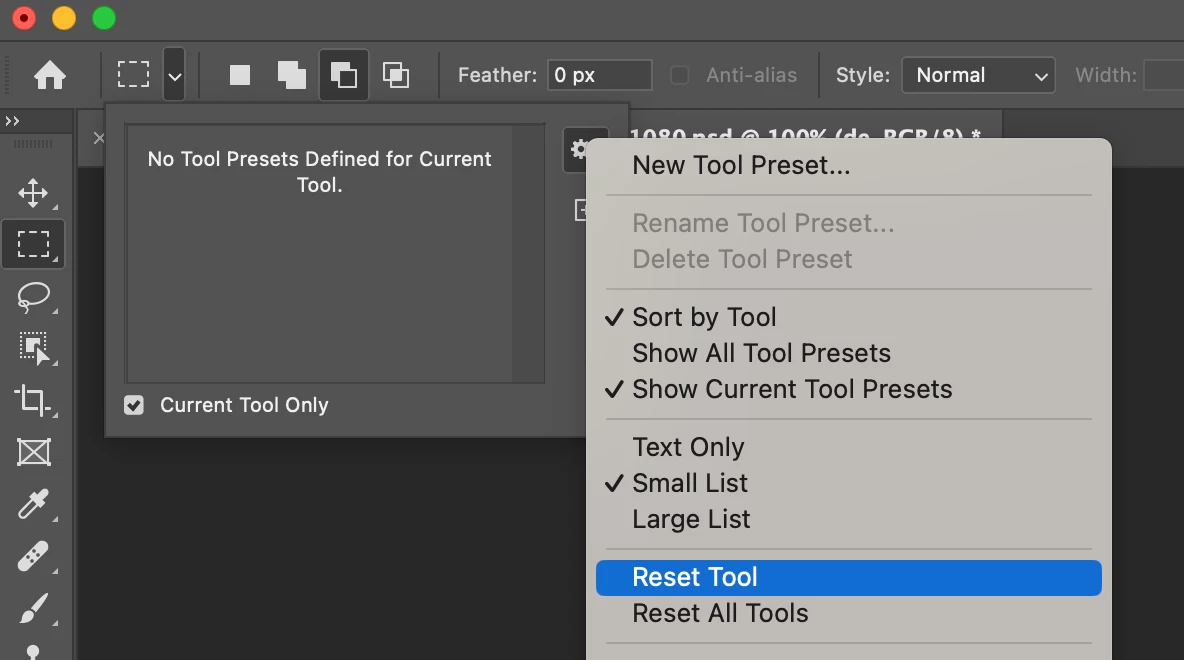
Click on the dropdown arrow alongside the marquee tool, on the control bar, then the settings icon and choose Reset Tool.


Let us know how you go

mj

18 replies

Known Participant
July 2, 2023

How do I share a video on the forum. I've prepared a couple and one is too big to email and I can't see how to post them here.

regards

Billy..

@mj
Community Expert
Community Expert
July 2, 2023

Hi @Irish-Valk ,

Could you do a screen recording per @CShubert's suggestion?

This will help us get a sense of what you are encountering.

Best

mj

CShubert
Community Manager
Community Manager
June 30, 2023

Thanks for the update, could you share a video of your screen and what you are seeing?


Known Participant
June 30, 2023
Hi mj,
Just tried your suggestion & restarted PS. It made no difference the results are the same.

Billy..
@mj
Community Expert
Community Expert
June 30, 2023

As a further suggestion, have you considered the recatngle tool for creating your stroked frames?

It has a lot of flexibility and is veetor-based to resizing is pretty easy too.

Best

mj

@mj
Community Expert
Community Expert
June 30, 2023

Hi @Irish-Valk ,


Try this suggestion:

Go to Preferences > Tools... and uncheck "Enable Flick Panning" and "Animated Zoom". Restart Photoshop.


Let us know how you go

mj

Known Participant
June 30, 2023
Hi,
Thank you or getting back to me, I appreciate your help.

I did exactly as you asked, I removed the "Adobe Photoshop 2023 Settings" folder and started Photoshop. The problem still exists.
FYI: I am using a Wacom Tablet Intuos Pro as well as a bluetooth mouse and I get the same results from both.

kind regards
Billy..
CShubert
Community Manager
Community Manager
June 27, 2023

Hi @Irish-Valk 


Let's make sure we're in a default state and there are no stale settings somewhere: 

Restore your preferences using this manual method:  

https://helpx.adobe.com/photoshop/using/preferences.html#Manually 

Does it work correctly? 

If that doesn't solve it, you can quit Photoshop and put the Settings folder back. 


It may help if we could see your Photoshop System Info. Launch Photoshop, and select Help >System Info...and copy/paste the text in a reply.