
malm7598658
Participant
April 15, 2020
Question

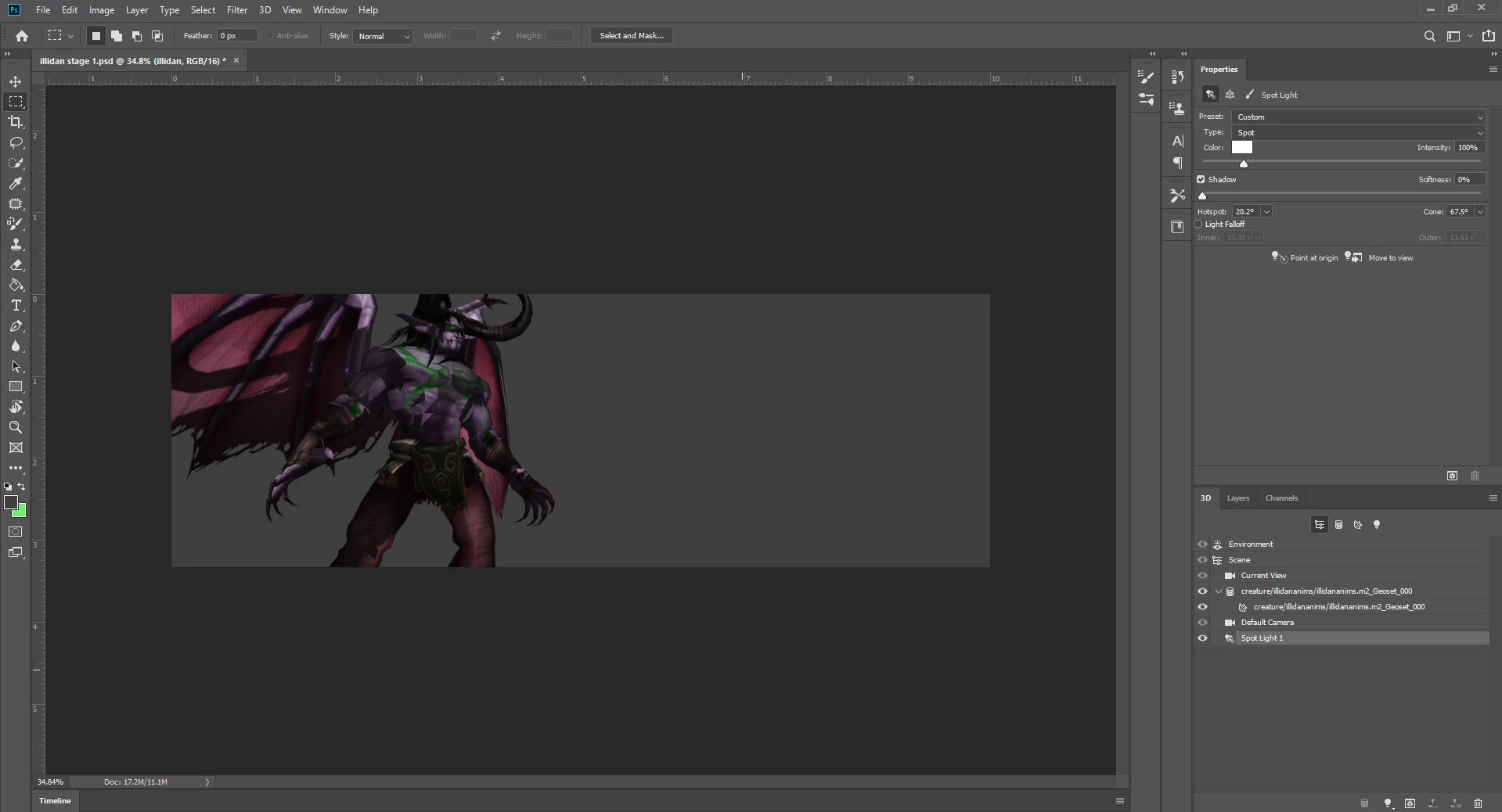
Photoshop 3D Model lighting issue
  • April 15, 2020
  • 1 reply
  • 523 views

I need help smoothing out the lighting, please don't hesitate to ask questions and ask for more screenshots of materials and others,

This topic has been closed for replies.

1 reply

davescm
Community Expert
Community Expert
April 15, 2020

What do you mean by smoothing out the lighting?


If you mean bring up the shadows, you are using a spotlight so you could add a second light , say an infinite light , from a different dirction and at low intensity to act as a fill light


Dave


malm7598658
Participant
April 16, 2020

I have tried everything, reduced spotlight intensity, using an infinite light, changed material settings, the same also goes for other World of Warcraft models only in Photoshop there are many odd patches as shown in the latest image provided, even using another program the lighting is working fine on the model but I'm used to working on Photoshop, its the odd-looking shadows on his chest and face if there is any way to smooth those out to look like normal shadows and lighting, and even when rendering I lose transparency in some of the textures, it gets replaced by colour.

davescm
Community Expert
Community Expert
April 16, 2020

That looks like an issue with the geometry and UVs rather than the lighting.

A couple of things to look at in Photoshop:

1. Ensure the UVs are not scaled - there is an issue in the current version of Photoshop when UVs are scaled to anything other than 100% U and V. To check this go to base color and click on the folder icon - then go to Edit UV Properties.  Note : If it is not 100% and you change it then you will need to edit every texture map to match the new scale.


2. In Scene properties , try checking remove Hidden Backfaces


Dave