
nick2u
Participant
November 9, 2017
Answered

Photoshop 7 cursor too small.

  • November 9, 2017
  • 2 replies
  • 3281 views

Photoshop 7 with windows 10. This problem just recently started. The cursor, which is normal when doing anything else, becomes so small when I drag it over the working area that I can barely see it. It goes back to normal as soon as I move off the working area. It does not do this when using Image Ready 7. I have reinstalled PS 7 and nothing changed.
    This topic has been closed for replies.
    Correct answer Jeff Arola

    Have you checked the cursor settings in ps 7 under Edit>Preferences>Display & Cursors?

    Reset the ps 7 preferences by:

    Pressing and holding down the Shift+Ctrl+Alt keys just after starting the launch of ps 7

    (you have to be quick about pressing the keys or you won't get the below dialog)

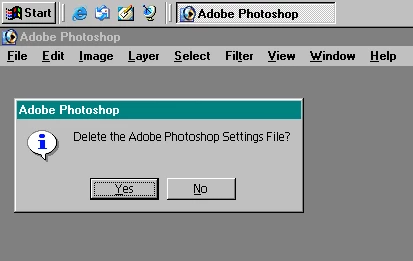
    Keep holding the keys down until you get a dialog asking if you want to Delete the Adobe Photoshop Settings File

    Press Yes

    2 replies

    Participant
    March 21, 2021

    Hi, I had a similar problem, which made me very irritated for few days. Finally, found one hope it will also help you. Go to program>adobe>photoshop.exe, right-click, go to properties>compatibilities>change settings for all users>change high dpi settings, there is "High DPI scaling override" change it to the system or keep on changing the options inside "override high DPI scaling behavior. it worked the program displaying the normal.

    Jeff Arola
    Community Expert
    Jeff ArolaCommunity ExpertCorrect answer
    Community Expert
    November 9, 2017

    Have you checked the cursor settings in ps 7 under Edit>Preferences>Display & Cursors?

    Reset the ps 7 preferences by:

    Pressing and holding down the Shift+Ctrl+Alt keys just after starting the launch of ps 7

    (you have to be quick about pressing the keys or you won't get the below dialog)

    Keep holding the keys down until you get a dialog asking if you want to Delete the Adobe Photoshop Settings File

    Press Yes

    nick2u
    nick2uAuthor
    Participant
    November 11, 2017

    Thanks, When I press 'yes', this box pop up:

    You currently have Photoshop's primary Scratch and Windows' primary paging file on the same volume which can result in reduced performance....it then recommends to set the "primary scratch volume" to be on a different volume, preferably on a different physical drive.

    Any suggestion on what to do next will be greatly appreciated.

    Jeff Arola
    Community Expert
    Community Expert
    November 11, 2017

    You can safely ignore that, just press OK and hopefully it won't show again or it will go away after a few times.

    Although what is says is true it's just a suggestion and not something you have to do.