creativedharma
Participating Frequently
August 23, 2021
Answered

Photoshop artifacts on background

  • August 23, 2021
  • 6 replies
  • 3876 views

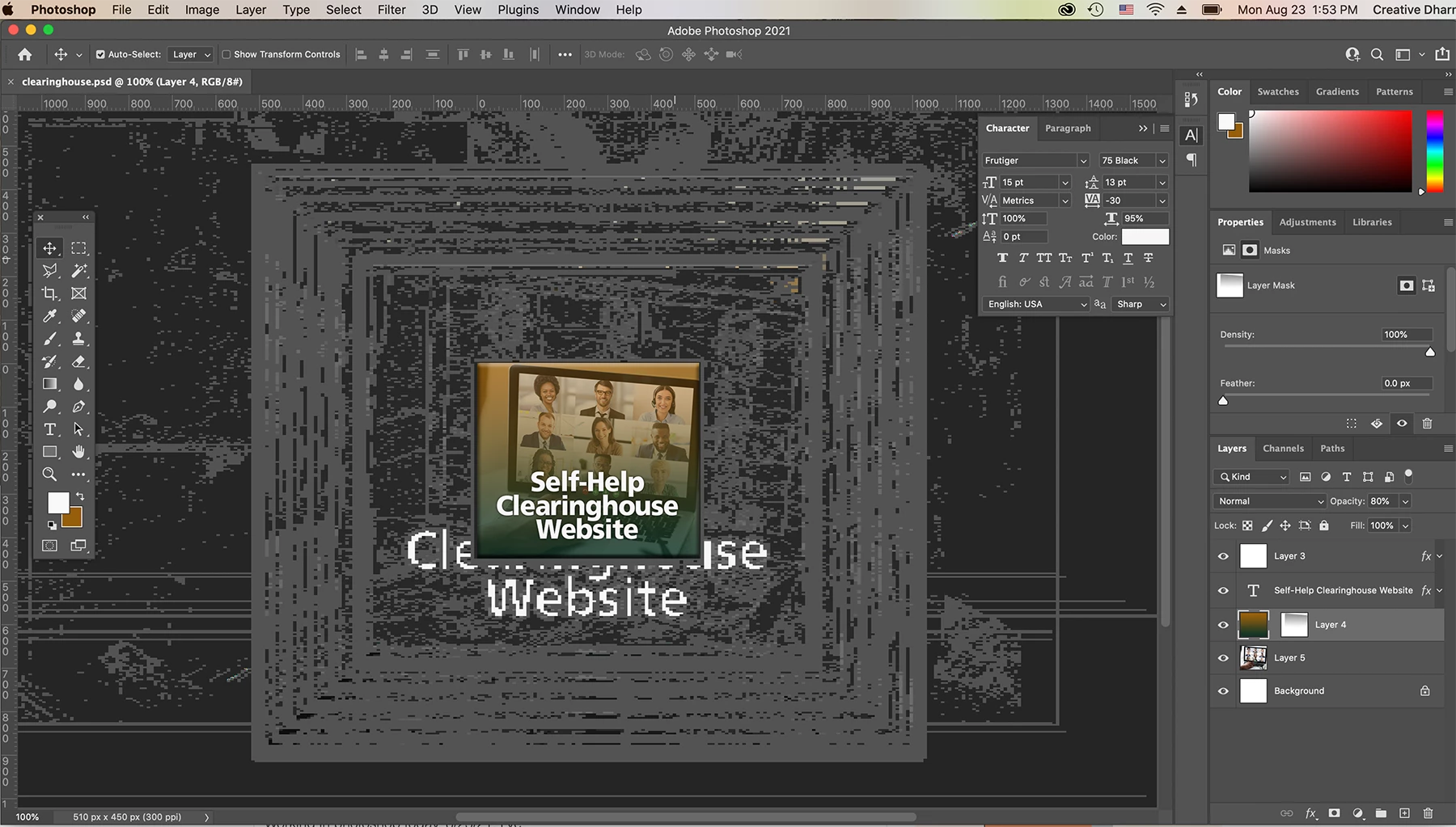
Working in photoshop today, 8/23/21, and this is what keeps coming up. (see attached)

Does anyone know why the artifacts keep coming up and how to get rid of them?

I"m working on CC 2021 5.5... on a mac book pro 16"

All the apps are up-to-date.

I tried getting rid of the preferences. No help.
 

This topic has been closed for replies.
Correct answer Ged_Traynor

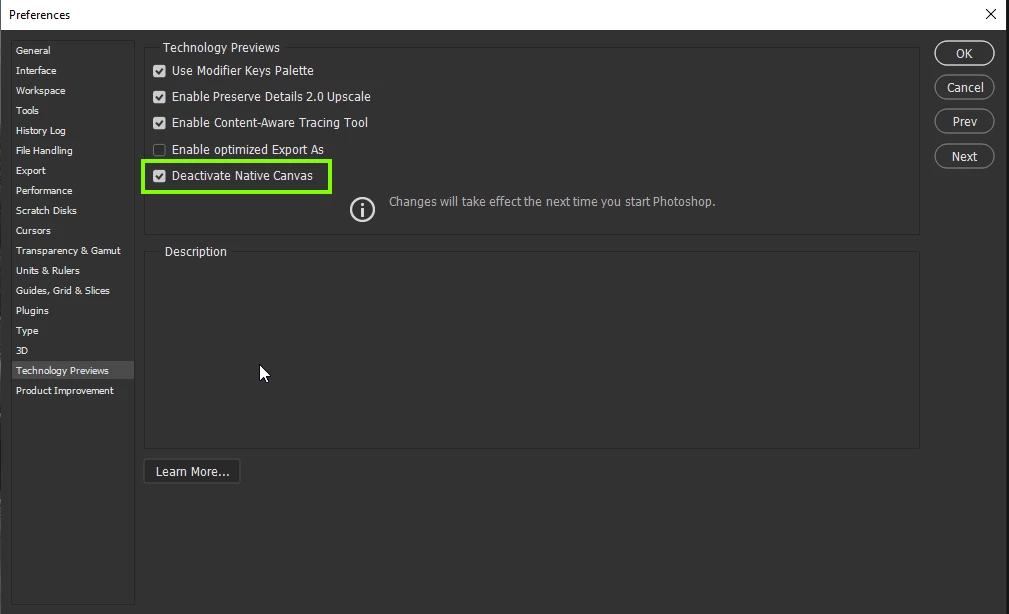
Try enabling this option in preferences and restarting Photoshop to see if it helps

6 replies

Kevin Stohlmeyer
Community Expert
Community Expert
August 24, 2021

Go to Preferences > Technology Previews and check "Deactivate Native Canvas"

Inspiring
August 24, 2021

Not sure if useful but updating to BigSur has just fixed this bug for me.

creativedharma
Participating Frequently
August 24, 2021

Thanks for the info. I believe I have an update waiting.

Ged_Traynor
Community Expert
Ged_TraynorCommunity ExpertCorrect answer
Community Expert
August 24, 2021

Try enabling this option in preferences and restarting Photoshop to see if it helps

Participant
August 24, 2021

Bingo,

Cheers Ged.

Participant
August 24, 2021

I'm having the same issues. It only seems to occur when I am working in RGB, if I'm working in CMYK no problems.

Tried uninstalling and reinstalling and unticking Open CL, no joy.

Working on:

iMac (Retina 5K, 27-inch, 2020)

3.1 GHz 6-Core Intel Core i5

16 GB 2667 MHz DDR4

AMD Radeon Pro 5300 4 GB

creativedharma
Participating Frequently
August 24, 2021

Hi,

I went into the preferences in Photoshop --> performance --> unclicked use graphics processor.

That seemed to work. I have no idea why after all this time it happened.

I think next up is the Genius Bar.

Best

TheDigitalDog
Inspiring
August 24, 2021

If turning OFF GPU works, it's a GPU bug and you need to contact the manufacturer or find out if there's an updated driver for it. Some have reported newer versions of the Mac OS fixes this indicating again, the GPU bugs are getting squashed by Apple. 
Also see: https://helpx.adobe.com/photoshop/kb/acr-gpu-faq.html

Author “Color Management for Photographers" & "Photoshop CC Color Management/pluralsight"
TheDigitalDog
Inspiring
August 23, 2021

First, try disabling GPU in the preferences (Preformance tab). Any better?
If not, recalibrate and build a new ICC display profile, the old one might be corrupted.
If you are using software/hardware for this task, be sure the software is set to build a matrix not LUT profile, Version 2 not Version 4 profile.
Some have reported color issues with displays that have an HDR option. Open Display Settings and toggle off the "Use HDR" switch if such an option exists.
If turning OFF GPU works, it's a GPU bug and you need to contact the manufacturer or find out if there's an updated driver for it. 
Also see: https://helpx.adobe.com/photoshop/kb/acr-gpu-faq.html

Author “Color Management for Photographers" & "Photoshop CC Color Management/pluralsight"
creativedharma
Participating Frequently
August 24, 2021

Thanks for replying.


I did turn off the GPU and the artifacts disappeared.

See attached. That's why I turned off.

Kevin Stohlmeyer
Community Expert
Community Expert
August 23, 2021

This looks like a graphics card issue - can you send a screenshot of your performance/preferences window and include the advanced settings?

creativedharma
Participating Frequently
August 24, 2021

Thanks for replying. This is what I did.

I went into the performance preferences and unchecked "use graphics processor" and the artifacts went away. Now I'm trying to figure out if it's the graphics card.