
Participant
July 10, 2023
Answered

Photoshop Automate Bash skips second or third file bug

  • July 10, 2023
  • 2 replies
  • 171 views
I've encountered a strange bug. I have a simple Photoshop action that says:
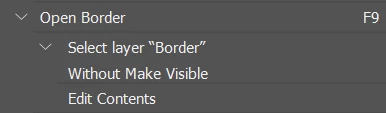
 
It essentially opens a Vector Smart Object layer in my PSB files with the layer name "Border" and opens it in Illustrator. I've been using Automate batch with this action to open a sequence of Vector Smart Objects from my PSB files into Illustrator and it's been working fine. But yesterday, for no reason, it skips opening the second or third file. I went to check the temp folders and it appears to have generated ALL the .ai Vector Smart Object files, so I know that it's been selecting the right Vector Smart Object layer in each PSB file. It just wasn't opening the second or third file in Illustrator. I was able to open these .ai files in the temp folder and it worked fine, but it's super annoying to do this with so many batched files. Can someone help, please? My bashes for other actions work fine. Opening Vector Smart Object layers just skip opening files.
 
I have PS 24.4.1 AI 27.5
This topic has been closed for replies.
Correct answer FireMajik

So I made the same thread in Reddit and someone suggested slowing down the action by making it step by step. It seemed to have worked, I'll do more testing and keep this thread updated. 

2 replies

FireMajikAuthorCorrect answer
Participant
July 12, 2023

So I made the same thread in Reddit and someone suggested slowing down the action by making it step by step. It seemed to have worked, I'll do more testing and keep this thread updated. 

CShubert
Community Manager
Community Manager
July 11, 2023

Hi @FireMajik curious if this issue persists in Ps 24.6?


Let's make sure we're in a default state and there are no stale settings somewhere: 

Restore your preferences using this manual method:  

https://helpx.adobe.com/photoshop/using/preferences.html#Manually 

Does it work correctly? 

If that doesn't solve it, you can quit Photoshop and put the Settings folder back. 


It may help if we could see your Photoshop System Info. Launch Photoshop, and select Help >System Info...and copy/paste the text in a reply.