BAS_Art
Inspiring
May 18, 2017
Answered

Photoshop - before and after

  • May 18, 2017
  • 3 replies
  • 2571 views

I frequently use the "before and after" in Lightroom, but could not find it in Photoshop. Does this feature exist in Photoshop?

    This topic has been closed for replies.
    Correct answer Trevor.Dennis

    Adobe Camera RAW has a Preview tool

    36/50 – Camera Raw Previews in Photoshop CC « Julieanne Kost's Blog

    Other tools have individual Preview features, but not all of them.
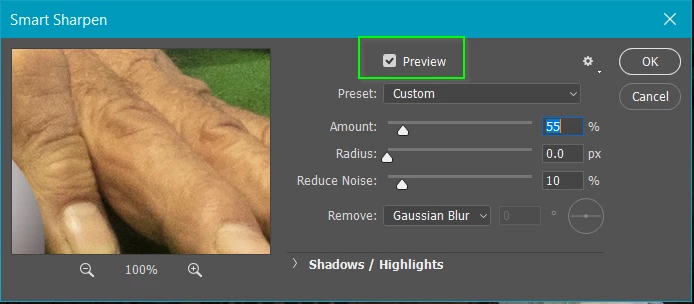
    The secret is to make the layer a Smart Object before applying the filter.  That allows you turn the filter off and on to give your  Before & After and it also allows you to adjust the filter settings as often as you need to get it looking right.

    3 replies

    K´mo
    Participating Frequently
    May 18, 2017

    You could use History palette and make snapshots when you want. Then it's easy to just click and check before and after. Snapshots will not be saved so you lose them if you close the document.

    Silkrooster
    Legend
    May 18, 2017

    In a way, because filters can now be part of a smart object, you can click the eye in the layers panel to see with and without the effect.

    Some filters will show you before and after if you hold down the mouse on the previewer.

    It is not a side by side comparison, but it does help.

    Though, you could duplicate the image in another window and edit just one copy. but that would take up more resources.

    Trevor.Dennis
    Community Expert
    Trevor.DennisCommunity ExpertCorrect answer
    Community Expert
    May 18, 2017

    Adobe Camera RAW has a Preview tool

    36/50 – Camera Raw Previews in Photoshop CC « Julieanne Kost's Blog

    Other tools have individual Preview features, but not all of them.

    The secret is to make the layer a Smart Object before applying the filter.  That allows you turn the filter off and on to give your  Before & After and it also allows you to adjust the filter settings as often as you need to get it looking right.