
Participant
October 20, 2019
Answered

Photoshop Canvas Size Issue

  • October 20, 2019
  • 3 replies
  • 922 views

I'm trying to extend the canvas size in Photoshop, but I can't get it to work for some reason. This is the box I see when I try: 
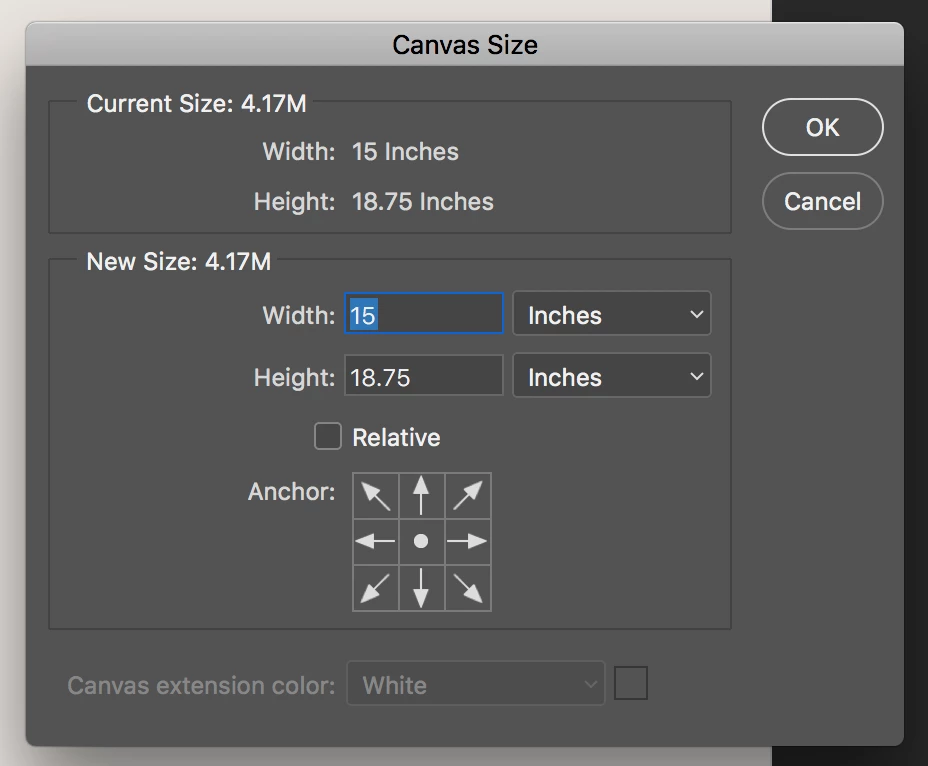


Usually I'm allowed to select the background color I want the canvas extension to be. Any suggestions on how to fix this?? 

This topic has been closed for replies.
Correct answer JJMack

If your document does not have a background layer all canvas added will be transparent those layers support transparency. Only Photoshop Background layer does not support transparency. So canvas added to the background layer must contain some color pixel.  That dialog allows you to set what color canvas to add to photoshop's background layer should the document have a bottom background layer. 

3 replies

JJMack
Community Expert
JJMackCommunity ExpertCorrect answer
Community Expert
October 20, 2019

If your document does not have a background layer all canvas added will be transparent those layers support transparency. Only Photoshop Background layer does not support transparency. So canvas added to the background layer must contain some color pixel.  That dialog allows you to set what color canvas to add to photoshop's background layer should the document have a bottom background layer. 

JJMack
gener7
Community Expert
Community Expert
October 20, 2019

The only way I see the background color dimmed is if your image is a floating layer and not a Background layer.

If you wish to keep your original layered file intact for future editing, choose Image > Duplicate and flatten the Duplicate.


Flatten the Duplicate and try Canvas Size again.  Layer menu > Flatten Image


Theresa J
Community Expert
Community Expert
October 20, 2019

Type in a size that is larger than what your current document size is. Right now the new size is still the same as the original size. When you make it bigger, you will have an option to choose the background color.