Participant
November 25, 2016
Question

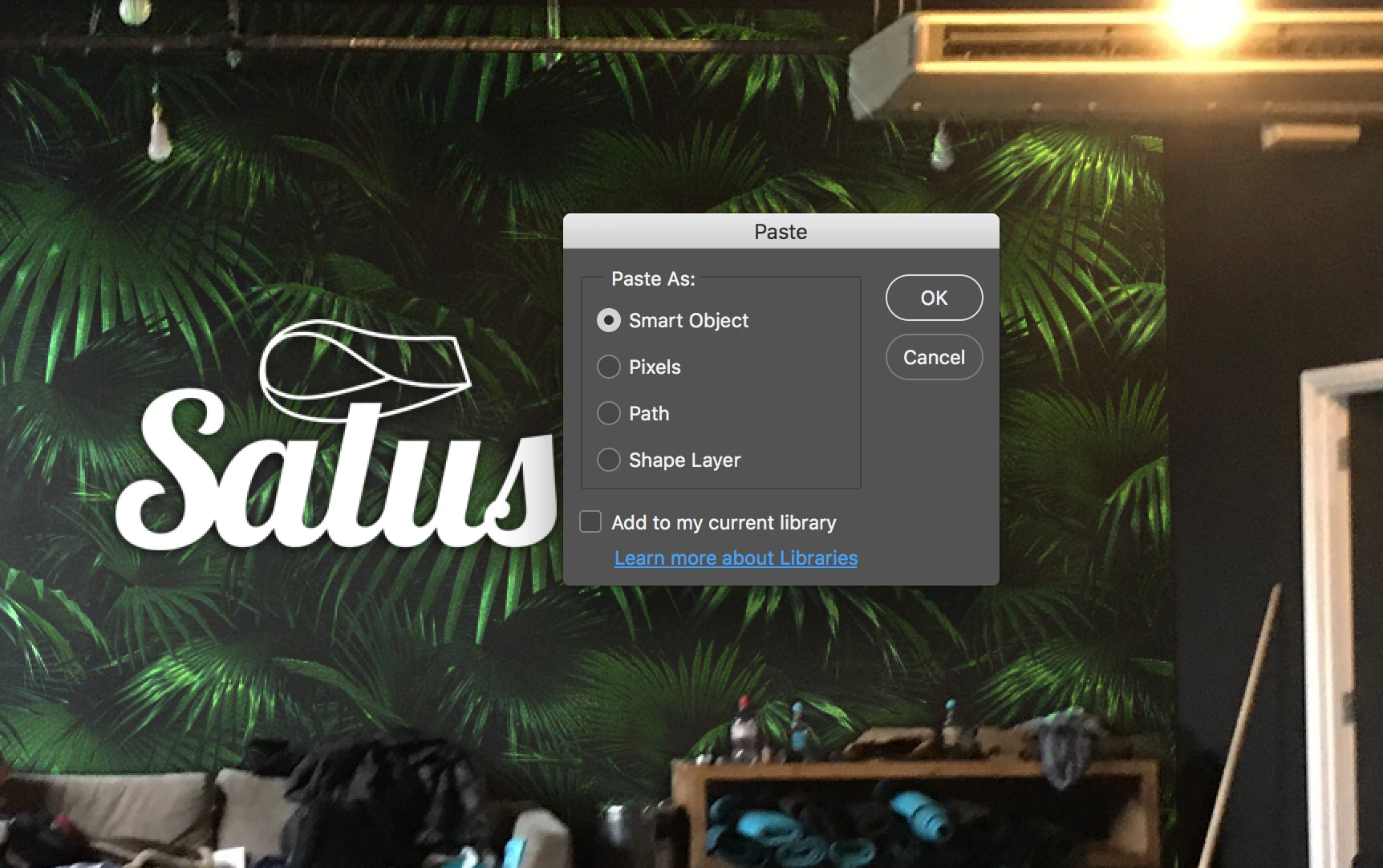
Photoshop CC (2017) place function pixelating everything

  • November 25, 2016
  • 2 replies
  • 642 views

Hello there,

Sine my last update I face issues when placing/pasting any type of file into Photoshop. It still shows all options to start with, but all of them cause massive pixelation to the file I chose to paste. I used to use this function a lot and now I am forced to avoid it. Any solutions? Do you have the same problem with your latest Photoshop?

Thank you in advance,

Sara
This topic has been closed for replies.

2 replies

JJMack
Community Expert
Community Expert
November 25, 2016

You can post your video on youtube and embedded it here. I will most likely not change what I have posted here.  You control the quality with your workflow.  As far as I know Smart object layer in CC 2017  work like smart object layers in prior version of Photoshop.  I do not see that anything related to smart object layers is listed as changed.

What's changed

  • Design Space (Preview) is no longer available in this version of Photoshop.
  • In earlier releases of Photoshop, Cmd/Ctrl+F used to be the keyboard shortcut for reapplying the last-used filter. Beginning with this release, it invokes the Photoshop search experience. If necessary, you can use Edit > Keyboard Shortcuts to reassign keyboard shortcuts.
  • Mac OS X 10.9 (Mavericks) is no longer a supported operating system for this release of Photoshop CC.
  • Auto-Select is now the default setting for the layer Move tool. You can revert to the default setting in earlier versions of Photoshop: in the Options bar, deselect Auto-Select and choose Group from the pop-up menu.
  • Layer styles can no longer be applied to artboards. As a workaround, include the contents of the artboard in a layer group and then apply the layer style to it.
JJMack
JJMack
Community Expert
Community Expert
November 25, 2016

Place will place in the full image file as the layers object then render pixels for the object file and the rendered pixels will ne used for the smart object layers content,  You can not alter these pixels,   Thing like a paint brush can not be use on a smart object layers. However, you can use tools one these layers like filters the becomes smart filters attached to the layer.  They do not actually change the layers pixels they are applied when Photoshop render the layers composite pixels.  Every Smart object layer has an associated layer transform.  If you place in a small image files you place in a small amount of pixels. If when the image placed in come in small you use the Place transform to enlarged the image. The layers rendered pixels will be interpolated.  Even if the place in file was a PSD file which contains all vector shape layers. Interpolation will be used. Not vector graphics.  The exception to this is when you place in illustrator file like .AI file and .svg files.  Those are place ins as vector smart objects.

So if you place is a small image it may well become soft if you increase the layer image size.  Be careful if you paste in the clipboard it may be you pasing in a small raster layer. If you placed in image file contains lots of vector layers you can double click on the smart object to open the object is Photoshop or the correct plug-in or application.  A temp work file will be used containing a copy of the layers object.  You can resize the work file using vector graphics.  When you commit the changes Photoshop will used the committed change work object to update the original smart object layer object.  new pixels will be rendered for the layers content.  The increased number of pixels will improve the qualify of the transform you now make  to your smart object layer in your document.

JJMack
Participant
November 25, 2016

Is there a way I can upload a video here? I can show the problem better. Thank you for your attempt in explaing the situation, but it's not it... The function worked perfect before the update. It is an error within Photoshop CC (2017).