Participating Frequently
December 19, 2018
Answered

Photoshop CC 2019 Animation Bug: Layers showing up empty

  • December 19, 2018
  • 1 reply
  • 4599 views

Hey all! I found a bug while animating in Photoshop CC using with the timeline panel. As you can see below in the screenshot, all my layers and groups are visible (the encircled eye icons), and the Transform tool can detect the contents of the "1 Red" group. However on the canvas everything shows up empty/ invisible.
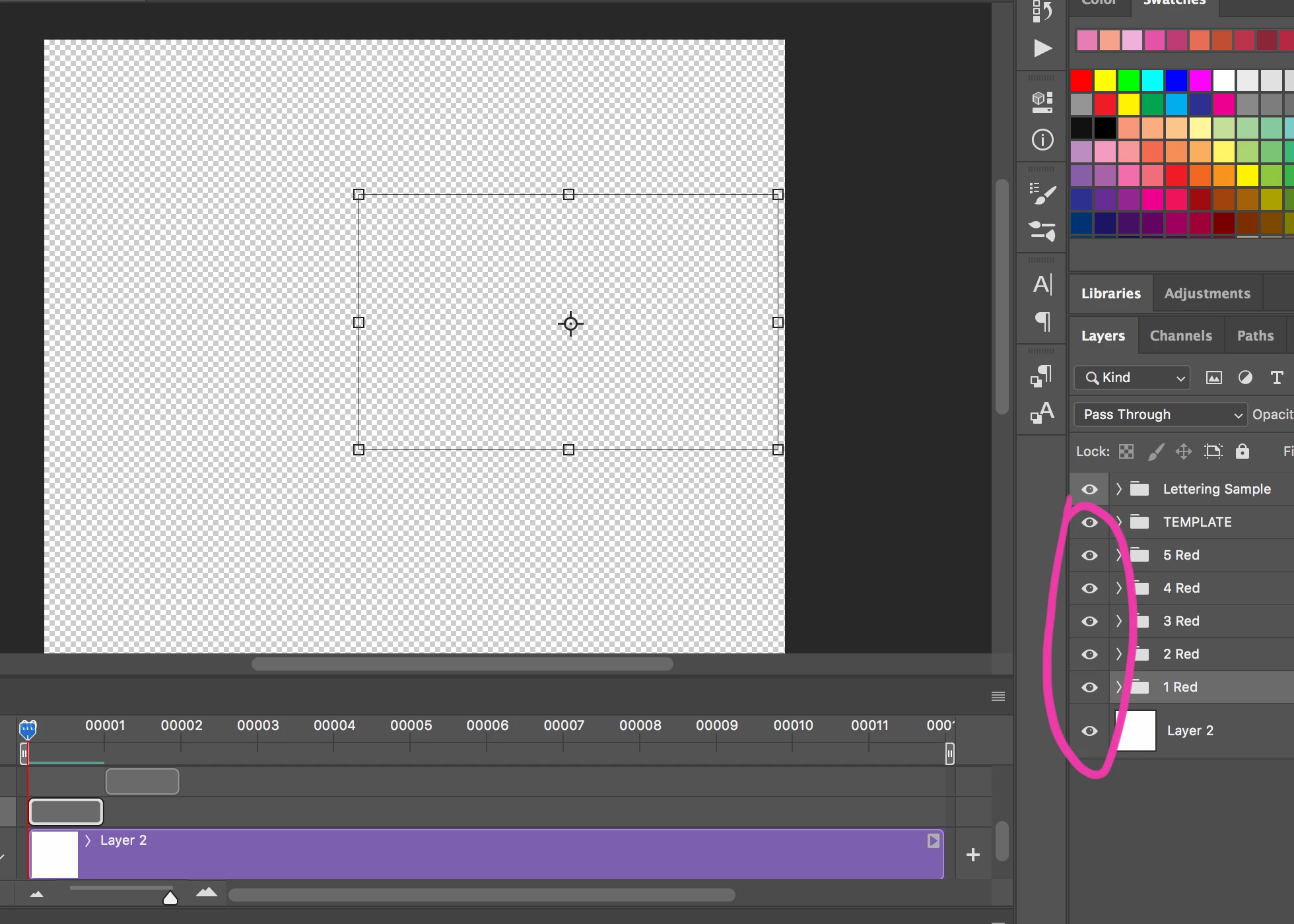
I tried creating a new document and then duplicating my existing layers onto it, restarting Photoshop, and restarting my computer, but the bug's still there. I've had to go back to a previously saved working copy of my file and re-work from there, but I thought I'd post this in case anyone else is experiencing this bug (and hopefully this catches the attention of PS developers)

My Mac OS version: Sierra

If anyone found a fix, please comment below! Thanks!
This topic has been closed for replies.
Correct answer Trevor.Dennis

We can't see enough of your workspace to make sense of it.  The video timeline shows the 'Video Group'  Layer 2 but we can't see what the Opacity is set to because you have cut that off.  We can't see if the other groups are Video Groups because a) the groups are closed, so we can't see if they contain layers, and b) we can't see enough of the timeline to see if there are other video groups  scrolled out of the visible part of the timeline.

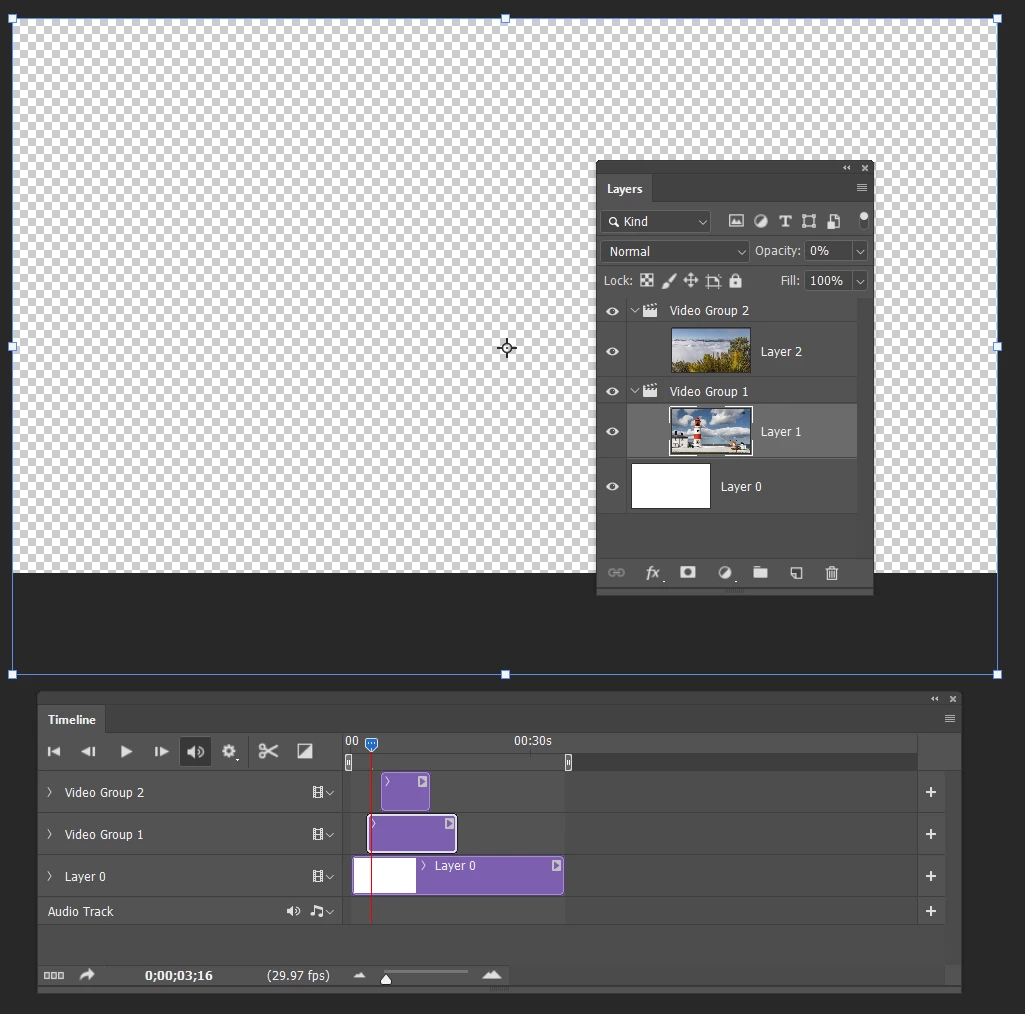
To make your screenshot meaningful, you'd need to show us something like this

The groups are twirled open so we can see their contents

You can see the transform handles for layer 1, but its opacity is 0% so the transparency chequerboard is showing.

It might well be that you have discovered something, but we can't tell from the information you have provided.

The opacity for video group 2 is 100%, but we obviously can't see its contents until the CTI is over that part of the timeline.

1 reply

Trevor.Dennis
Community Expert
Trevor.DennisCommunity ExpertCorrect answer
Community Expert
December 19, 2018

We can't see enough of your workspace to make sense of it.  The video timeline shows the 'Video Group'  Layer 2 but we can't see what the Opacity is set to because you have cut that off.  We can't see if the other groups are Video Groups because a) the groups are closed, so we can't see if they contain layers, and b) we can't see enough of the timeline to see if there are other video groups  scrolled out of the visible part of the timeline.

To make your screenshot meaningful, you'd need to show us something like this

The groups are twirled open so we can see their contents

You can see the transform handles for layer 1, but its opacity is 0% so the transparency chequerboard is showing.

It might well be that you have discovered something, but we can't tell from the information you have provided.

The opacity for video group 2 is 100%, but we obviously can't see its contents until the CTI is over that part of the timeline.

Participating Frequently
December 19, 2018

Hey Trevor! Here's the full screenshot (I previously cut off some bits because the project's confidential, but I just renamed the layers so that I may attach it here)

As you can see, some of the layers have content in them, and they're all at 100% opacity, and the playhead is over the first group in the timeline, but it's still invisible in the canvas

Participant
August 6, 2019

Any chance there was a solution to this? I've encountered the same bug and can't figure out how to see my layers again.