Photoshop CC 2019 Brush Changed!
Hello,
Windows 10
Photoshop CC 2019
I'm pulling my hair out trying to figure out what happened. I don't use photoshop regularly so I'm worried that I hit a setting. Essentally, I'm making some labels for print out and will be bringing them into Illustrator when done but part of what I've been doing is using the brush to make simple straight lines. To do this, I've been Zooming in and selecting the brush with hardness set to 100 until it's pixelated and then ctrl click / drag to get a nice solid black line (for example). The issue is that now, no matter how zoomed in I get, the brush does not get pixelated and is giving a slight discoloration of pixels in another color whereas previously it didn't "bleed" into other colors.
THe only thing that I did just before this happened was cleared about 30 gigs of space from my C drive as I was getting errors. So the only thing I can think of is that Photoshop was pixelating my brush due to low C drive space before but now that it's clear, it's no doing that anymore? The issue is I need it (or something like it) back!
If the image shows up. The Orange circle shows a section that I used the brush for in the past while the green section is an example of what's happening now. Both the top and bottom have bleed some color into areas that I didn't want it to.
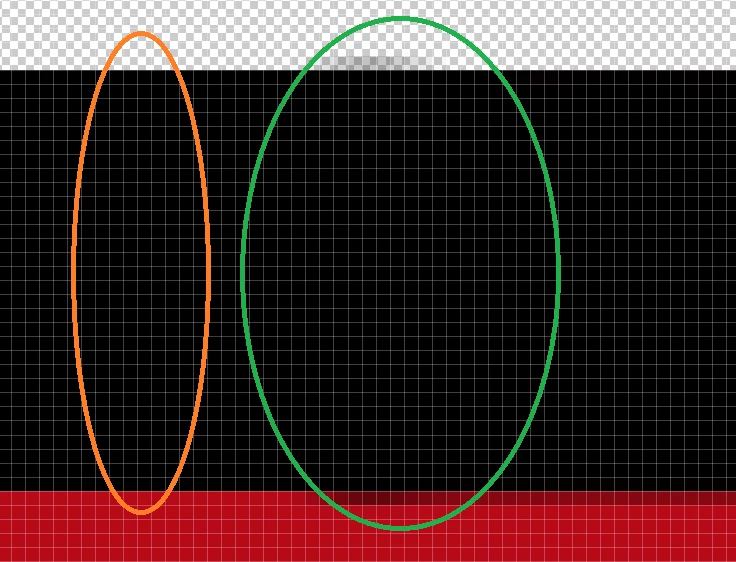
Any ideas on what is going on and how to fix it?
 AdChoices